-
About Ideali
- What is Ideali 1 min read
- Why Ideali is different 3 min read
- Who can use Ideali? 1 min read
- $0 Platform fees 3 min read
- Payouts and instant payouts, how you get paid 5 min read
-
Getting started with Ideali
- Creating your Ideali account 2 min read
- Setting up your organization profile 1 min read
-
Dashboard
- Navigating your Ideali dashboard 4 min read
- Viewing and managing notifications 2 min read
-
Campaign Management
- Creating a donation campaign 2 min read
- Customizing your thank you email 2 min read
- Managing your campaign after publishing 3 min read
- Share your campaign 2 min read
- Duplicating or cloning your campaign 2 min read
- Managing your archived campaigns list 2 min read
-
Finances & Payments
- Setting up your payment account 3 min read
- Preset donation amounts, fixed & recurring 2 min read
- Viewing and filtering payments 2 min read
- Payment methods accepted on Ideali 2 min read
- Why payments fail and how to fix them 2 min read
- Managing your donors list 2 min read
- Managing recurring donations 2 min read
-
Tap to pay
- What is tap to pay 2 min read
- Setting up Ideali tap to pay 2 min read
- Tap to pay troubleshooting 3 min read
-
Integration & Embeds
- Embedding your donation campaign in WordPress 2 min read
- Connecting quickBooks in Ideali 2 min read
- Connecting constant contact in Ideali 1 min read
-
Account Management
- Sub profiles to manage multiple campaigns 2 min read
- Setting up roles & users 3 min read
- Securing your Ideali account 2 min read
-
Memberships
- Creating and managing membership types 5 min read
- Managing members profiles 2 min read
- Reviewing pending membership 3 min read
- Membership payments and invoices 3 min read
- Membership Custom Lists 3 min read
- Documents 3 min read
- Member Alerts 4 min read
- How to Share a Membership Type 2 min read
-
Ideali for Donors
- Make a donation through Ideali 3 min read
- Optional donor tips 1 min read
- Make a recurring donation 1 min read
- Your donation receipt 2 min read
- How to Register for a Membership 3 min read
- Using the Member Portal 3 min read
-
Events & Tickets
- Getting Started with the Events Module 5 min read
- Creating an Event with the Event Wizard 8 min read
- Adding Sessions with the Session Wizard 6 min read
- Creating and managing Event Venues 2 min read
- Event payments and invoices 4 min read
- Payment processor fees 3 min read
-
AI & Tools
- Using the AI description and banner generator 4 min read
- Building custom forms 4 min read
-
Auctions
- Getting Started with the Auction Module 5 min read
- Creating an Auction with the Auction Wizard 6 min read
- Monitoring and Sharing Your Auction 3 min read
- Managing Bidders 2 min read
- Editing, Cancelling, Archiving and Deleting an Auction 3 min read
- How Bidding Works for Supporters 3 min read
Learn what the Auction module does, how auctions, items and bids fit together, and how to publish your first auction.
The Auction module lets you run online silent auctions for your organization. You list items, share one link, and supporters place bids from their phone or computer. Bidders save a card when they bid, and nobody is charged until the auction closes. When it does, Ideali charges each winning bidder automatically and sends them a confirmation email.
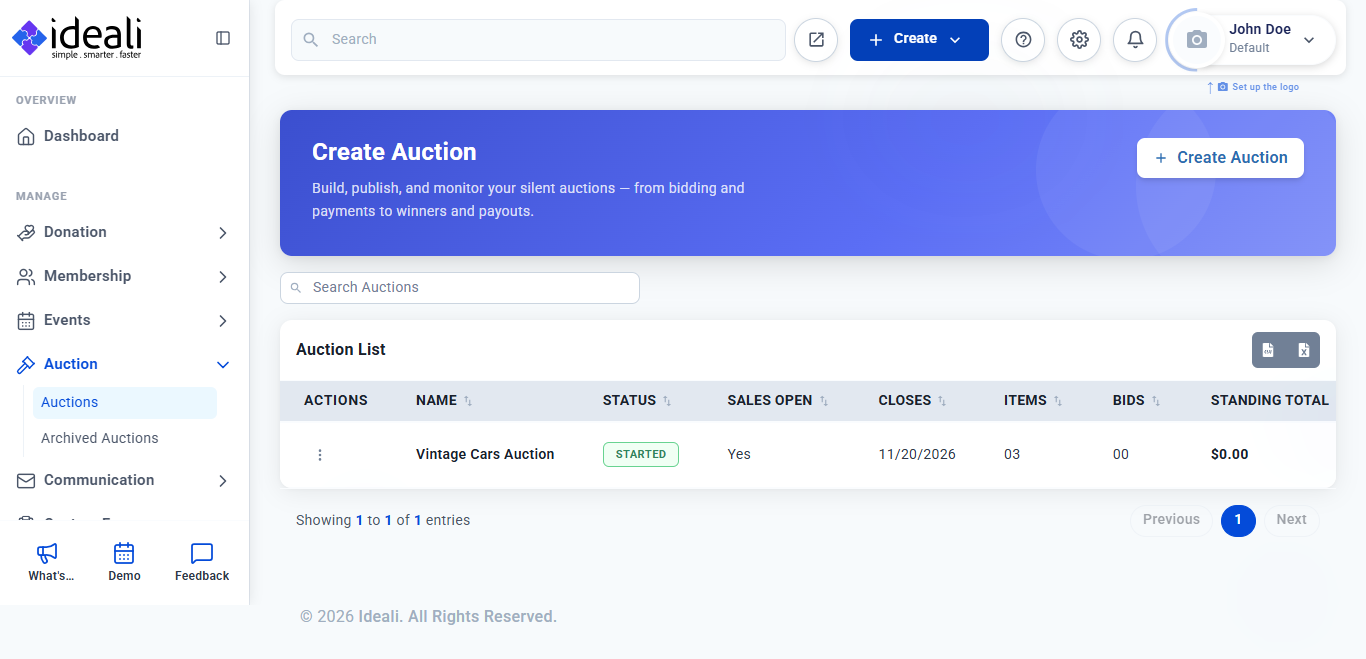
To access Auctions, go to Auction in the left sidebar, then click Auctions.

What you can do with Auctions
- Guided auction wizard — Build your auction step by step, with a live mobile and desktop preview. You can save and finish later.
- Auction items — Add the items people will bid on, each with a starting price, photos and an optional fair market value.
- Bid increments — Set a minimum amount each new bid must rise by, for the whole auction or for a single item.
- Optional tips — Let bidders add a tip for your organization when they save their card.
- Pickup or shipping — Choose how winners receive their items: pickup with your instructions, or shipping for a flat fee.
- Winner emails — Write your own email for winning bidders, personalized with their name, items and total.
- Bid notifications — Get an email whenever a new bid is placed.
- Live monitoring — Track bids, the standing total and payments for every item on one screen.
- Bidder management — See every registered bidder, their bid history, fulfillment choice and tip.
- Easy sharing — Share your auction link by email, Facebook or Messenger, or print a QR code.
Before you start
Make sure you have the following ready:
- A connected payment account — Winning bids are charged to the Stripe account you choose, so connect it first. Learn how to set up your payment account.
- Your auction details — An auction name, a closing date and time, a short description and a banner image.
- Your item list — The items you will auction, with a title, description, starting price and photos for each.
- Your fulfillment plan — Whether winners will pick up their items or have them shipped, and your pickup instructions or flat shipping fee.
Create your first auction
Going live takes four steps. Each one is covered in detail in Creating an Auction with the Auction Wizard.
Step 1: Create your auction
Go to Auction > Auctions and click Create Auction. The wizard walks you through each step, starting with the auction name and the dates bidding opens and closes. Then add a description, a campaign color and a banner. A live preview shows how your auction page will look on mobile and desktop.

Step 2: Set bidding and fulfillment
Set the default minimum bid increment and choose whether bidders can add a tip. Then choose how winners receive their items: pickup or shipping.
Step 3: Add your items
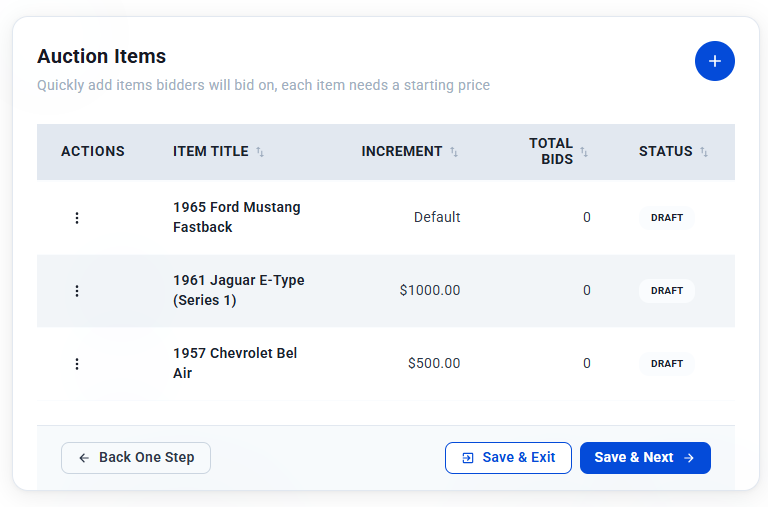
Add each item bidders will bid on. Every item needs a title and a starting price. You can also add a description, photos, a fair market value and its own bid increment.

Step 4: Publish and share
Write your winner email, choose the payment account, and check everything on the Review & Confirm screen. Click Publish Auction, then share your auction link so supporters can start bidding.
How bidding works for your supporters
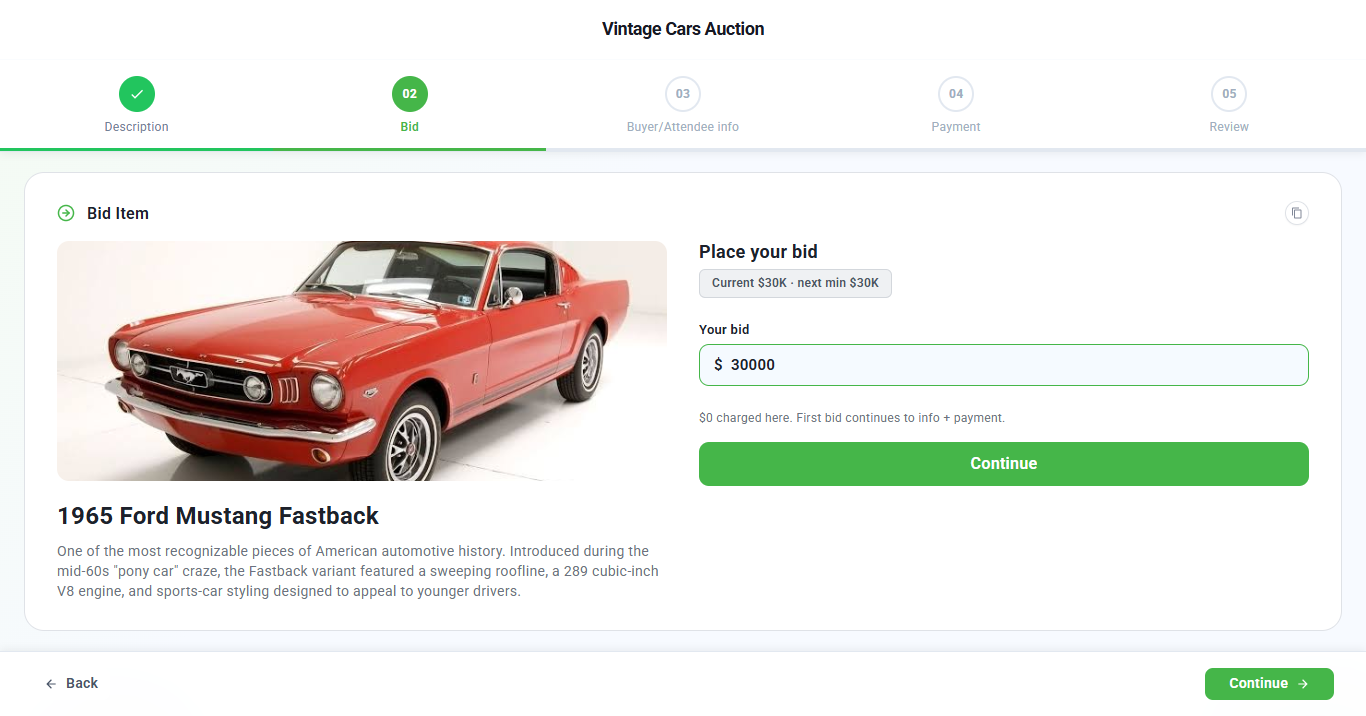
Bidders open your auction link, pick an item and enter a bid of at least the next minimum amount. On their first bid, they enter their contact details and save a card. They are not charged at this point. See the full bidder experience.

When the auction closes, the highest bidder on each item wins. Ideali charges the winner’s saved card, including any shipping fee and tip, and emails them a payment confirmation and receipt.
Track your auction
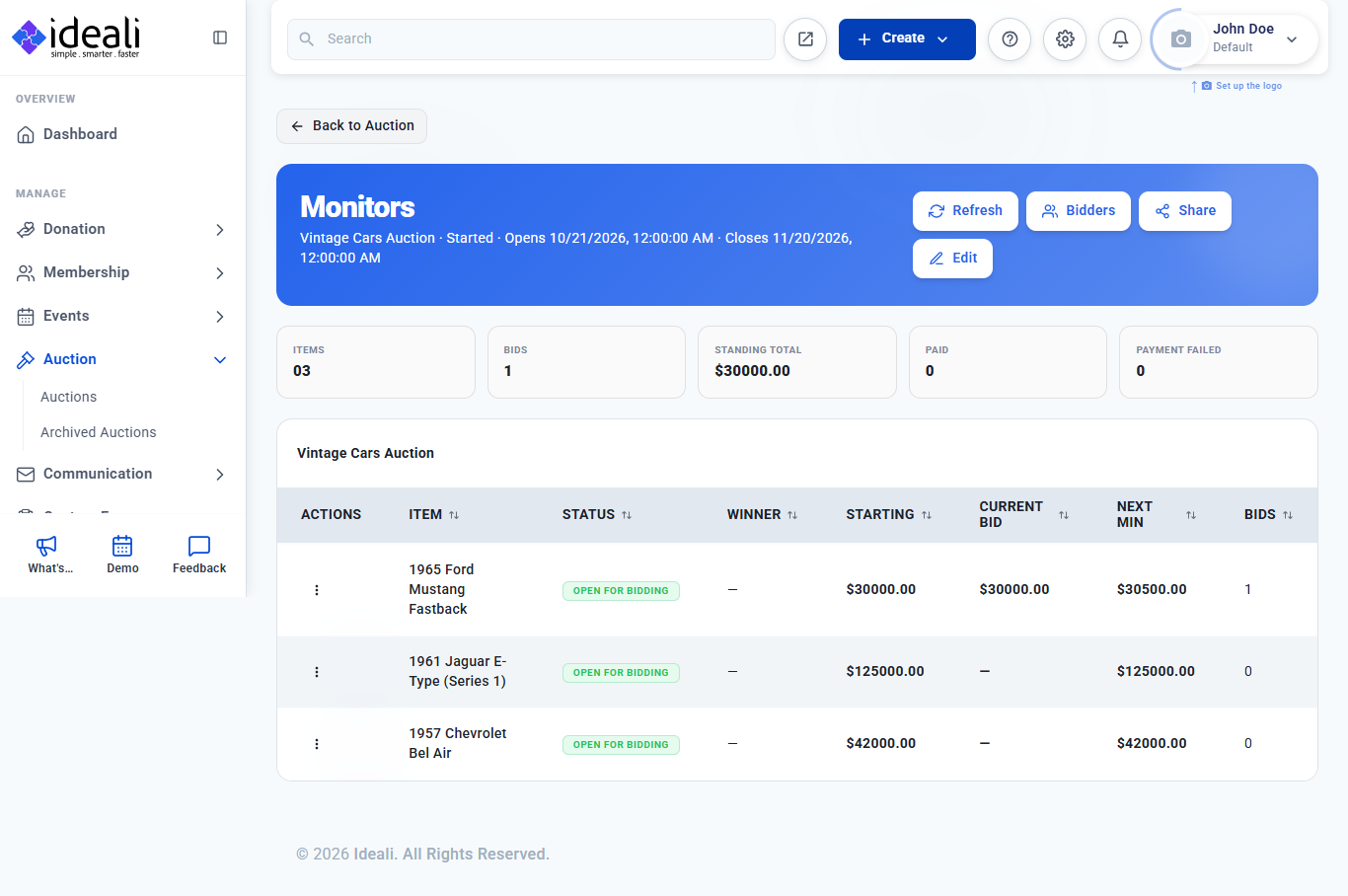
Once your auction is live, open it from the Auction List and choose Monitor. You can see the total bids, the standing total, and the current bid and next minimum for every item. Learn more about monitoring your auction.

Key terms
- Auction — The whole campaign, for example your Vintage Cars Auction, with its own dates, settings and link.
- Item — Something bidders bid on inside an auction, such as a car, a trip or a signed football.
- Starting price — The lowest amount the first bid on an item can be.
- Minimum bid increment — How much each new bid must beat the current bid by. The auction has a default, and any item can have its own.
- Next minimum — The lowest bid currently accepted on an item: the current bid plus its increment.
- Standing total — The total of all current highest bids across your auction.
- Fair market value — An optional estimate of what an item is worth, for your records and your bidders.
- Fulfillment — How winners receive their items: pickup or shipping.
Good to know
- Pricing — Like Donations and Memberships, Auctions is free to use, with no platform fee. You only pay the standard payment processing fee on each winning payment.
- No upfront charges — Bidders are only charged if they win, after the auction closes.
- Opening date is optional — Leave the sales start date empty and bidding opens as soon as you publish. Bidding always stops at the close date.
- Cancelling — If you cancel an auction, all bidding stops and no bidder is charged.
Next steps
Once you’re comfortable with the basics, these articles go deeper: