Adding Sessions with the Session Wizard

Set up a session step by step, from description, genre and banner to venue, dates, schedule, tickets and e-tickets, then release it for sale.

6 min read

Sessions are the parts of your event, each with its own description, venue, date and time, schedule and tickets. The session wizard walks you through setting one up, step by step. You can complete it in one go, or save your progress and come back later.

Important: Tickets are set per session, not per event. The Tickets step in this wizard is where you create the ticket tiers attendees will buy, so every session you want to sell needs at least one ticket.

Opening the Session Wizard

You can open the session wizard in two ways.

From the event wizard

  1. On the Sessions step of the event wizard, click +.
  2. Enter a session name and click Add & Configure. To configure a session you already added, click Edit next to it.

From the Sessions page

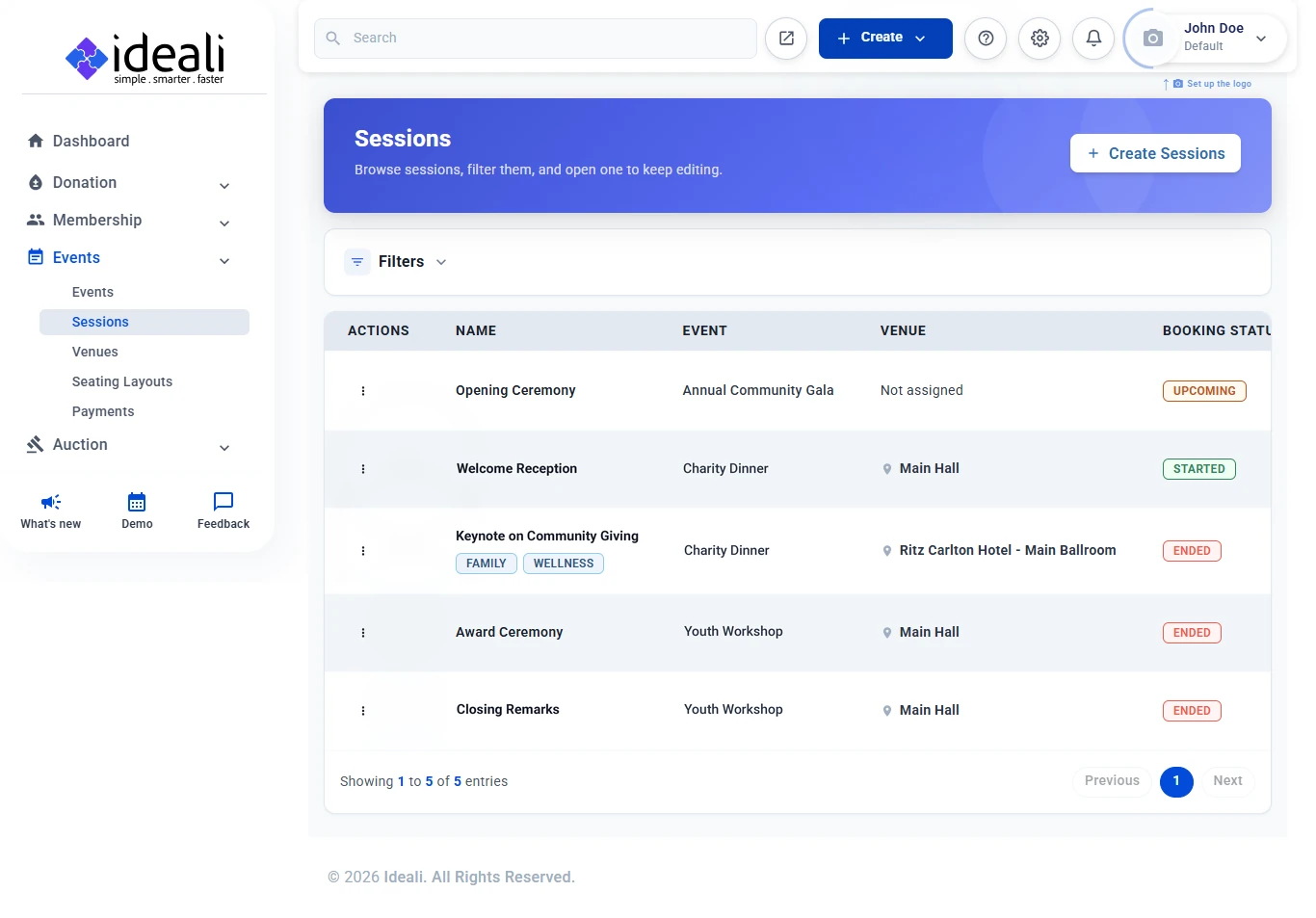
  1. Go to Events in the left sidebar and click Sessions. The page lists all your sessions with their event, venue and booking status.
  2. Click + Create Sessions in the top right of the page.
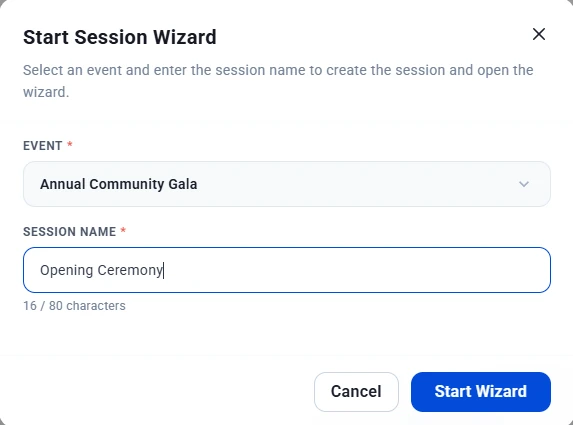
  3. In the Start Session Wizard window, select the Event the session belongs to and enter the Session Name (up to 80 characters).
  4. Click Start Wizard.
Sessions page listing sessions with their event, venue and booking status, and the Create Sessions button
The Sessions page
Start Session Wizard window with the Event dropdown, the Session Name field and the Start Wizard button
Choose the event and name the session

Moving Through the Wizard

The Form Steps column on the left shows every step. Completed steps are marked with a green check, and you can click any step to jump back to it. A live preview on the right shows how your session will look to attendees as you build it.

At the bottom of each step you will find:

  • Save & Next or Save & Continue — Saves the step and moves to the next one.
  • Save & Exit — Saves your progress and closes the wizard.
  • Skip — Moves past an optional step without filling it in.
  • Back One Step — Returns to the previous step.

Fields marked with a red asterisk (*) are required.

Step 1: Basic Info

Enter the session name, for example “Opening Ceremony.” If you started from the Start Session Wizard window, the name you entered there is already filled in.

Step 2: Description

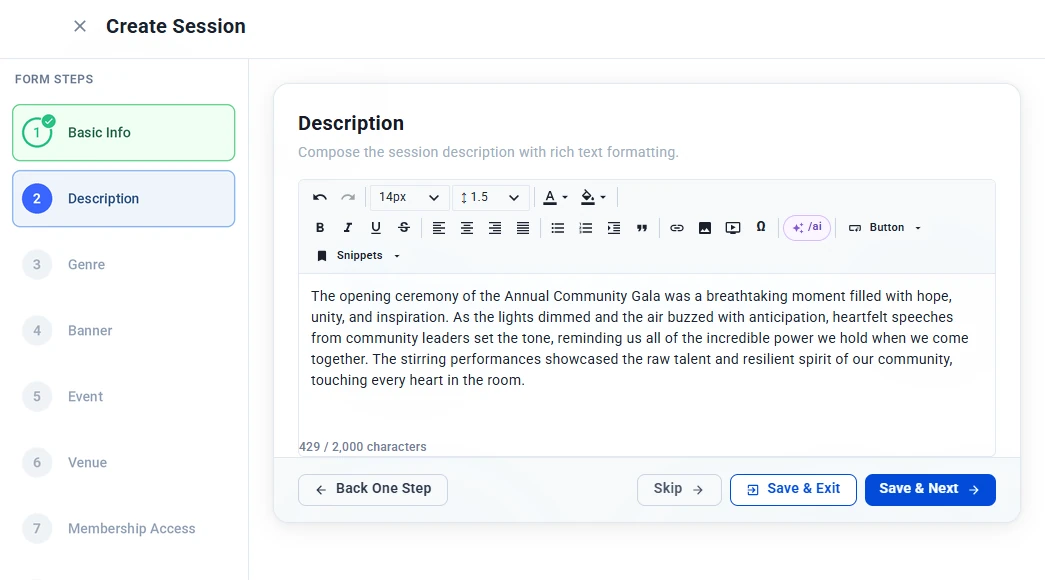
Describe what happens in this session and why attendees should come. Use the rich text editor to format your text, add links, images or videos, or type /ai to generate a description with AI. Learn more about the AI tools. The description can be up to 2,000 characters.

Description step of the session wizard with the rich text editor and a session description entered
Describe your session

Step 3: Genre

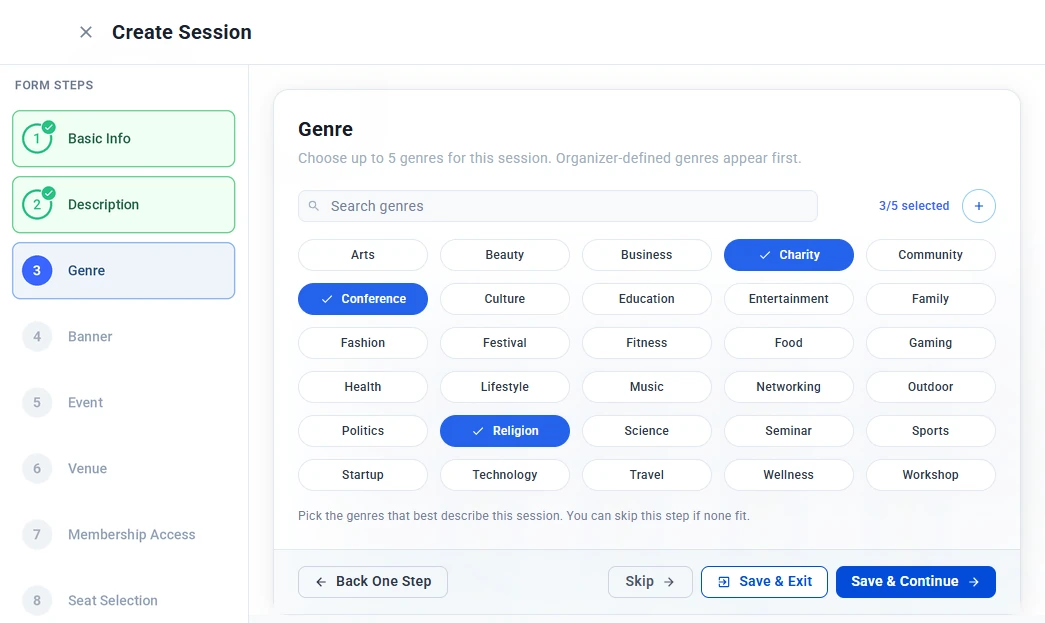
Choose up to 5 genres that describe the session, such as Charity, Conference or Workshop. Genres help attendees understand what kind of session it is. Your own genres appear first in the list.

  • Use the Search genres box to find a genre quickly.
  • The counter shows how many genres you have selected, for example 3/5 selected.
  • Click + to add a genre of your own.

This step is optional.

Genre step with a grid of genres and Charity, Conference and Religion selected
Choose up to 5 genres

Step 4: Banner

Add a banner image for your session using one of three tabs:

  • Drag & Drop — Upload your own image.
  • Generate Using AI — Describe the image you want and AI creates it for you.
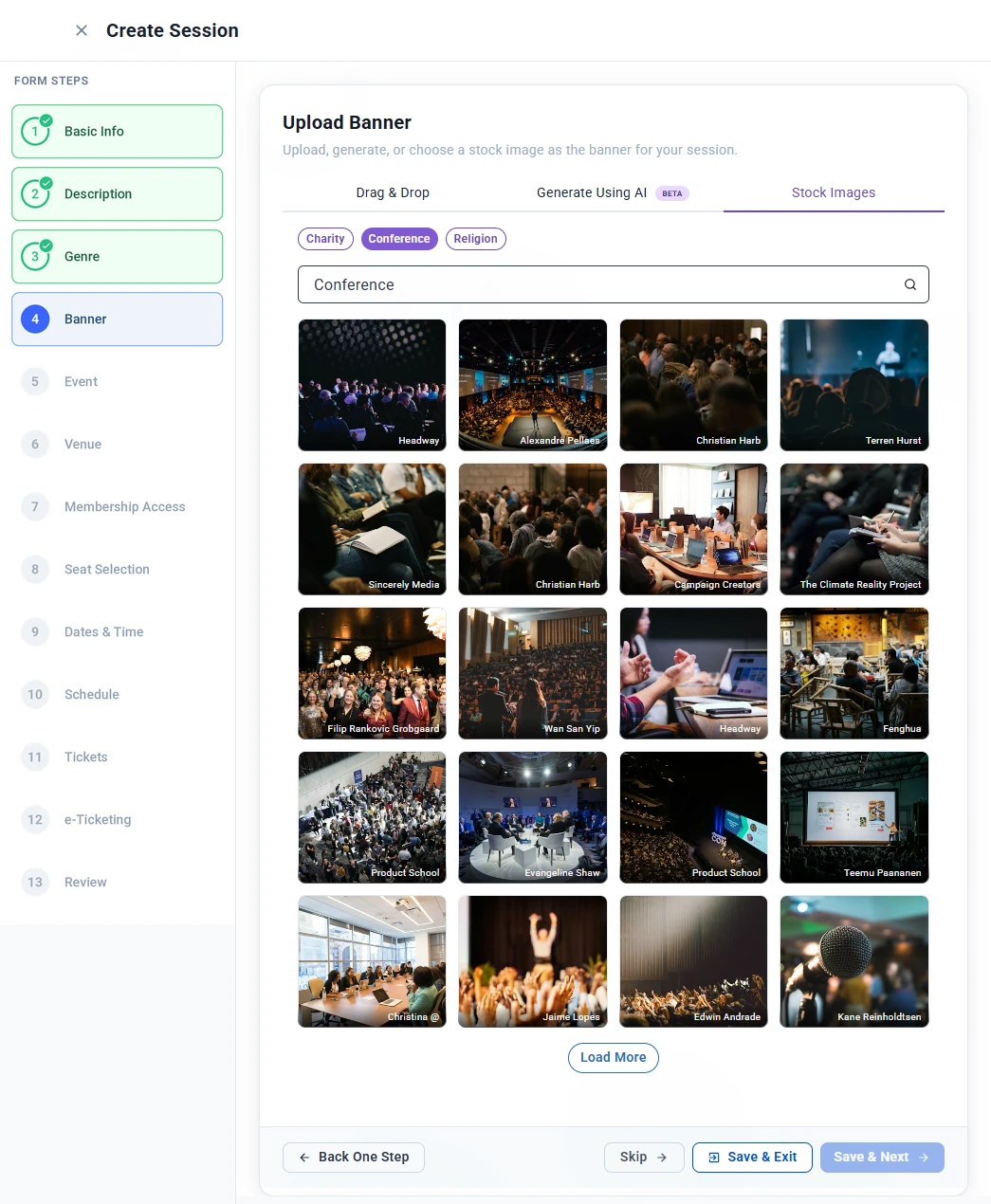
  • Stock Images — Browse free stock photos. Suggested searches based on the genres you picked appear above the search box, so you can find a relevant image in one click. Click Load More to see more results.
Upload Banner step on the Stock Images tab showing genre suggestions, a search box and a grid of conference photos
Pick a stock image for your banner

Step 5: Event

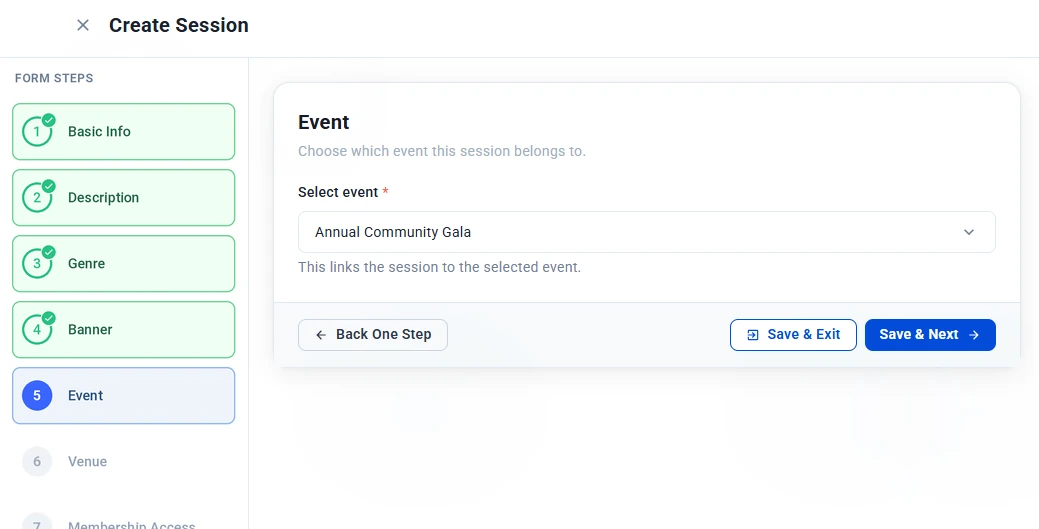
Select the event this session belongs to. This step is required and links the session to the event.

Event step with Annual Community Gala selected in the Select event dropdown
Link the session to its event

Step 6: Venue

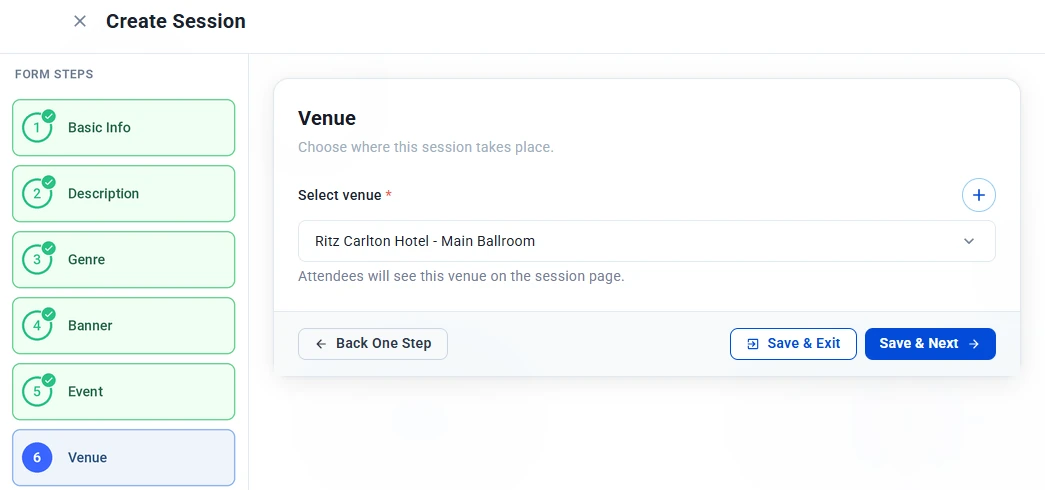
Choose where this session takes place. Attendees will see the venue on the session page. This step is required.

  1. Click the Select venue dropdown and pick a saved venue.
  2. If your venue isn’t listed, click +, enter the venue name, and save it.

Venues you add are saved, so you can reuse them for other sessions and events. Learn how to manage venues.

Venue step with Ritz Carlton Hotel Main Ballroom selected and the + button to add a venue
Choose the session venue

Step 7: Membership Access

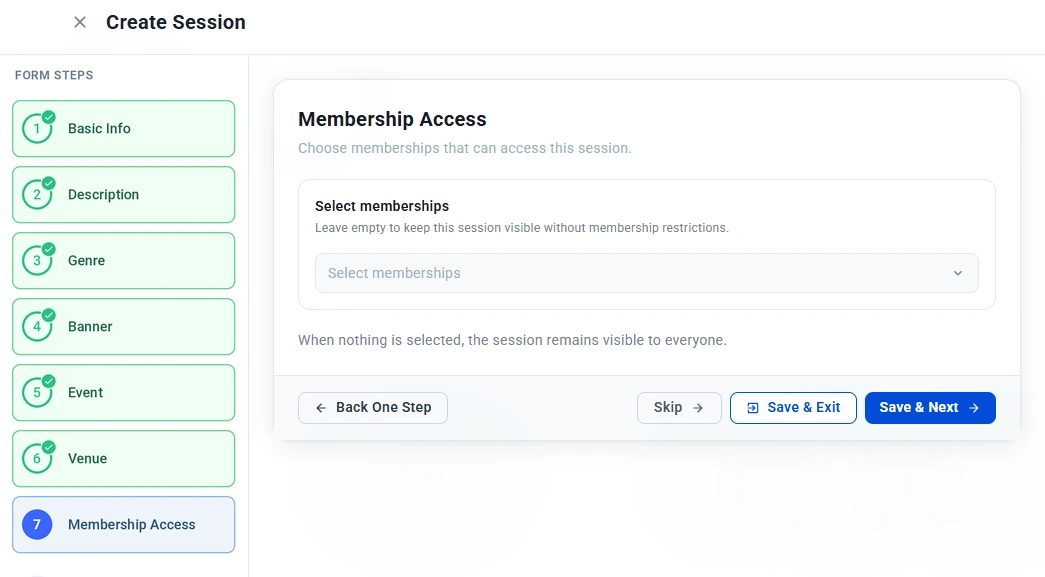
Choose which membership types can book this session. Leave it empty to keep the session open to everyone. If you select one or more memberships, only members on those plans can book. Learn about membership types.

Membership Access step with an empty Select memberships dropdown, meaning the session is visible to everyone
Limit the session to members, or keep it open to everyone

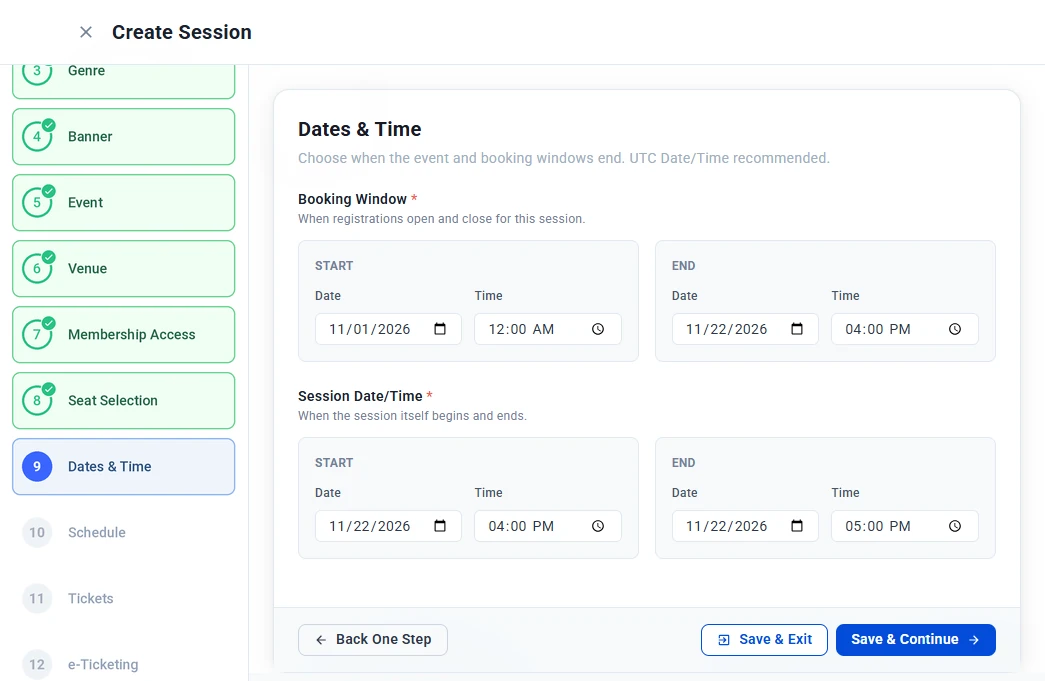
Step 9: Dates & Time

Set when registration is open and when the session takes place. Both fields are required.

  • Booking Window — The start and end date and time when registrations open and close for this session.
  • Session Date/Time — The start and end date and time of the session itself.

Click Save & Continue when you’re done.

Dates and Time step with booking window from November 1 to November 22 at 4:00 PM and session time from 4:00 PM to 5:00 PM
Set the booking window and session time

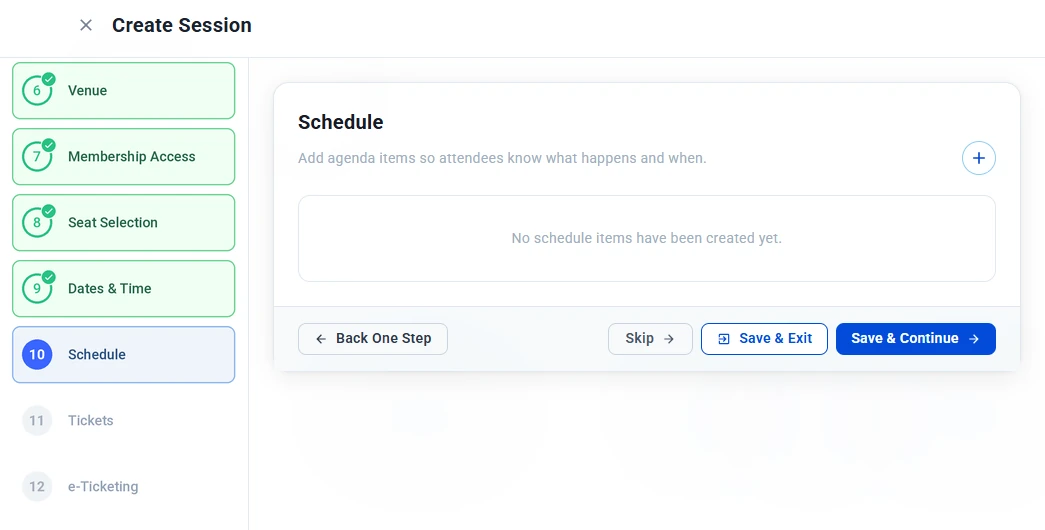
Step 10: Schedule

Add agenda items so attendees know what happens and when. This step is optional.

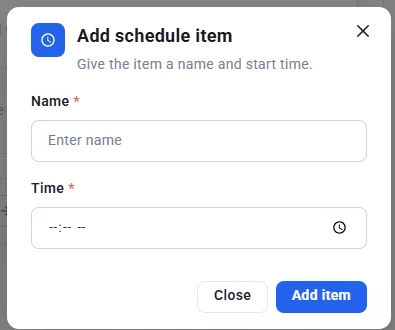
  1. Click + to open the Add schedule item window.
  2. Enter a Name for the item, for example “Welcome Speech,” and its start Time.
  3. Click Add item. Repeat for each item on the agenda.
Schedule step with no schedule items yet and the + button to add one
Add agenda items to the schedule
Add schedule item window with Name and Time fields and the Add item button
Give the item a name and start time

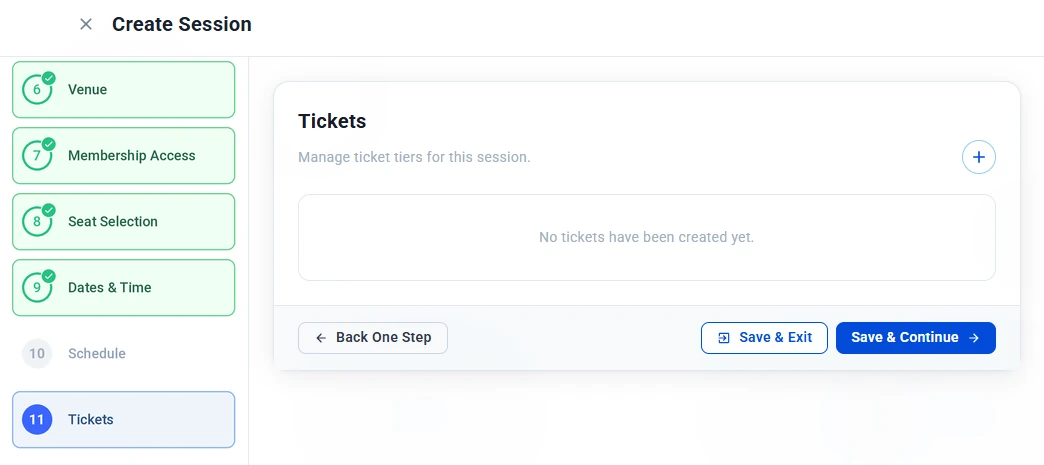
Step 11: Tickets

Create the ticket tiers attendees can buy for this session, such as General Admission or VIP.

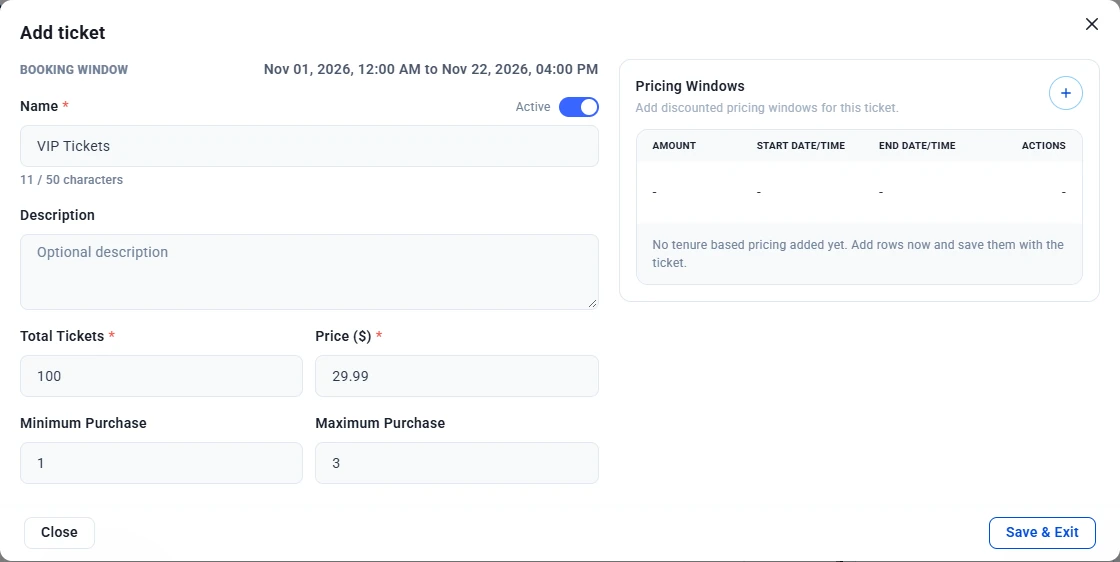
  1. Click + to open the Add ticket window. The session’s booking window is shown at the top for reference.
  2. Fill in the ticket details:
    • Name — The ticket name attendees will see, for example “VIP Tickets” (up to 50 characters).
    • Active — Turn on to make the ticket available for sale.
    • Description — Optional details about what the ticket includes.
    • Total Tickets — How many of this ticket are available.
    • Price ($) — The price of one ticket.
    • Minimum Purchase / Maximum Purchase — The fewest and most tickets of this type one buyer can buy in an order.
  3. To offer early-bird or other discounted pricing, click + under Pricing Windows and add a discounted amount with a start and end date and time. You can add several windows to one ticket.
  4. Click Save & Exit to save the ticket. Repeat for each ticket tier.
Tickets step with no tickets yet and the + button to add a ticket tier
Add the ticket tiers for this session
Add ticket window with name VIP Tickets, 100 total tickets, price 29.99, minimum 1 and maximum 3 per purchase, and the Pricing Windows section
Set the ticket price, quantity and purchase limits

Step 12: E-Ticketing

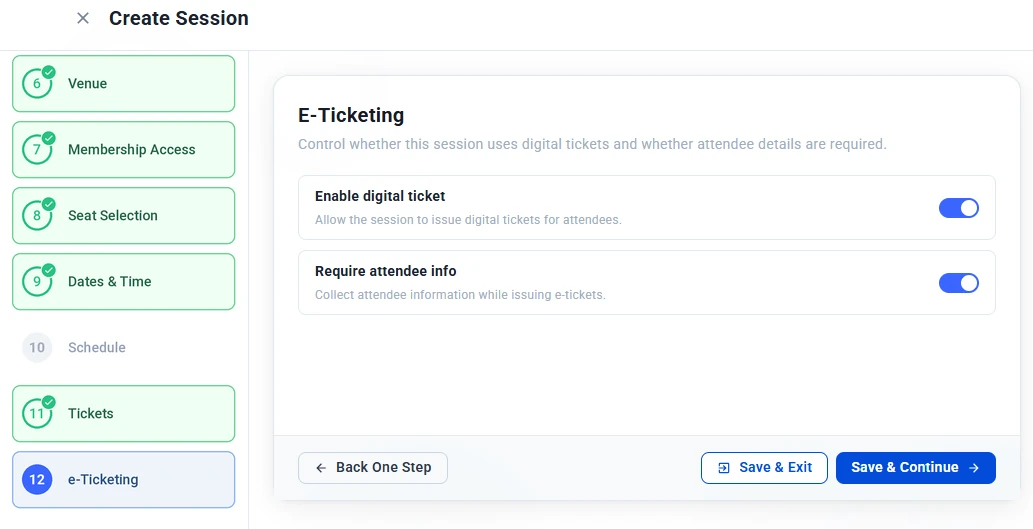
Choose whether attendees receive digital tickets for this session:

  • Enable digital ticket — Turn on to issue each attendee a digital ticket with a unique QR code.
  • Require attendee info — Turn on to collect each attendee’s details while issuing e-tickets.
E-Ticketing step with Enable digital ticket and Require attendee info both turned on
Turn on digital tickets and attendee info

Step 13: Review

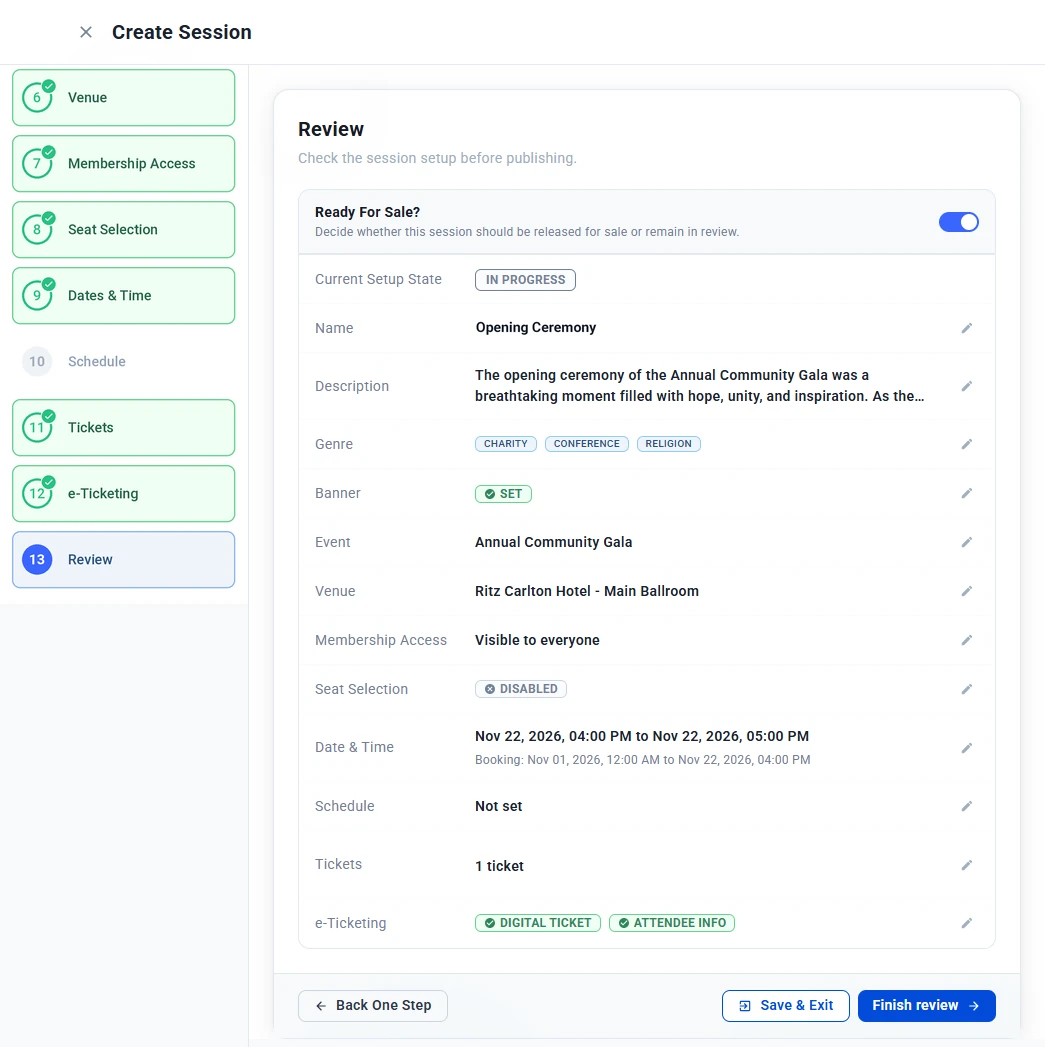
Check your session setup before publishing. The summary shows each step’s details, such as the name, genres, event, venue, membership access, dates, schedule, tickets and e-ticketing. Click the pencil icon next to any item to go back and change it.

  1. Turn on Ready For Sale? to release the session for sale, or leave it off to keep it in review.
  2. Click Finish review.
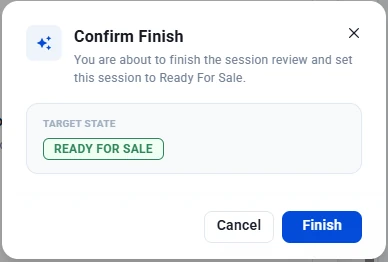
  3. In the Confirm Finish window, check the Target State and click Finish.
Review step showing the Ready For Sale toggle and a summary of every step with edit icons
Review your session before publishing
Confirm Finish window showing the target state Ready For Sale with Cancel and Finish buttons
Confirm the target state and finish

After You Finish

Your session appears on the Sessions page with its booking status:

  • Upcoming — The session hasn’t started yet.
  • Started — The session is in progress.
  • Ended — The session is over.

Tip: Set each session’s booking window to close when the session starts, so no one can buy a ticket after it has begun.

Go to Top