

Getting Started with the Events Module
Learn how Ideali Events works: create an event, add sessions, set up ticket tiers and early-bird pricing, and start selling tickets through Stripe.
The Events module lets you sell tickets and manage registrations for your organization’s events, from a small workshop to an annual gala. You create an event, add one or more sessions, set up tickets, and share your event link. Ticket payments go straight to your connected Stripe account.
To access Events, go to Events in the left sidebar.
What You Can Do with Events
- Guided event wizard — Build your event step by step, with a live mobile and desktop preview. You can save and finish later. Learn more.
- Session wizard — Add sessions to an event, each with its own time, venue and booking window. Learn more.
- Reusable venues — Save a venue once and pick it again for future events and sessions. Learn more.
- Ticket tiers — Offer different tickets, such as General Admission or VIP, each with its own price and limit.
- Early-bird pricing windows — Schedule discounted prices that switch on and off automatically.
- Members-only sessions — Restrict a session to members on the membership plans you choose.
- Digital e-tickets — Send every attendee a ticket with a unique QR code.
- Discount coupons — Let buyers apply a coupon at checkout.
- Processing fees — Add an optional fee for each payment method, shown to buyers under your own label. Learn more.
- Thank-you emails and event invoices — Buyers receive a confirmation, and every order has an invoice. Learn more.
Before You Start
Make sure you have the following ready:
- A connected payment account — Ticket payments go to your Stripe account, so connect it first. Learn how to set up your payment account.
- Your event details — Event name, a banner image, venue, and dates.
- Your session plan — What sessions the event will have, and the time and venue of each.
- Your ticket plan — The ticket types you will sell, their prices, and how many of each are available.
- Membership plans (optional) — If any session will be members-only, set up your membership types first. Learn about membership types.
Create Your First Event
Going live takes four steps. Each one is covered in detail in its own article.
Step 1: Create Your Event
Go to Events in the left sidebar and click Create Event. The event wizard walks you through each step, including the event name, banner, venue and dates. A live preview shows how your event page will look on mobile and desktop. You can save your progress and finish later. Learn how to use the event wizard.
Step 2: Add Your Sessions
Use the session wizard to add the sessions inside your event. Each session has its own time, venue and booking window. To limit a session to members, set Membership Access to Members Only and choose which membership plans can book. Learn how to add sessions.
Step 3: Set Up Your Tickets
Create ticket tiers for each session, from general admission to VIP, with a price and a quantity limit for each. You can also add early-bird pricing windows and turn on digital e-tickets for the session. Learn how to set up tickets.
Step 4: Start Selling
Publish your event and share your event link. Buyers pick their sessions, enter their details and pay on one checkout page. Each buyer receives a thank-you email, and attendees receive their QR e-tickets if e-ticketing is on. Learn how to track orders and invoices.
Key Terms
- Event — The whole occasion, for example your annual gala or a conference.
- Session — A part inside an event, with its own time, venue and tickets. A one-day dinner might have one session, while a three-day conference might have many.
- Ticket tier — A type of ticket within a session, such as General Admission or VIP, with its own price and limit.
- Pricing window — A discounted price on a ticket that runs between a start and end date and time, for example “Early Bird” or “Last Chance.” A ticket can have several windows.
- E-ticket — A digital ticket showing the session, date, venue, attendee and a unique QR code. The ticket code is linked to the order invoice.
- Processing fee — An optional amount you add on top of the ticket price, paid by the buyer. It can be a fixed amount or a percentage, set differently for card, ACH and digital wallet payments, and shown at checkout under your own label. Learn how to set up processor fees.
- Event invoice — The record of each ticket order, created automatically when a buyer pays. Learn about event invoices.
Good to Know
- Pricing — Events is priced separately from Donations and Memberships. Contact us for Events pricing.
- Tap to Pay — The Ideali Tap to Pay app works with Donations and Memberships only. Event tickets are sold through your online event checkout.
- Ticket holds — A countdown timer at checkout holds the selected tickets while the buyer completes payment.
- Processing fees are optional — You can switch a processing fee off at any time without deleting it.
Next Steps
Once you’re comfortable with the basics, these articles go deeper:
- Creating an event with the event wizard
- Adding sessions with the session wizard (including ticket tiers and early-bird pricing)
- Managing venues
- Event payments and invoices
- Payment processor fees
Tip: Before sharing your event link, preview your event on both mobile and desktop to check how buyers will see it.
Creating an Event with the Event Wizard
Set up your event step by step, from name, banner and venue to sessions, dates, coupons, thank you email and advanced settings, then release it for sale.
The event wizard walks you through setting up an event in 15 steps, from naming it to releasing it for sale. You can complete it in one go, or save your progress and come back later.
Important: Tickets are set per session, not per event. Each session has its own ticket tiers, prices and limits. Plan your sessions before you start the wizard, or add and configure them when you reach the Sessions step. An event cannot sell tickets until it has at least one session with tickets set up.
Opening the Event Wizard
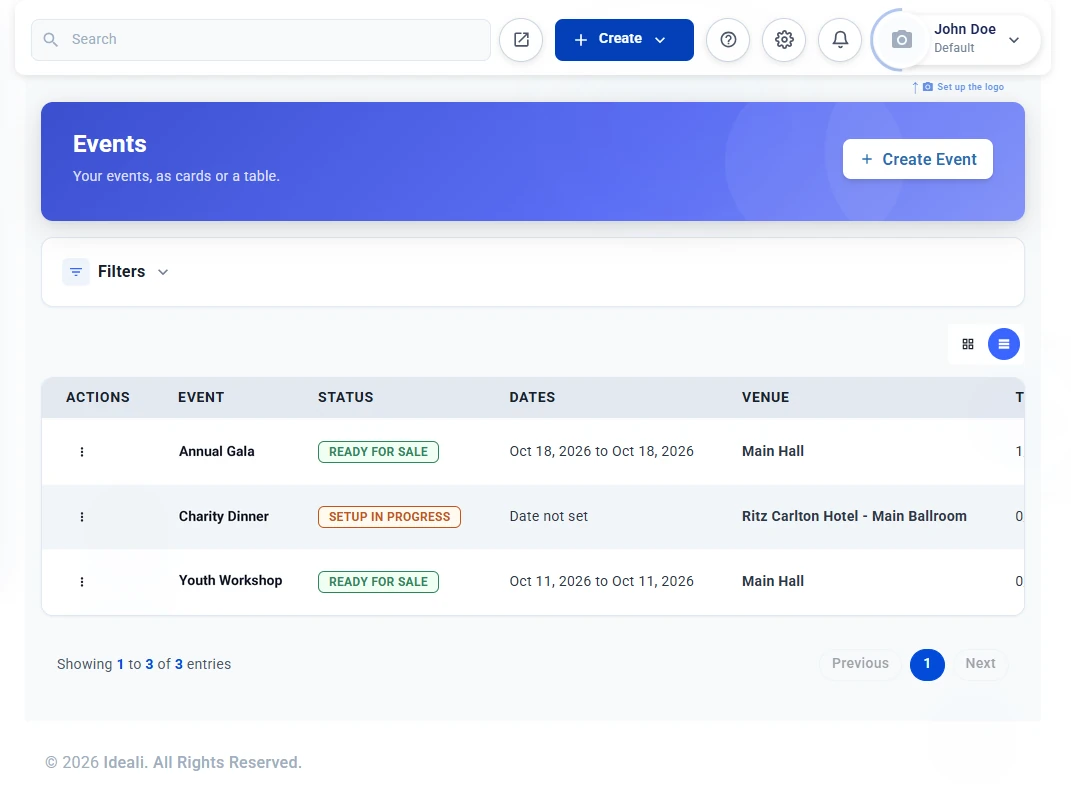
- Go to Events in the left sidebar. The Events page lists all your events as cards or a table, with each event’s status, dates and venue.
- Click + Create Event in the top right of the page.
Moving Through the Wizard
The Form Steps column on the left shows all 15 steps. Completed steps are marked with a green check, and you can click any step to jump back to it. A live preview on the right shows how your event page will look to attendees as you build it.
At the bottom of each step you will find:
- Save & Next — Saves the step and moves to the next one.
- Save & Exit — Saves your progress and closes the wizard. The event stays on your Events list as Setup in Progress until you finish it.
- Skip — Moves past an optional step without filling it in.
- Back One Step — Returns to the previous step.
Fields marked with a red asterisk (*) are required.
Step 1: Name
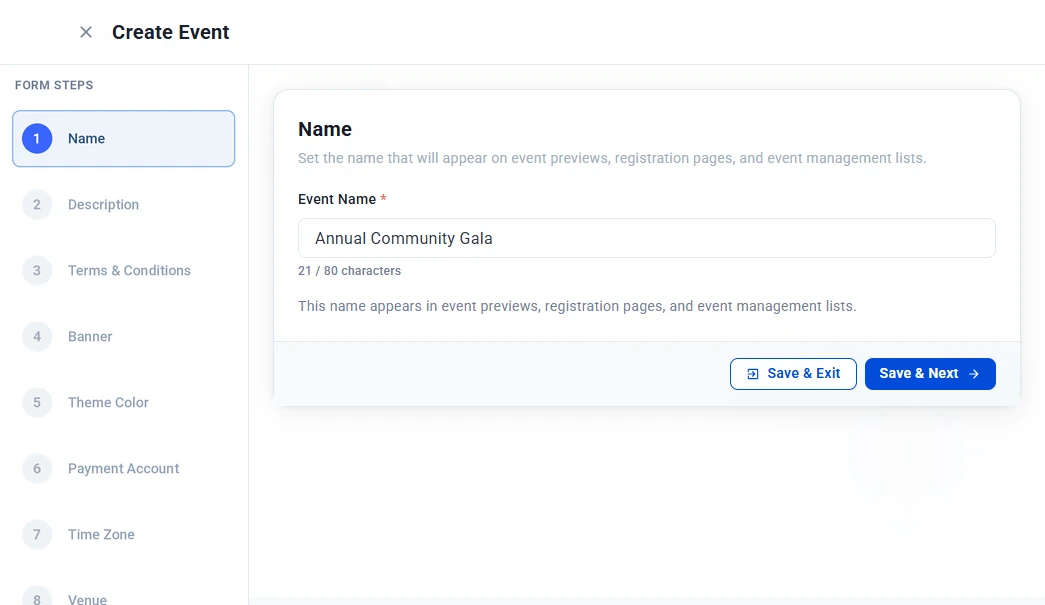
Enter the name of your event, for example “Annual Community Gala.” This name appears on event previews, registration pages and your event management lists. The name can be up to 80 characters.
Step 2: Description
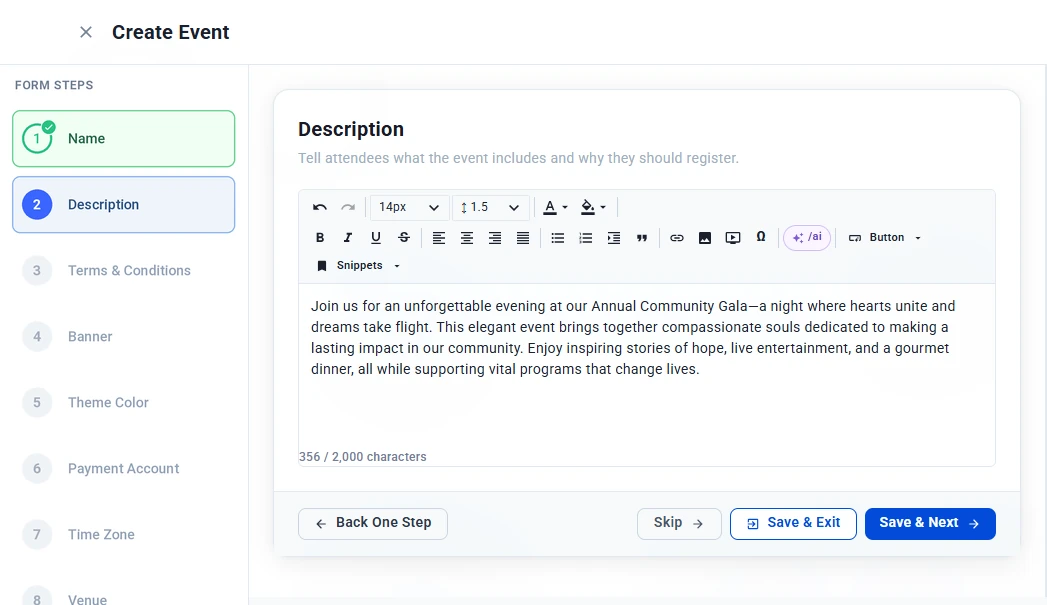
Tell attendees what the event includes and why they should register. Use the rich text editor to format your text, add links, images or videos, or type /ai to generate a description with AI. The description can be up to 2,000 characters.
Step 3: Terms & Conditions
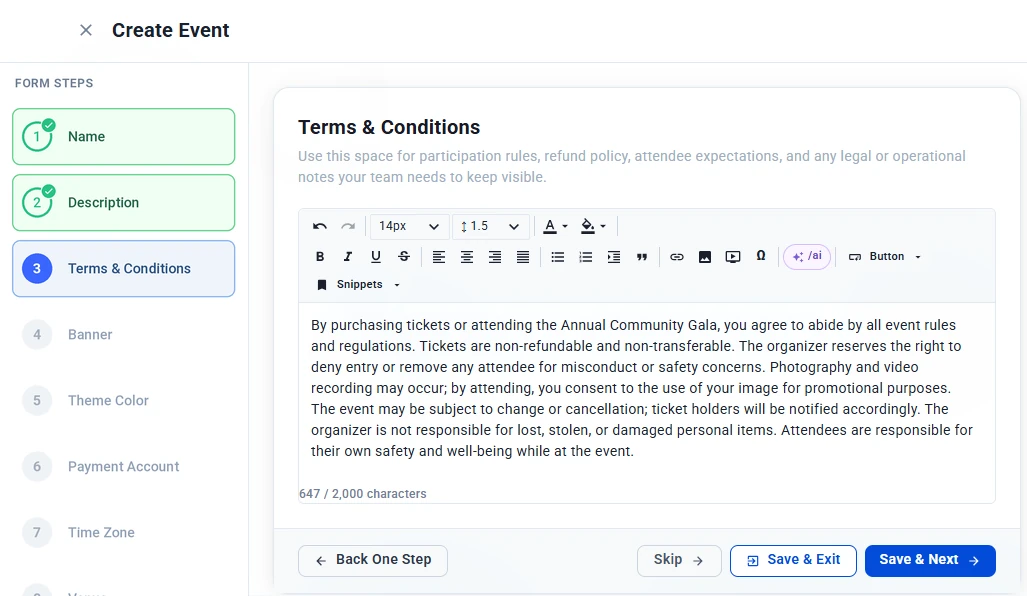
Add your participation rules, refund policy, attendee expectations, and any legal or operational notes. On the registration page, attendees must tick I accept the registration terms and conditions before they can register, and can click View terms to read them. This field can be up to 2,000 characters.
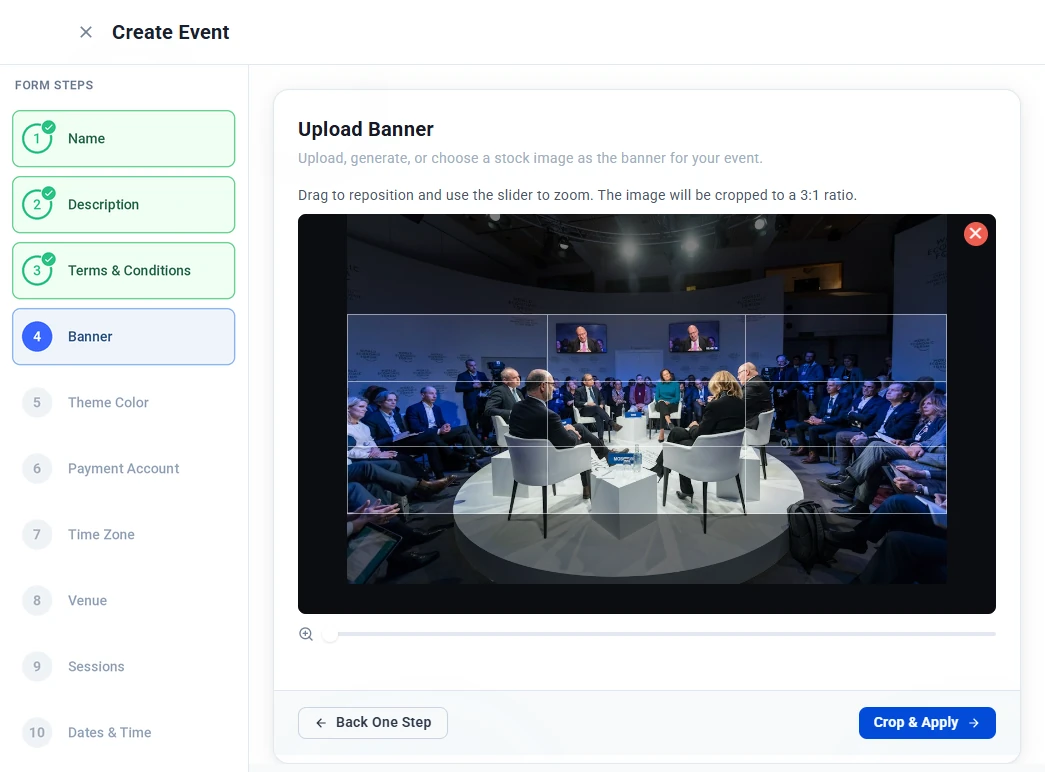
Step 4: Banner
Add a banner image for your event. You can upload your own image, generate one with AI, or choose a stock image.
Once the image is added, drag it to reposition it and use the slider to zoom. The banner is cropped to a 3:1 ratio. Click Crop & Apply to save it.
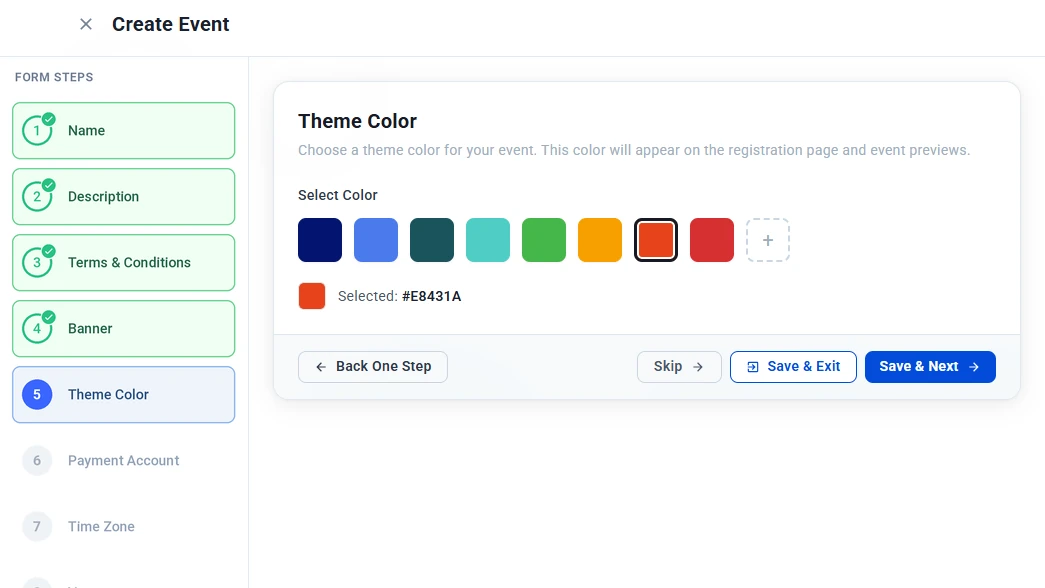
Step 5: Theme Color
Choose a theme color for your event. It appears on your registration page and event previews. Pick one of the preset colors, or click + to add your own. The selected color’s code is shown below the swatches.
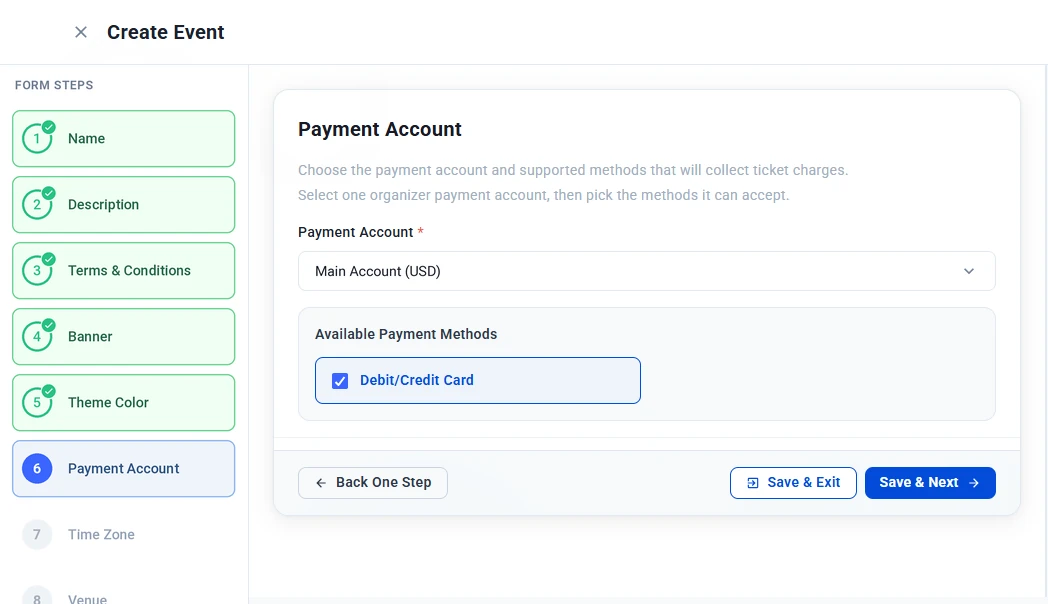
Step 6: Payment Account
Select the payment account that will collect ticket charges, then choose the payment methods attendees can use, such as Debit/Credit Card. This step is required. If you haven’t connected a payment account yet, set up your payment account first.
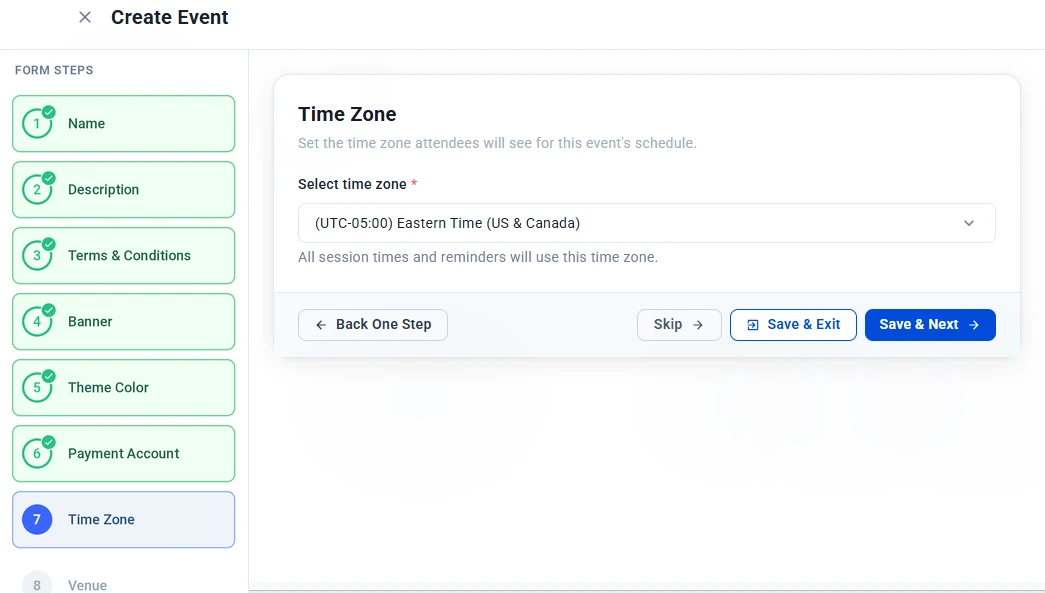
Step 7: Time Zone
Select the time zone for your event. Attendees see the schedule in this time zone, and all session times and reminders use it. This step is required.
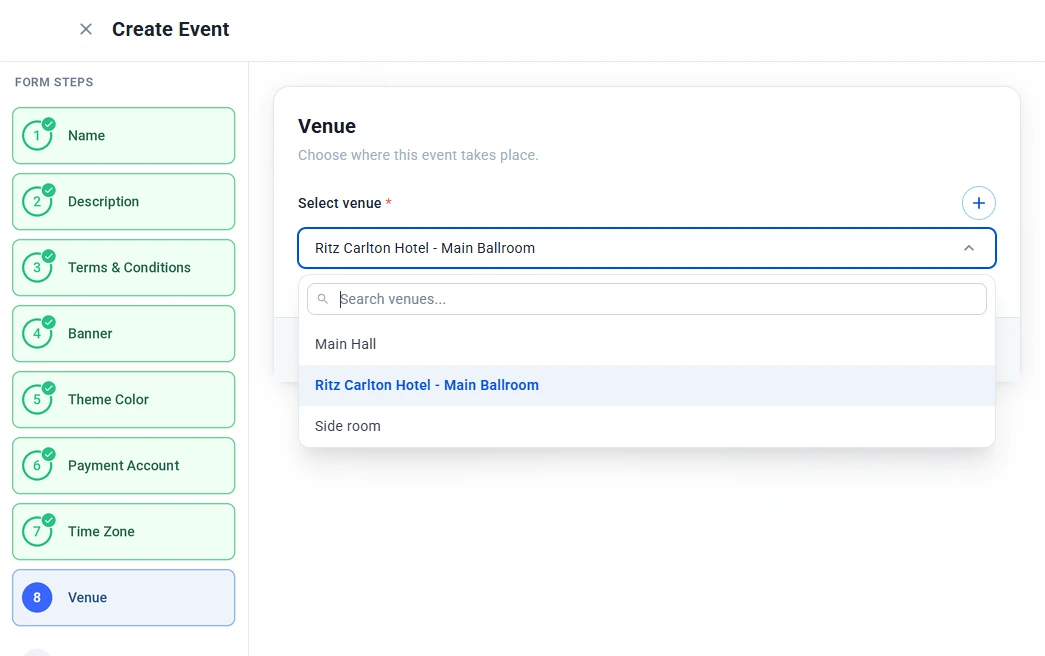
Step 8: Venue
Choose where your event takes place. Attendees will see the venue on the event page. This step is required.
- Click the Select venue dropdown and pick a venue, or type in the search box to find one.
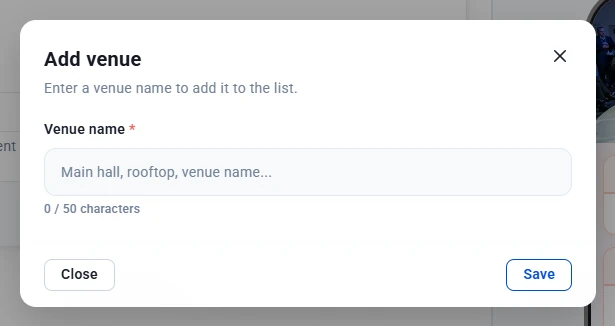
- If your venue isn’t listed, click +, enter the venue name (up to 50 characters), and click Save.
Venues you add are saved, so you can reuse them for future events and sessions. You can also add venues, map links and other details from Events > Venues. Learn how to manage venues.
Step 9: Sessions
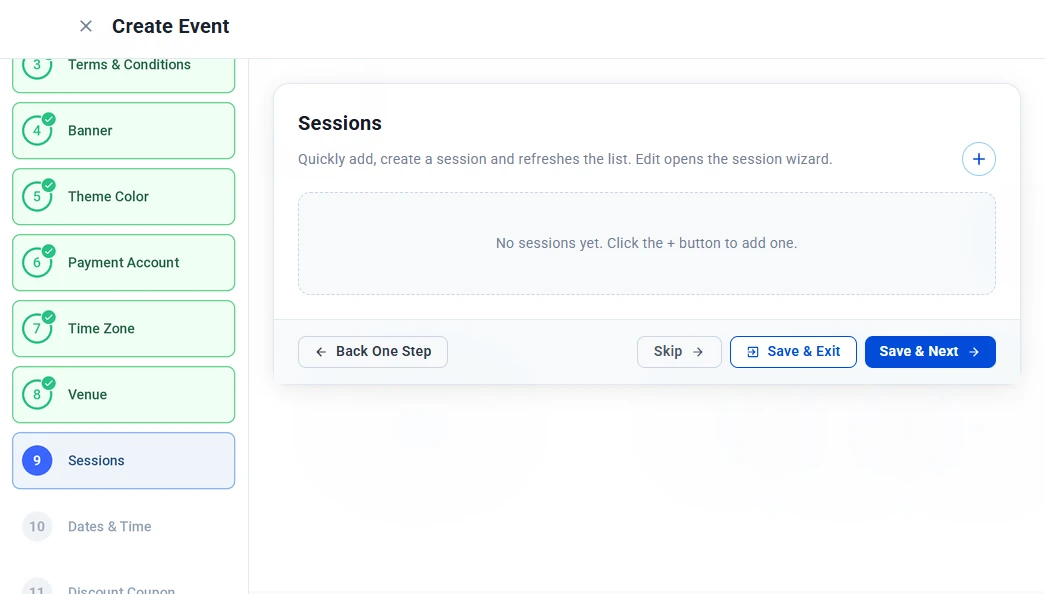
Sessions are the parts of your event, each with its own time, venue and tickets. Because tickets are set per session, this is where you set up what attendees will buy.
- Click + to open the Add session window.
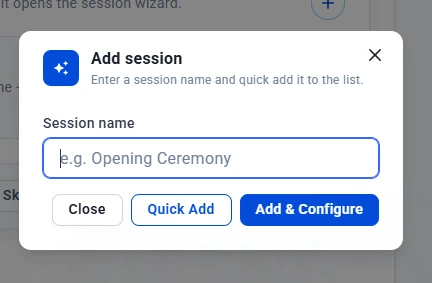
- Enter a session name, for example “Opening Ceremony.”
- Click one of the following:
- Quick Add — Adds the session to the list straight away. You can configure it later.
- Add & Configure — Adds the session and opens the session wizard, where you set its schedule and tickets.
To configure a session you added with Quick Add, click Edit next to it in the list. This opens the session wizard. Learn how to set up sessions and tickets.
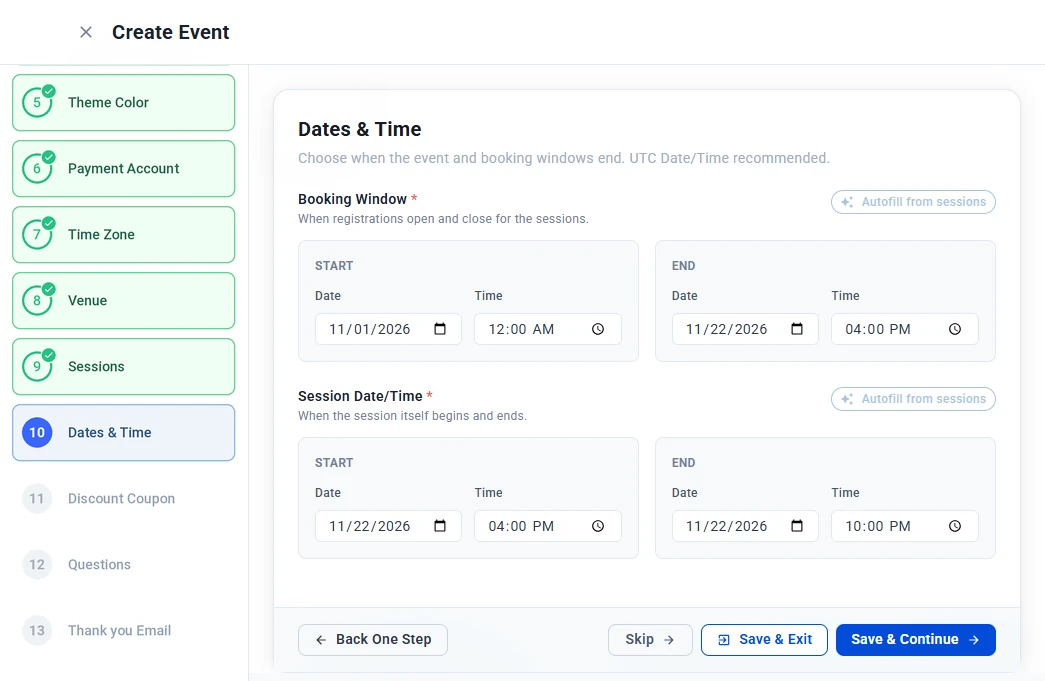
Step 10: Dates & Time
Set when registration is open and when your event takes place. Both fields are required.
- Booking Window — The start and end date and time when registrations open and close.
- Session Date/Time — The start and end date and time of the event itself.
If you have already added sessions, click Autofill from sessions to fill in the dates from your session schedule. Click Save & Continue when you’re done.
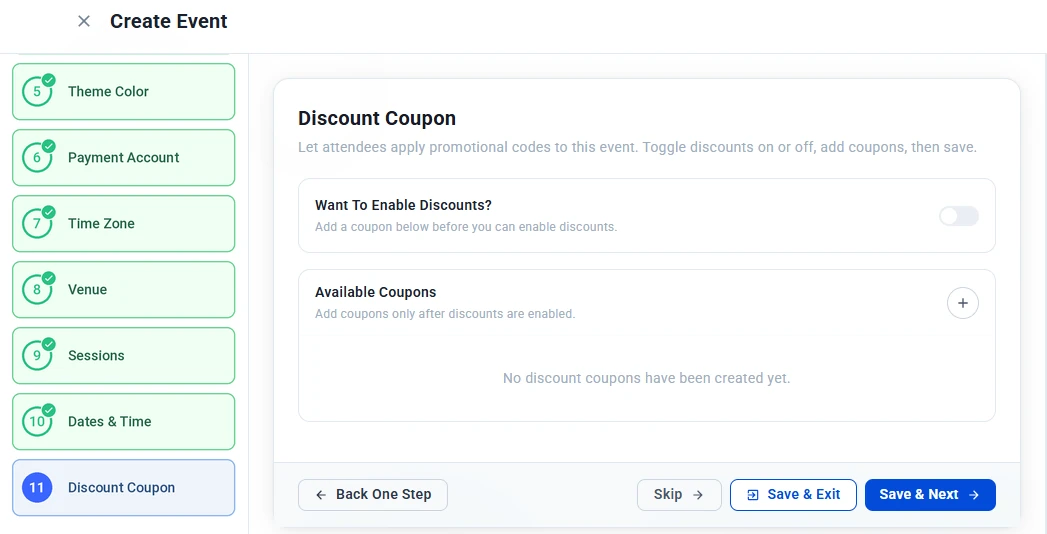
Step 11: Discount Coupon
Let attendees apply promotional codes at checkout. This step is optional.
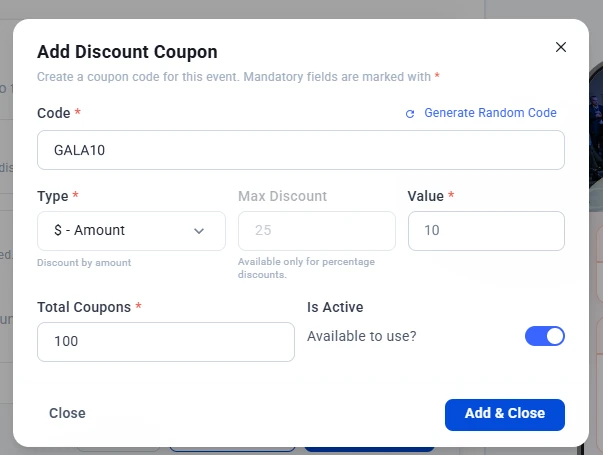
- Under Available Coupons, click + to open the Add Discount Coupon window.
- Fill in the coupon details:
- Code — Enter a code, or click Generate Random Code to create one.
- Type — Choose a fixed amount or a percentage discount.
- Max Discount — The most a percentage discount can take off. Available only for percentage discounts.
- Value — The discount amount or percentage.
- Total Coupons — How many times the coupon can be used.
- Is Active — Turn on to make the coupon available to use.
- Click Add & Close.
- Turn on Want To Enable Discounts? so attendees can use your coupons.
Step 12: Questions
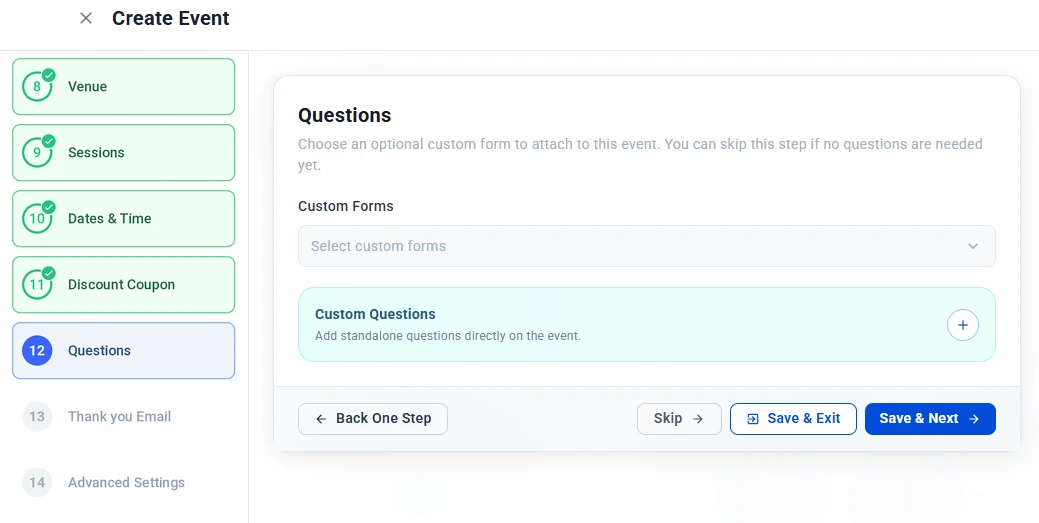
Collect extra information from attendees when they register. This step is optional.
- Custom Forms — Select a saved form from the dropdown. Learn about custom forms.
- Custom Questions — Click + to add standalone questions directly to this event.
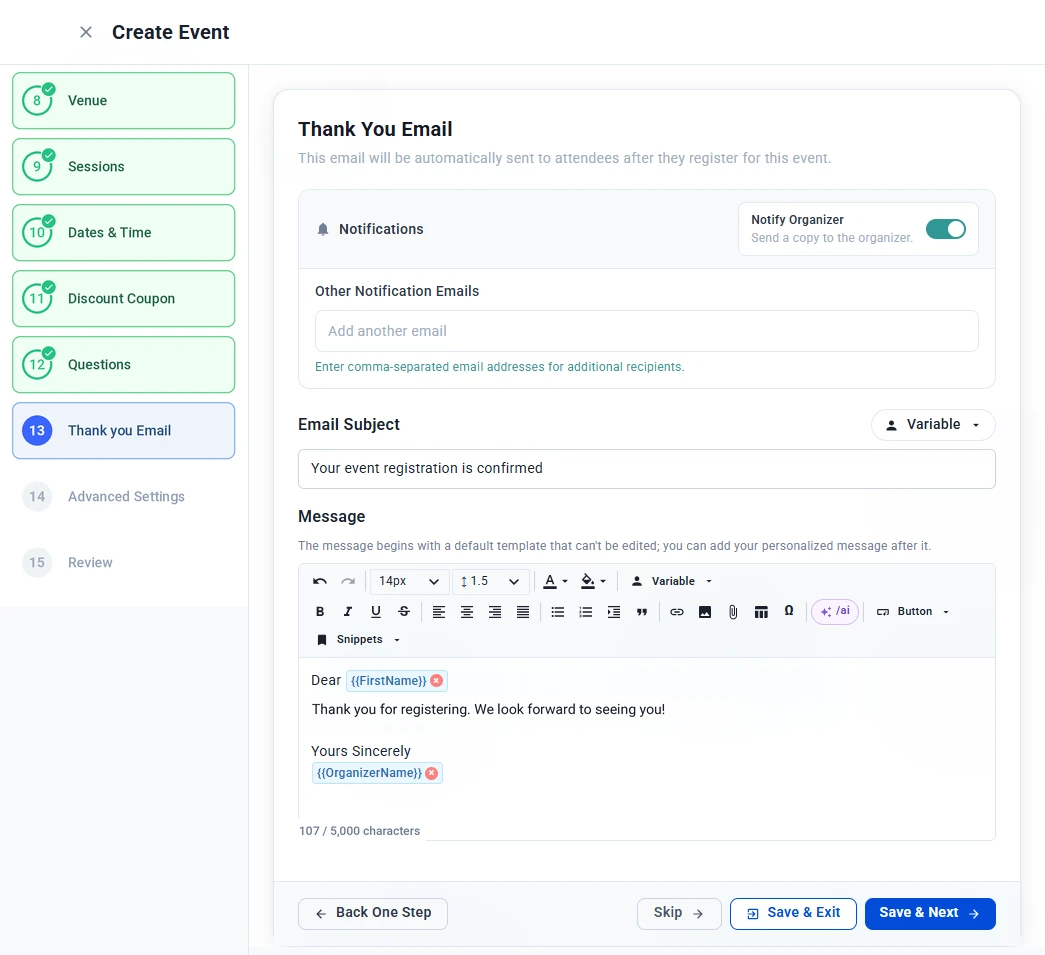
Step 13: Thank You Email
This email is sent automatically to attendees after they register. You can:
- Turn on Notify Organizer to receive a copy of each email.
- Add Other Notification Emails, separating multiple addresses with a comma.
- Edit the Email Subject, using Variable to insert details such as the attendee’s first name.
- Write your own Message. The email begins with a default template that can’t be edited, and your message is added after it. Use Variable to insert details such as {{FirstName}} or {{OrganizerName}}. The message can be up to 5,000 characters.
Step 14: Advanced Settings
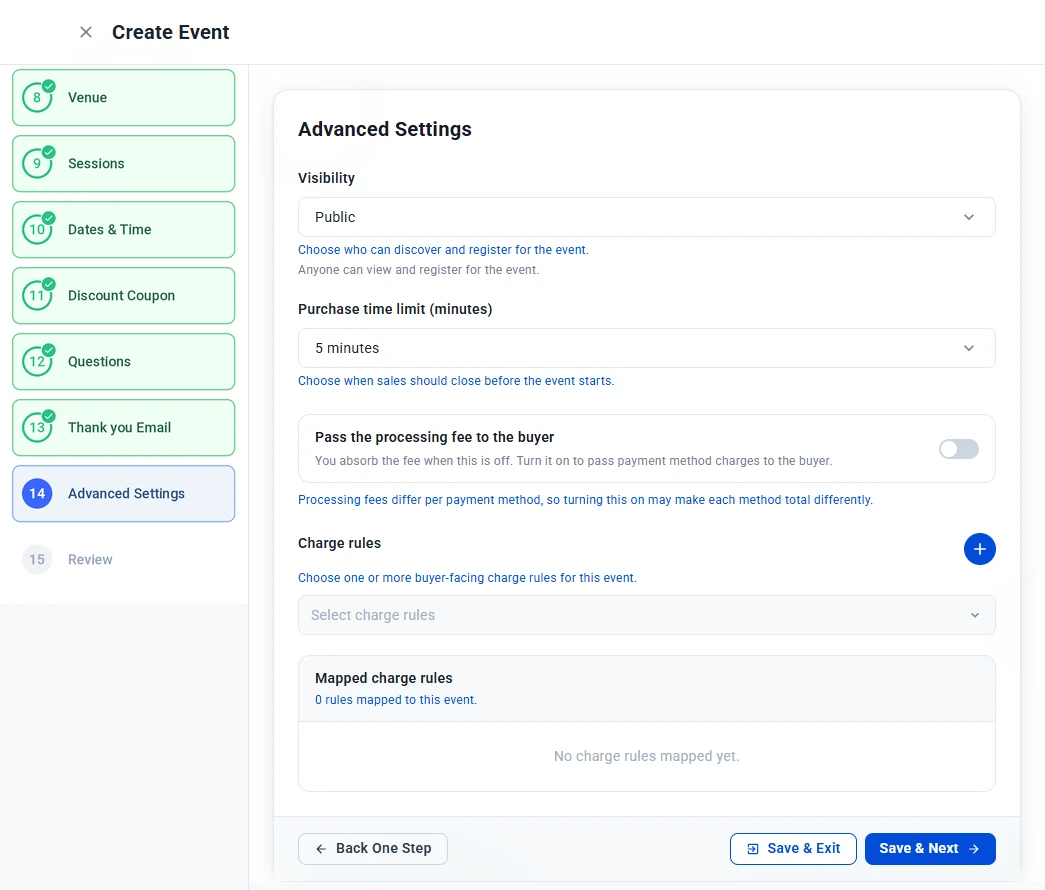
- Visibility — Choose who can discover and register for the event. Public means anyone can view and register.
- Purchase time limit (minutes) — How long a buyer has to complete checkout. A countdown timer holds their tickets during this time.
- Pass the processing fee to the buyer — When this is off, you absorb the payment processing fee. Turn it on to add the fee to the buyer’s total. Fees differ by payment method, so the total may vary depending on how the buyer pays. You set up the fee for each payment method under Settings > Processor Fees. Learn how to set up processor fees.
- Charge rules — Add extra buyer-facing charges, such as sales tax. Select one or more saved rules from the dropdown. They appear under Mapped charge rules.
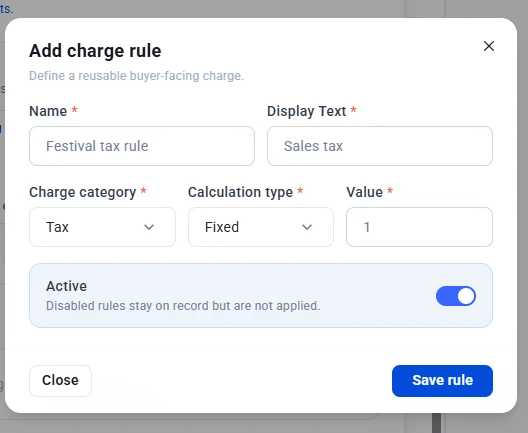
To create a new charge rule, click + next to Charge rules and fill in:
- Name — An internal name, for example “Festival tax rule.”
- Display Text — What buyers see at checkout, for example “Sales tax.”
- Charge category — The type of charge, such as Tax.
- Calculation type — How the charge is calculated, such as Fixed.
- Value — The charge amount.
- Active — Turn off to stop applying the rule. Disabled rules stay on record.
Click Save rule. Charge rules are reusable, so you can map the same rule to other events.
Step 15: Review
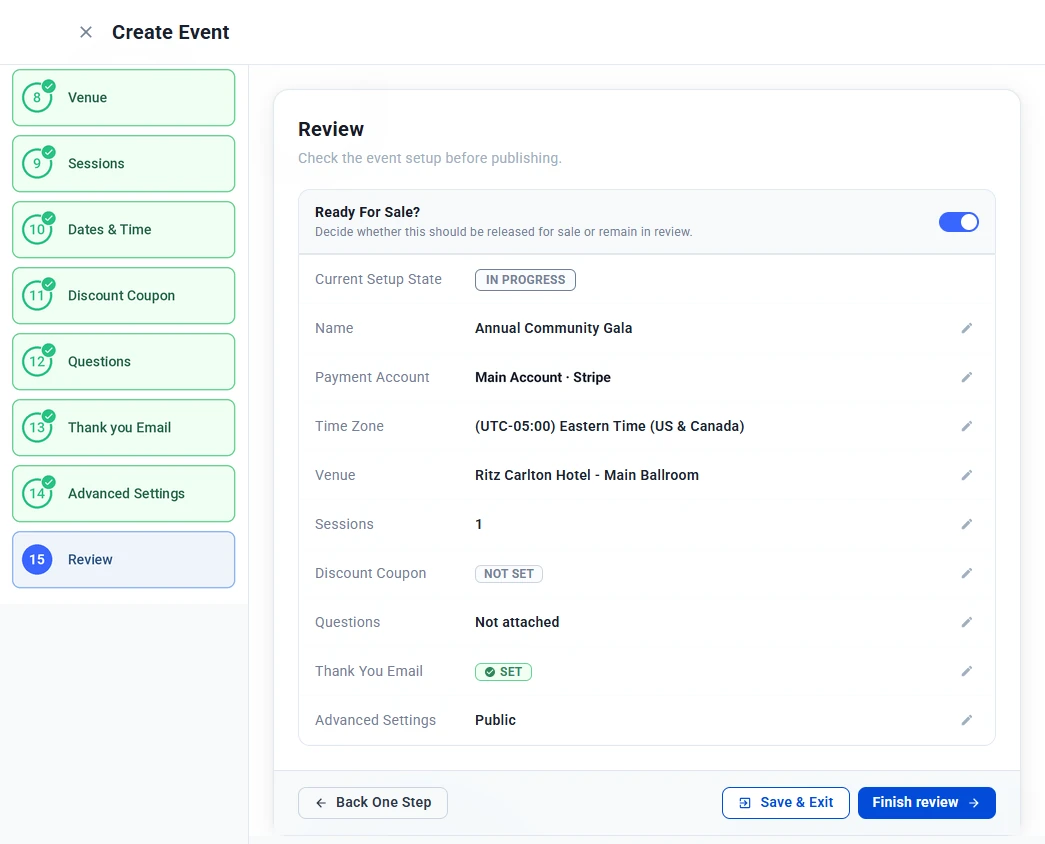
Check your event setup before publishing. The summary shows each step’s details, such as the name, payment account, time zone, venue, number of sessions, coupons, questions, thank you email and visibility. Click the pencil icon next to any item to go back and change it.
- Turn on Ready For Sale? to release the event for sale, or leave it off to keep the event in review.
- Click Finish review.
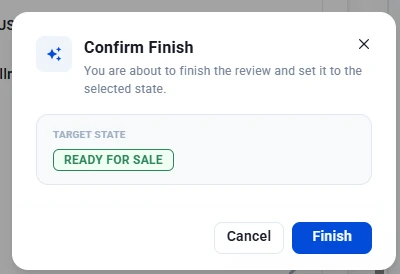
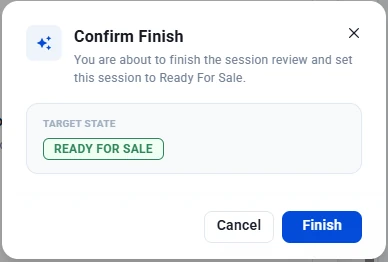
- In the Confirm Finish window, check the Target State and click Finish.
After You Finish
Your event appears on the Events page with one of these statuses:
- Ready for Sale — The event is live and attendees can register.
- Setup in Progress — The event is saved but not yet released. Open it to continue where you left off.
Tip: Before sharing your event, check that every session has its tickets set up. An event with no tickets configured has nothing for attendees to buy.
Adding Sessions with the Session Wizard
Set up a session step by step, from description, genre and banner to venue, dates, schedule, tickets and e-tickets, then release it for sale.
Sessions are the parts of your event, each with its own description, venue, date and time, schedule and tickets. The session wizard walks you through setting one up, step by step. You can complete it in one go, or save your progress and come back later.
Important: Tickets are set per session, not per event. The Tickets step in this wizard is where you create the ticket tiers attendees will buy, so every session you want to sell needs at least one ticket.
Opening the Session Wizard
You can open the session wizard in two ways.
From the event wizard
- On the Sessions step of the event wizard, click +.
- Enter a session name and click Add & Configure. To configure a session you already added, click Edit next to it.
From the Sessions page
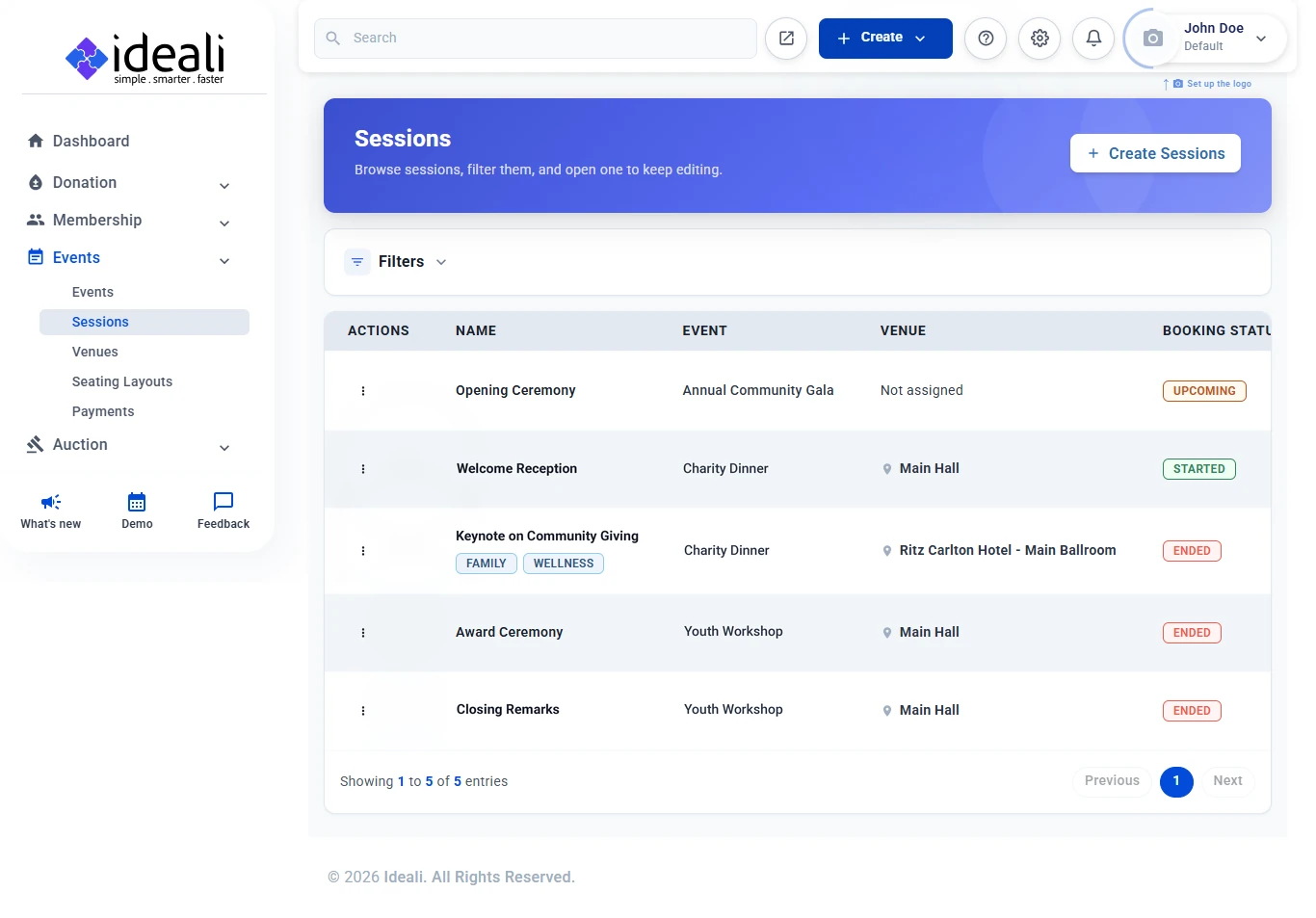
- Go to Events in the left sidebar and click Sessions. The page lists all your sessions with their event, venue and booking status.
- Click + Create Sessions in the top right of the page.
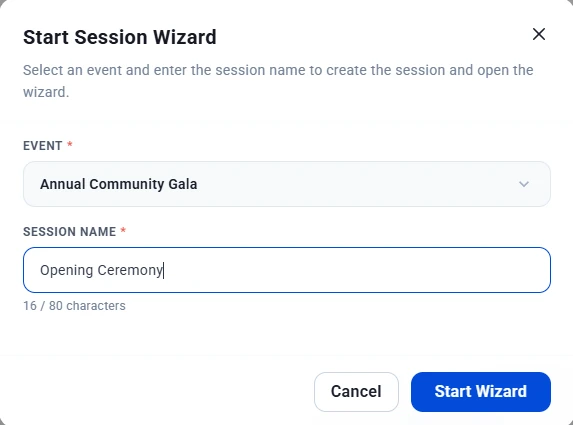
- In the Start Session Wizard window, select the Event the session belongs to and enter the Session Name (up to 80 characters).
- Click Start Wizard.
Moving Through the Wizard
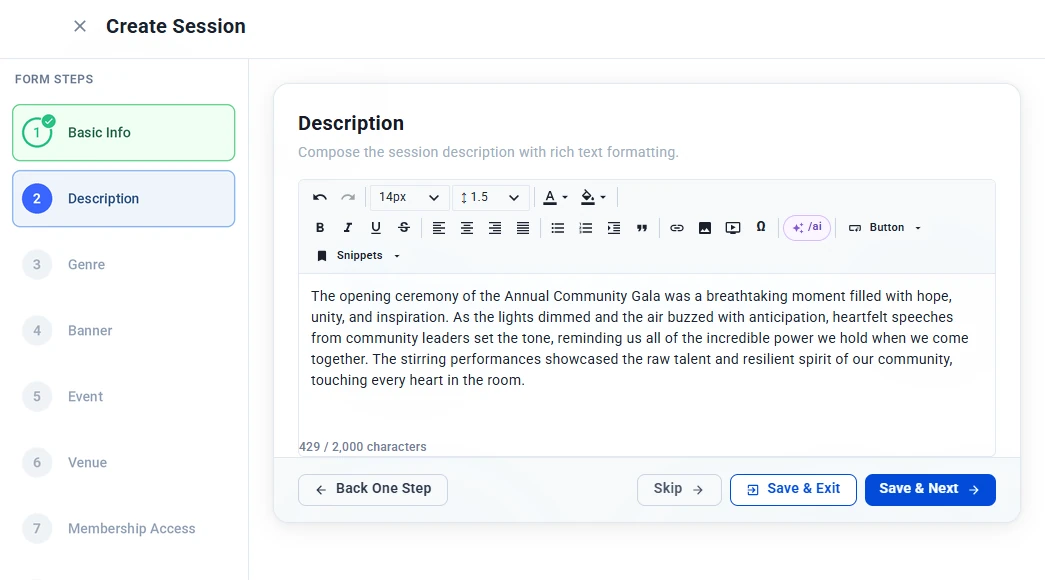
The Form Steps column on the left shows every step. Completed steps are marked with a green check, and you can click any step to jump back to it. A live preview on the right shows how your session will look to attendees as you build it.
At the bottom of each step you will find:
- Save & Next or Save & Continue — Saves the step and moves to the next one.
- Save & Exit — Saves your progress and closes the wizard.
- Skip — Moves past an optional step without filling it in.
- Back One Step — Returns to the previous step.
Fields marked with a red asterisk (*) are required.
Step 1: Basic Info
Enter the session name, for example “Opening Ceremony.” If you started from the Start Session Wizard window, the name you entered there is already filled in.
Step 2: Description
Describe what happens in this session and why attendees should come. Use the rich text editor to format your text, add links, images or videos, or type /ai to generate a description with AI. Learn more about the AI tools. The description can be up to 2,000 characters.
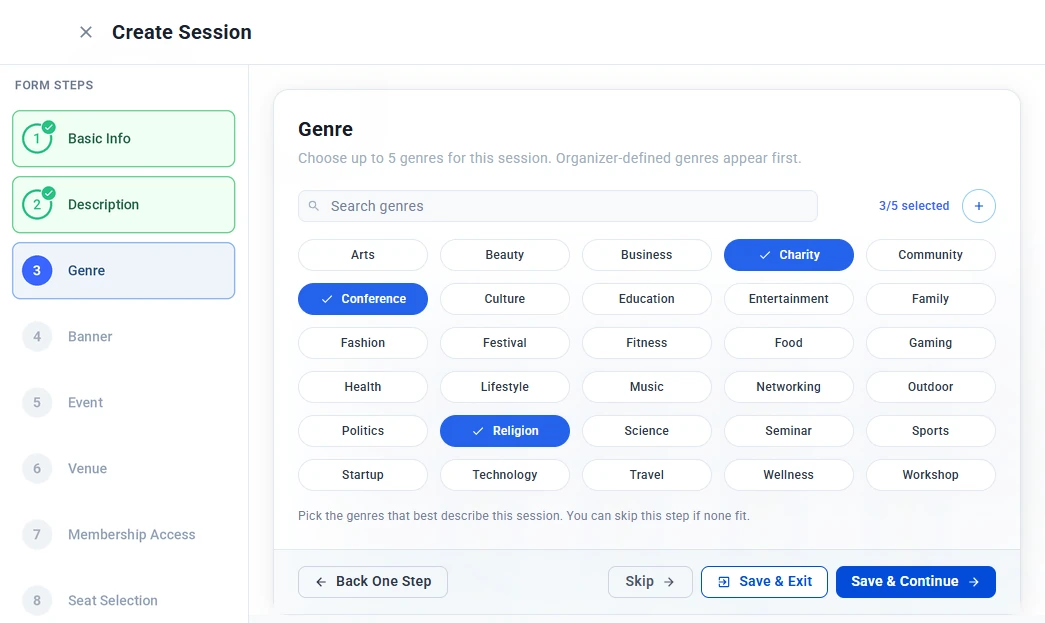
Step 3: Genre
Choose up to 5 genres that describe the session, such as Charity, Conference or Workshop. Genres help attendees understand what kind of session it is. Your own genres appear first in the list.
- Use the Search genres box to find a genre quickly.
- The counter shows how many genres you have selected, for example 3/5 selected.
- Click + to add a genre of your own.
This step is optional.
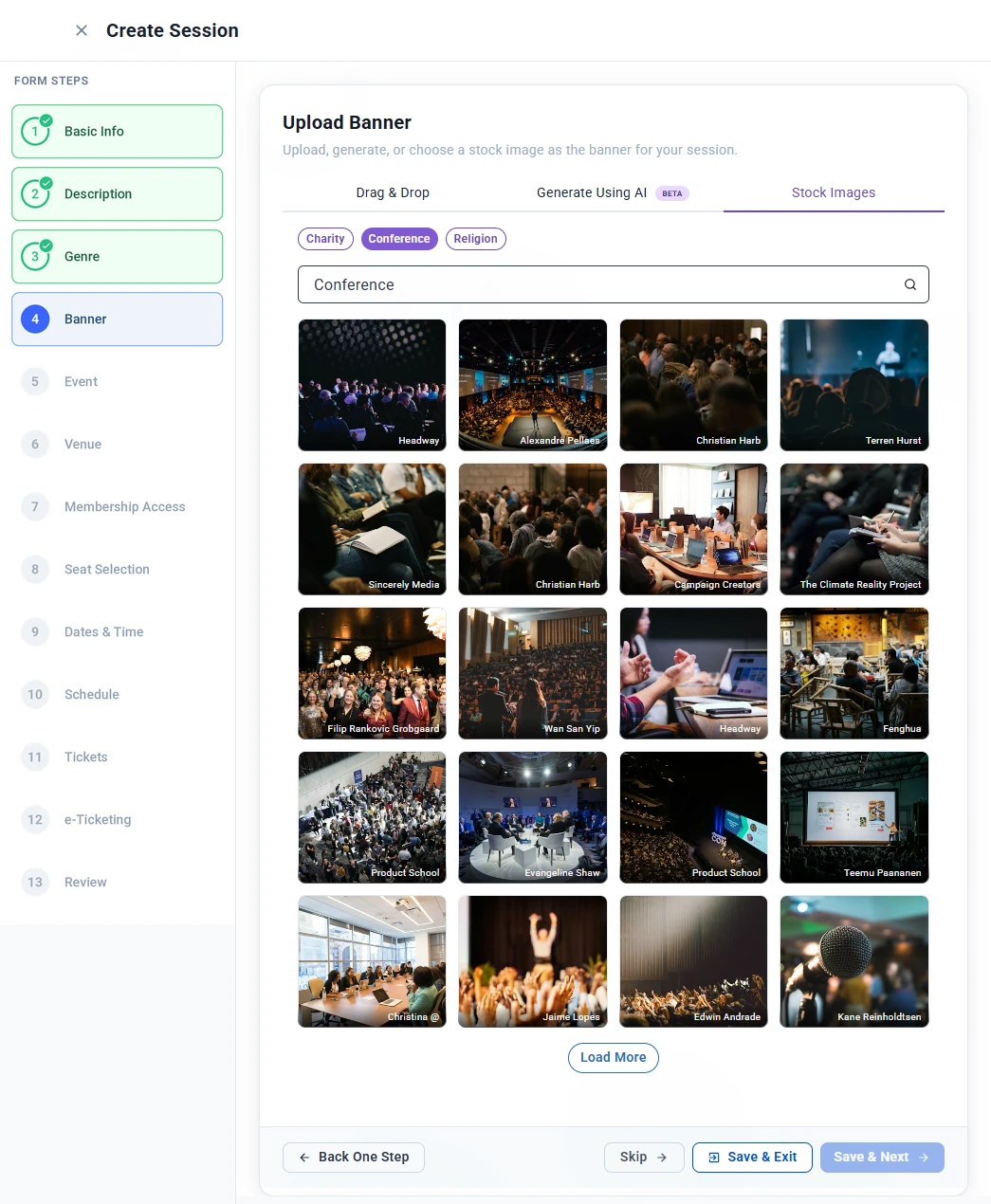
Step 4: Banner
Add a banner image for your session using one of three tabs:
- Drag & Drop — Upload your own image.
- Generate Using AI — Describe the image you want and AI creates it for you.
- Stock Images — Browse free stock photos. Suggested searches based on the genres you picked appear above the search box, so you can find a relevant image in one click. Click Load More to see more results.
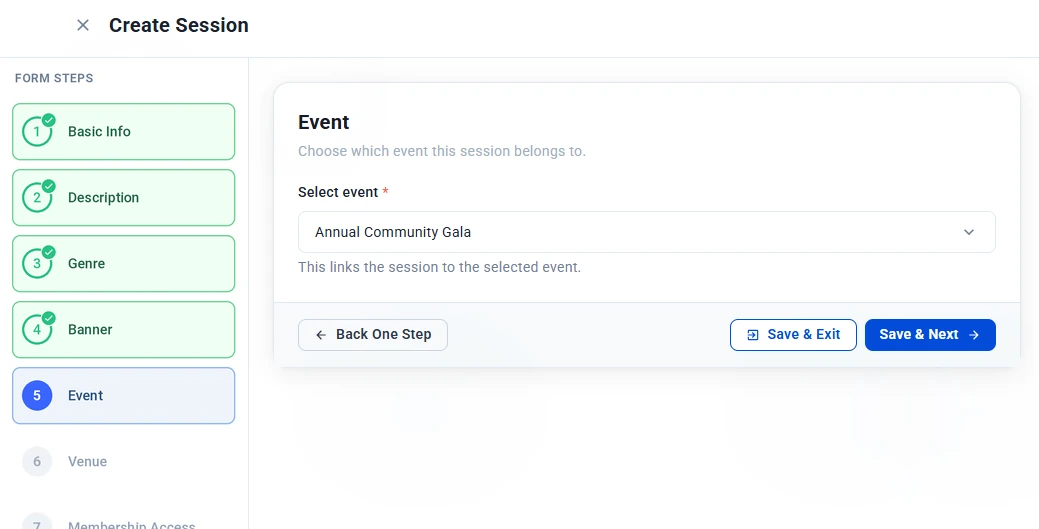
Step 5: Event
Select the event this session belongs to. This step is required and links the session to the event.
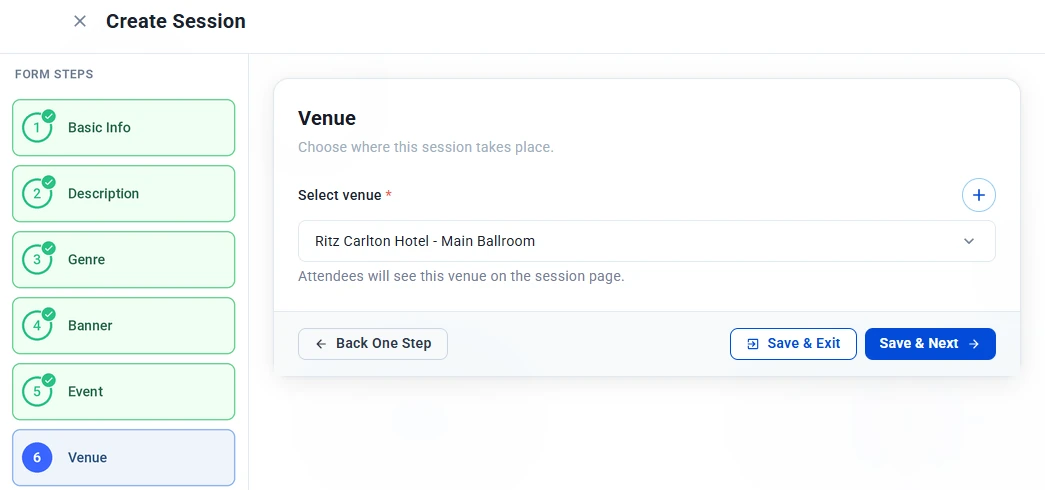
Step 6: Venue
Choose where this session takes place. Attendees will see the venue on the session page. This step is required.
- Click the Select venue dropdown and pick a saved venue.
- If your venue isn’t listed, click +, enter the venue name, and save it.
Venues you add are saved, so you can reuse them for other sessions and events. Learn how to manage venues.
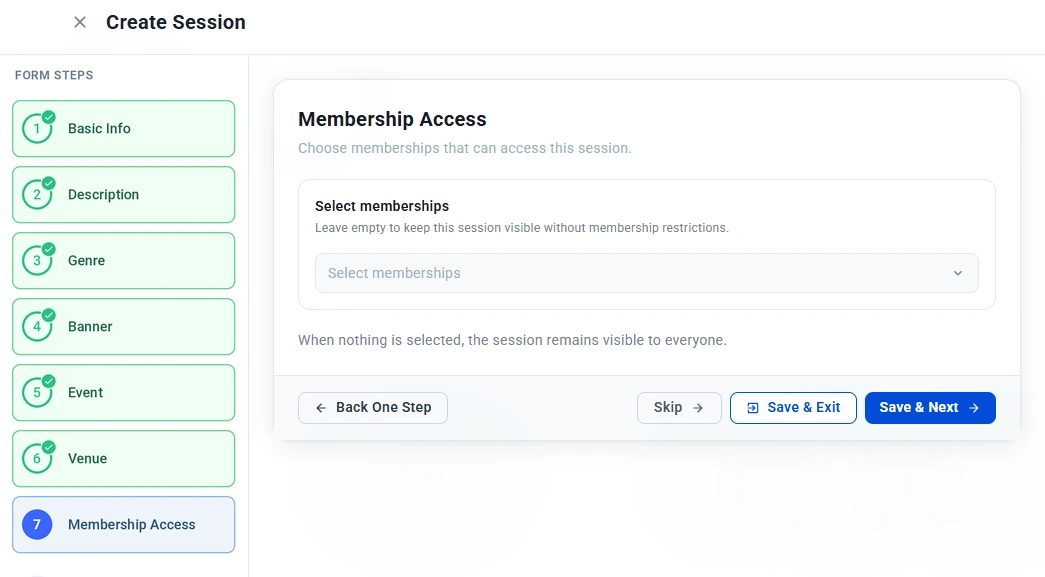
Step 7: Membership Access
Choose which membership types can book this session. Leave it empty to keep the session open to everyone. If you select one or more memberships, only members on those plans can book. Learn about membership types.
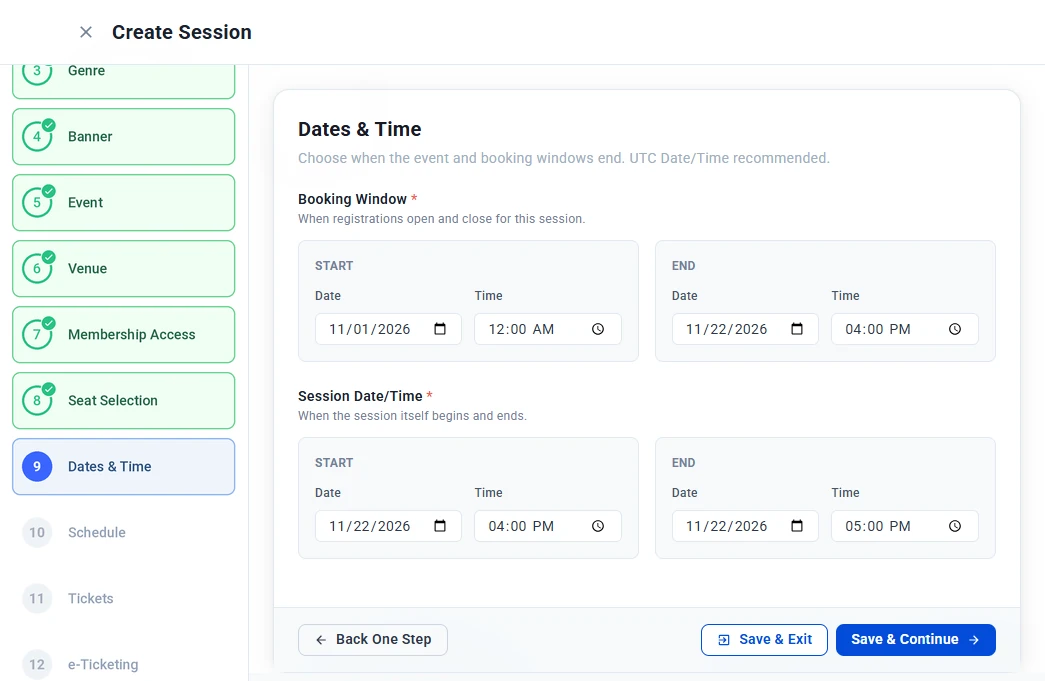
Step 9: Dates & Time
Set when registration is open and when the session takes place. Both fields are required.
- Booking Window — The start and end date and time when registrations open and close for this session.
- Session Date/Time — The start and end date and time of the session itself.
Click Save & Continue when you’re done.
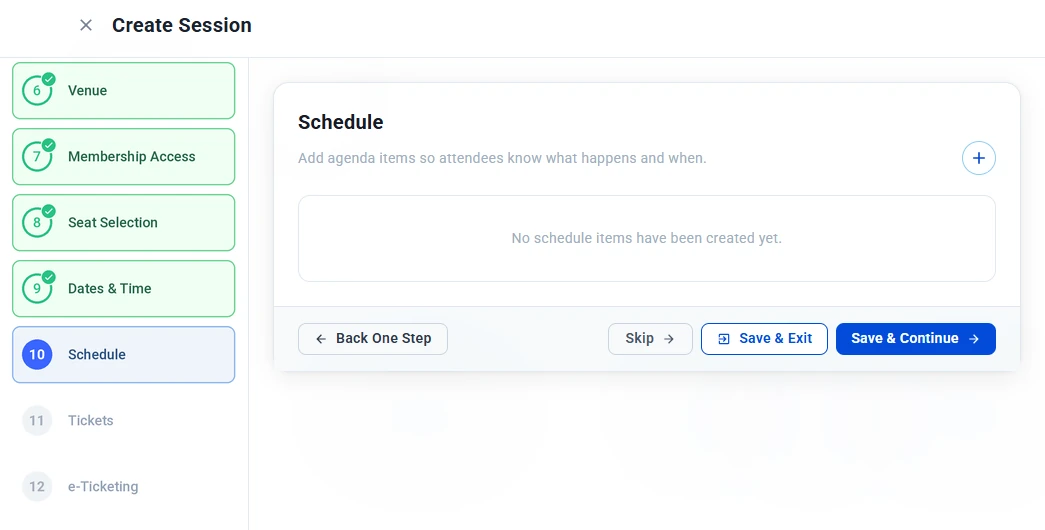
Step 10: Schedule
Add agenda items so attendees know what happens and when. This step is optional.
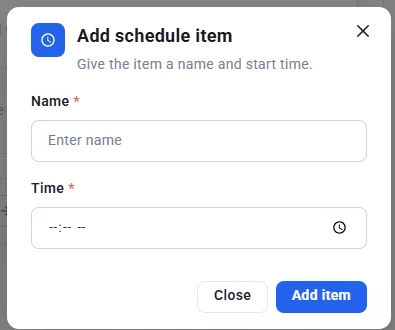
- Click + to open the Add schedule item window.
- Enter a Name for the item, for example “Welcome Speech,” and its start Time.
- Click Add item. Repeat for each item on the agenda.
Step 11: Tickets
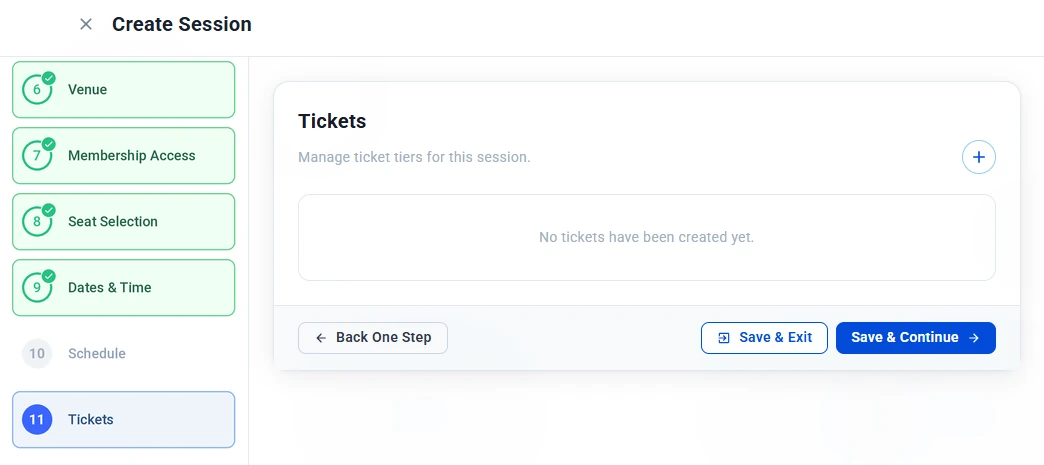
Create the ticket tiers attendees can buy for this session, such as General Admission or VIP.
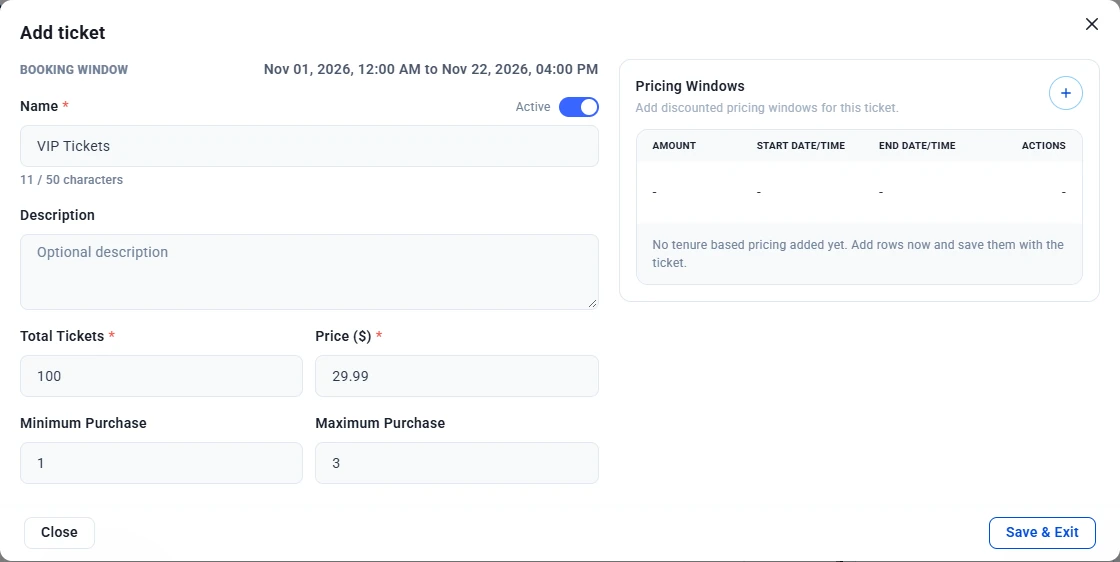
- Click + to open the Add ticket window. The session’s booking window is shown at the top for reference.
- Fill in the ticket details:
- Name — The ticket name attendees will see, for example “VIP Tickets” (up to 50 characters).
- Active — Turn on to make the ticket available for sale.
- Description — Optional details about what the ticket includes.
- Total Tickets — How many of this ticket are available.
- Price ($) — The price of one ticket.
- Minimum Purchase / Maximum Purchase — The fewest and most tickets of this type one buyer can buy in an order.
- To offer early-bird or other discounted pricing, click + under Pricing Windows and add a discounted amount with a start and end date and time. You can add several windows to one ticket.
- Click Save & Exit to save the ticket. Repeat for each ticket tier.
Step 12: E-Ticketing
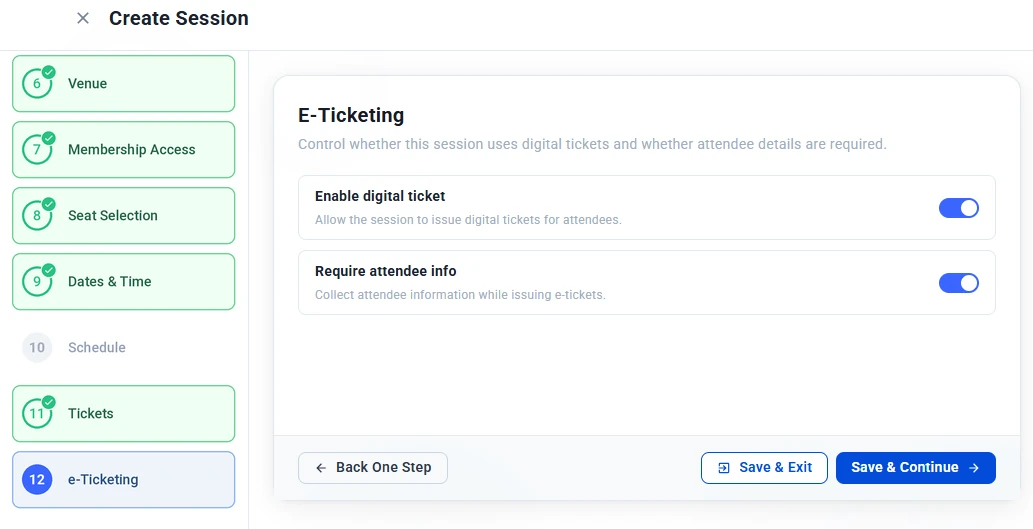
Choose whether attendees receive digital tickets for this session:
- Enable digital ticket — Turn on to issue each attendee a digital ticket with a unique QR code.
- Require attendee info — Turn on to collect each attendee’s details while issuing e-tickets.
Step 13: Review
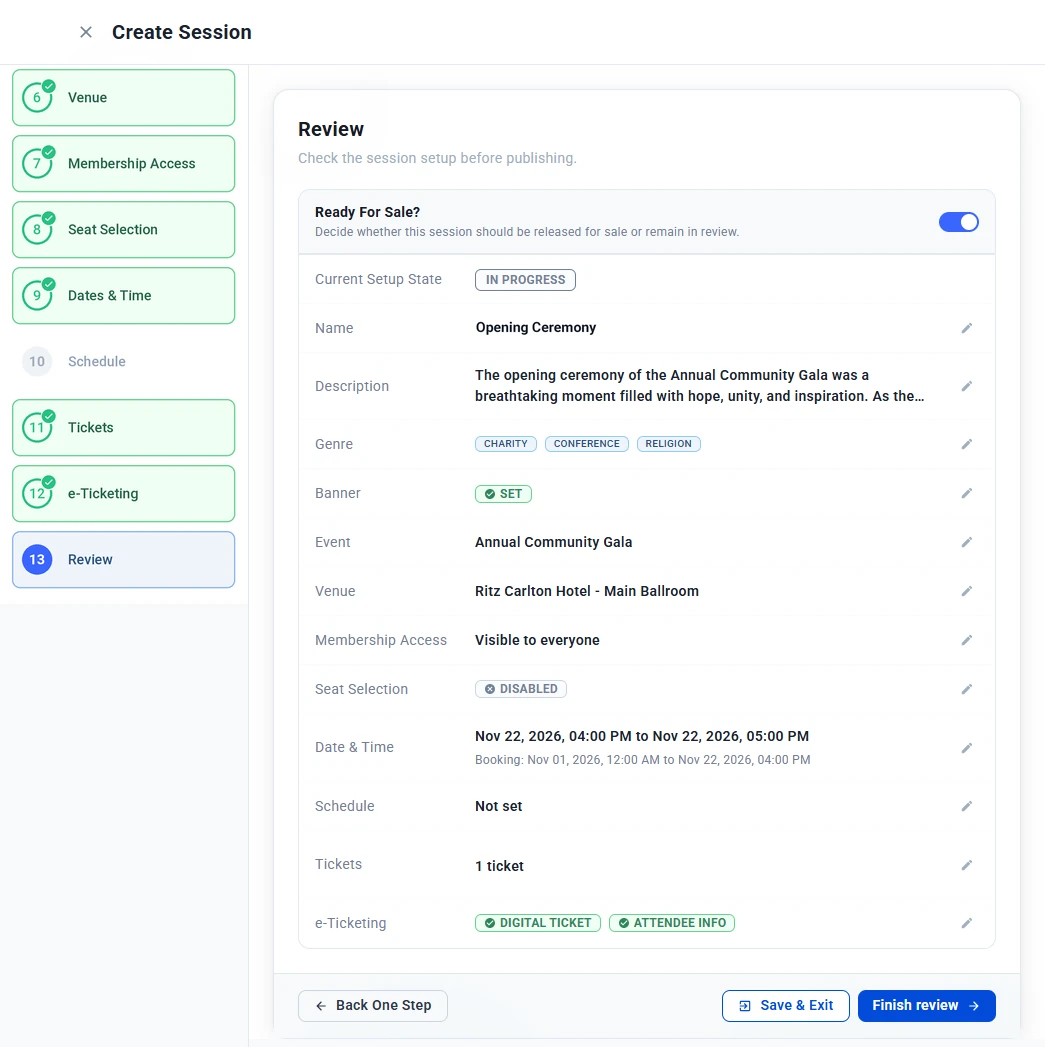
Check your session setup before publishing. The summary shows each step’s details, such as the name, genres, event, venue, membership access, dates, schedule, tickets and e-ticketing. Click the pencil icon next to any item to go back and change it.
- Turn on Ready For Sale? to release the session for sale, or leave it off to keep it in review.
- Click Finish review.
- In the Confirm Finish window, check the Target State and click Finish.
After You Finish
Your session appears on the Sessions page with its booking status:
- Upcoming — The session hasn’t started yet.
- Started — The session is in progress.
- Ended — The session is over.
Tip: Set each session’s booking window to close when the session starts, so no one can buy a ticket after it has begun.
Creating and managing Event Venues
Save the locations where your events and sessions take place, add map links, and reuse them across events.
Venues are the locations where your events and sessions take place. Instead of typing the same location every time, you save a venue once and pick it from a list whenever you create an event or session.
To access Venues, go to Events in the left sidebar and click Venues. The page lists all your saved venues.
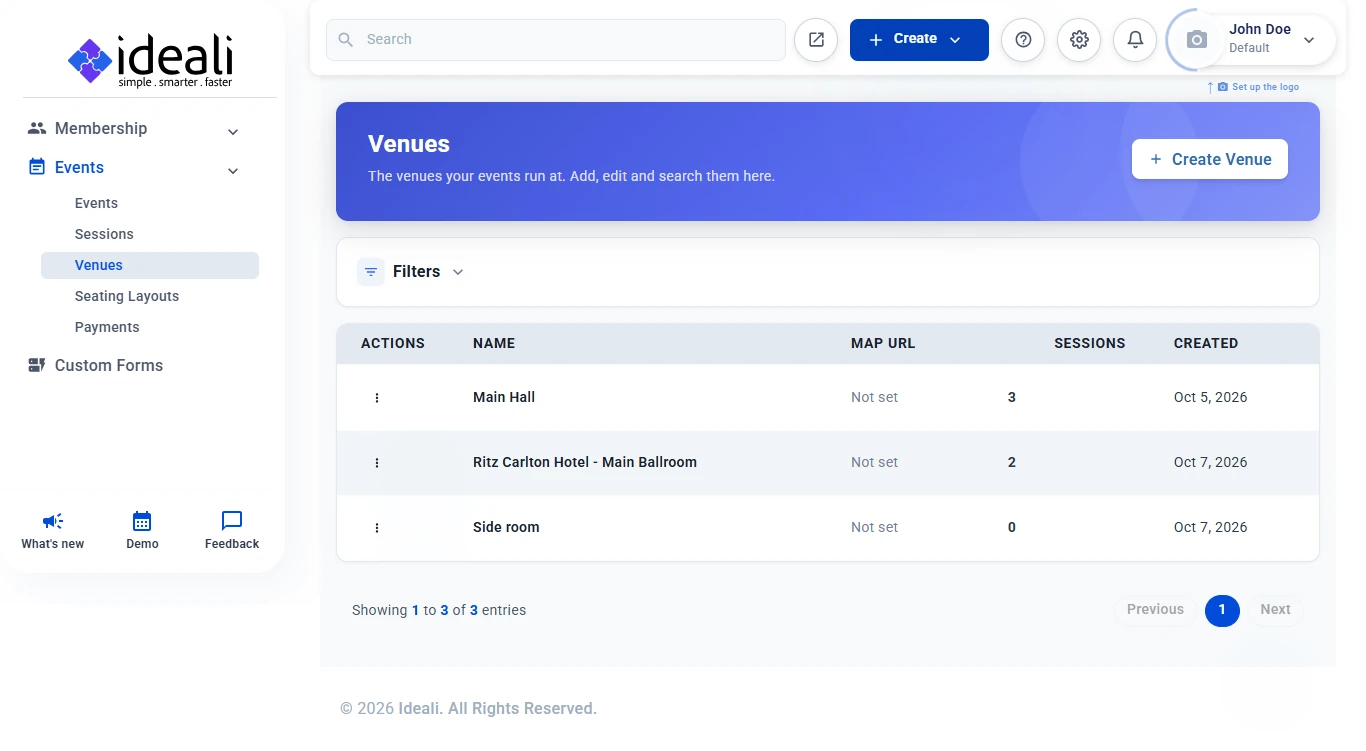
Understanding the Venues Table
Each row in the table shows one venue:
- Actions — The three dot menu with the options available for that venue.
- Name — The venue name attendees see on your event and session pages.
- Map URL — The map link for the venue, or Not set if none has been added.
- Sessions — How many sessions use this venue.
- Created — The date the venue was added.
Use the Filters panel at the top of the page to search for a venue.
Creating a Venue
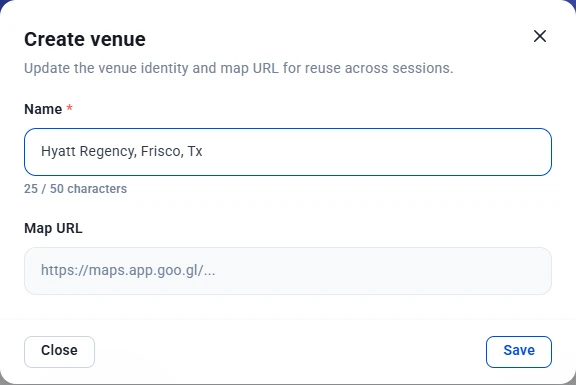
- Click + Create Venue in the top right of the Venues page.
- Enter the venue Name, for example “Hyatt Regency, Frisco, TX.” The name can be up to 50 characters.
- Optionally, paste a Map URL, such as a Google Maps link to the venue’s location.
- Click Save.
The venue is added to your list and is available to select in the event and session wizards.
Adding a Venue While Building an Event or Session
You don’t have to leave the wizard to add a new venue. On the Venue step of the event wizard or the session wizard, click + next to the venue dropdown, enter the venue name, and save it.
Venues you add this way also appear on the Venues page, where you can add a map URL later.
Managing Venues
Click the three dot menu in the Actions column next to any venue to manage it, for example to update its name or map URL.
Tip: Make venue names specific, such as including the room or city (“Ritz Carlton Hotel – Main Ballroom”), so you can tell similar venues apart when picking one in the wizard.
Event payments and invoices
Track ticket orders across your events, including buyer details, payment method, status and totals.
The Event Invoices page lists every ticket order across your events. Each time a buyer pays for tickets, an invoice is created automatically, so you can track who bought tickets, how they paid, and how much you collected. You can also open any invoice to see its full details and resend tickets.
To access it, go to Events in the left sidebar and click Payments.
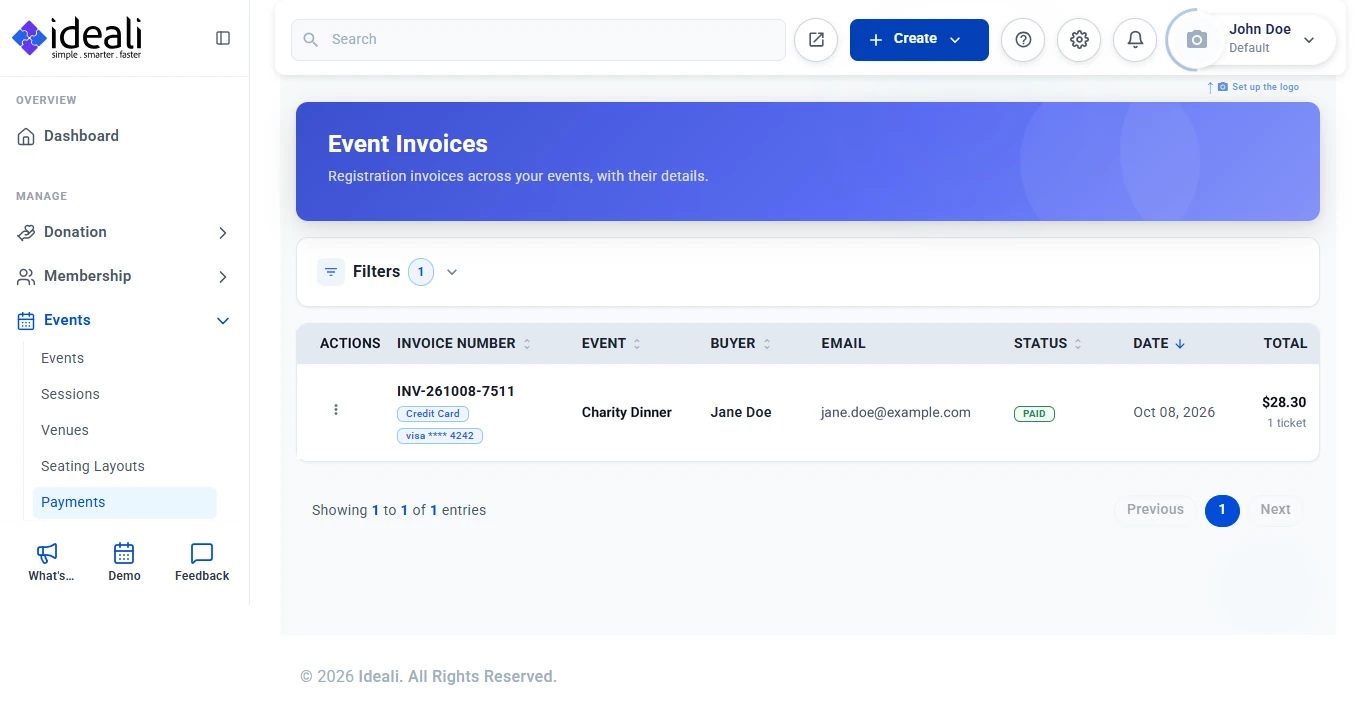
Understanding the Invoices Table
Each row in the table is one ticket order:
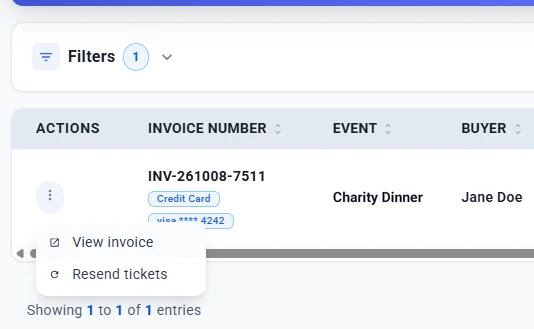
- Actions — The three dot menu with the options available for that invoice.
- Invoice Number — The unique number for the order, for example INV-261008-7511. The payment method and card used are shown below it, for example Credit Card and Visa ending in 4242.
- Event — The event the tickets were bought for.
- Buyer — The name of the person who placed the order.
- Email — The buyer’s email address.
- Status — The current status of the invoice, such as Paid.
- Date — The date the order was placed.
- Total — The total amount charged, with the number of tickets in the order shown below it.
Sorting and Filtering Invoices
- Sort — Click a column heading with arrows, such as Invoice Number, Event, Buyer, Status, Date or Total, to sort the list by that column. Invoices are sorted by date, newest first, by default.
- Filter — Click Filters at the top of the page to narrow the list. The number next to Filters shows how many filters are currently applied.
Invoice Actions
Click the three dot menu in the Actions column next to any invoice to see the following options:
- View invoice — Open the full invoice with the buyer, order, payment and ticket details.
- Resend tickets — Send the tickets for this order to the buyer again, for example if they can’t find the original email.
Viewing an Invoice
Select View invoice to open the full invoice. At the top you will see the invoice number, the date and time it was issued, its status, and the Total Paid. Click Print to print the invoice, or Back to Invoices to return to the list.
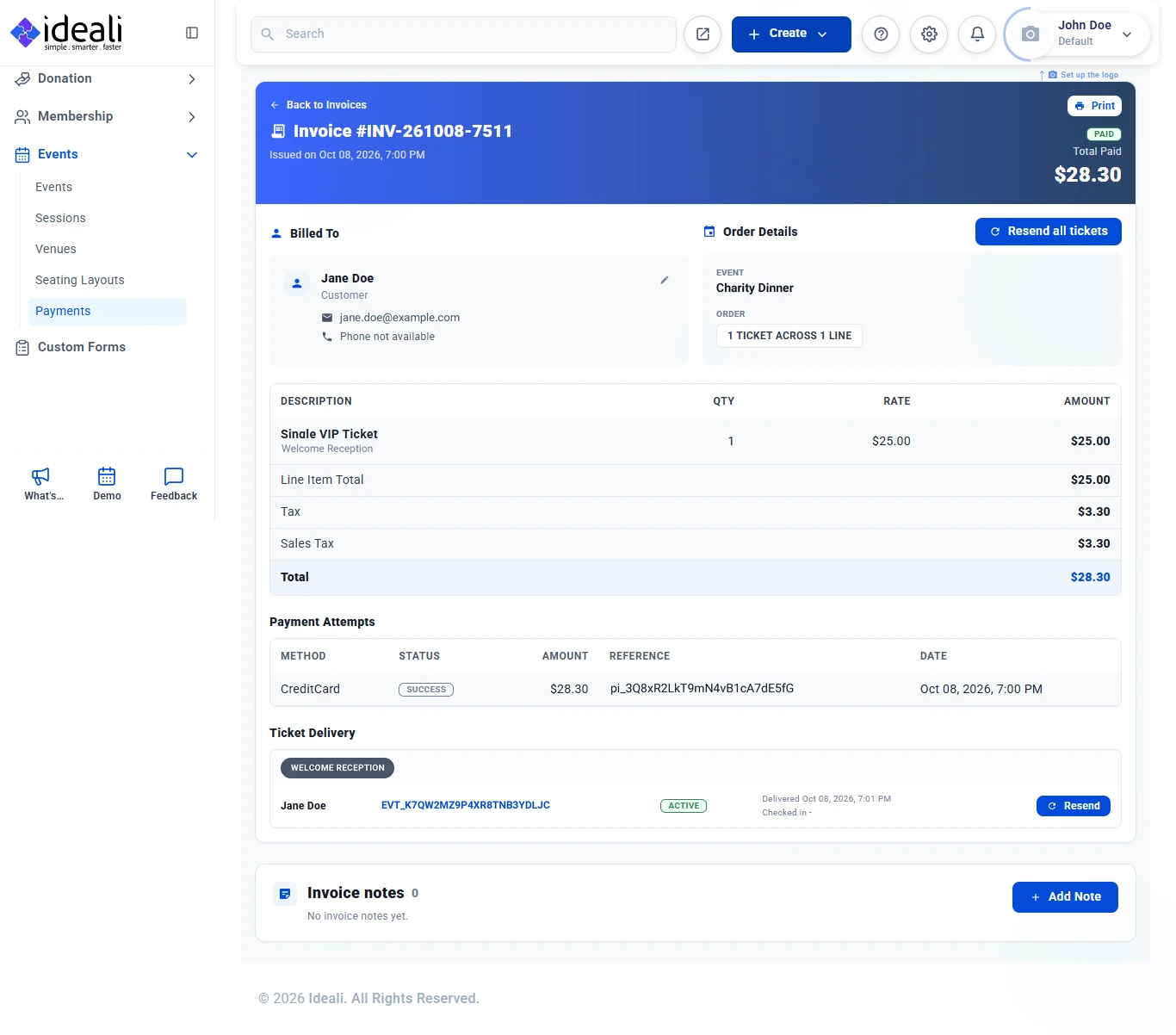
The invoice is organized into the following sections:
- Billed To — The buyer’s name, email address and phone number. Click the pencil icon to update these details.
- Order Details — The event the tickets were bought for and a summary of the order, for example 1 ticket across 1 line. Click Resend all tickets to send every ticket in this order to the buyer again.
- Line items — Each ticket in the order with its session name, quantity, rate and amount, followed by the line item total, any taxes or charges, and the Total.
- Payment Attempts — Each payment attempt with its method, status (such as Success), amount, payment reference and date. Use the reference to find the payment in your Stripe account.
- Ticket Delivery — The tickets issued for each session, showing the attendee, their unique ticket code, its status (such as Active), when it was delivered, and whether the attendee has checked in. Click Resend to send that ticket again.
- Invoice notes — Internal notes about the order. Click + Add Note to add one.
Where Ticket Payments Go
Ticket payments are sent to the payment account you selected on the Payment Account step of the event wizard. If you haven’t connected one yet, set up your payment account first.
Ticket prices are set per session on the Tickets step of the session wizard. Processing fees are set up per payment method under Settings > Processor Fees and passed to buyers from the Advanced Settings step of the event wizard. Learn how to set up processor fees. Charge rules, such as sales tax, are also set on the Advanced Settings step.
Tip: When an attendee says they didn’t receive their tickets, open their invoice and check Ticket Delivery to confirm the delivery time, then click Resend.
Payment processor fees
Add a surcharge per payment method to event ticket purchases to cover payment processing costs.
Payment processor fees let you add a surcharge to event ticket purchases to cover the cost of payment processing. Each fee is set per payment method, so you can charge a different fee for card, ACH or digital wallet payments, and buyers only see the fee for the method they choose at checkout.
Note: Processor fees apply only to event ticket purchases. They are never added to donations or memberships.
To access them, go to Settings in the left sidebar and click Processor Fees.
Understanding the Fees Table
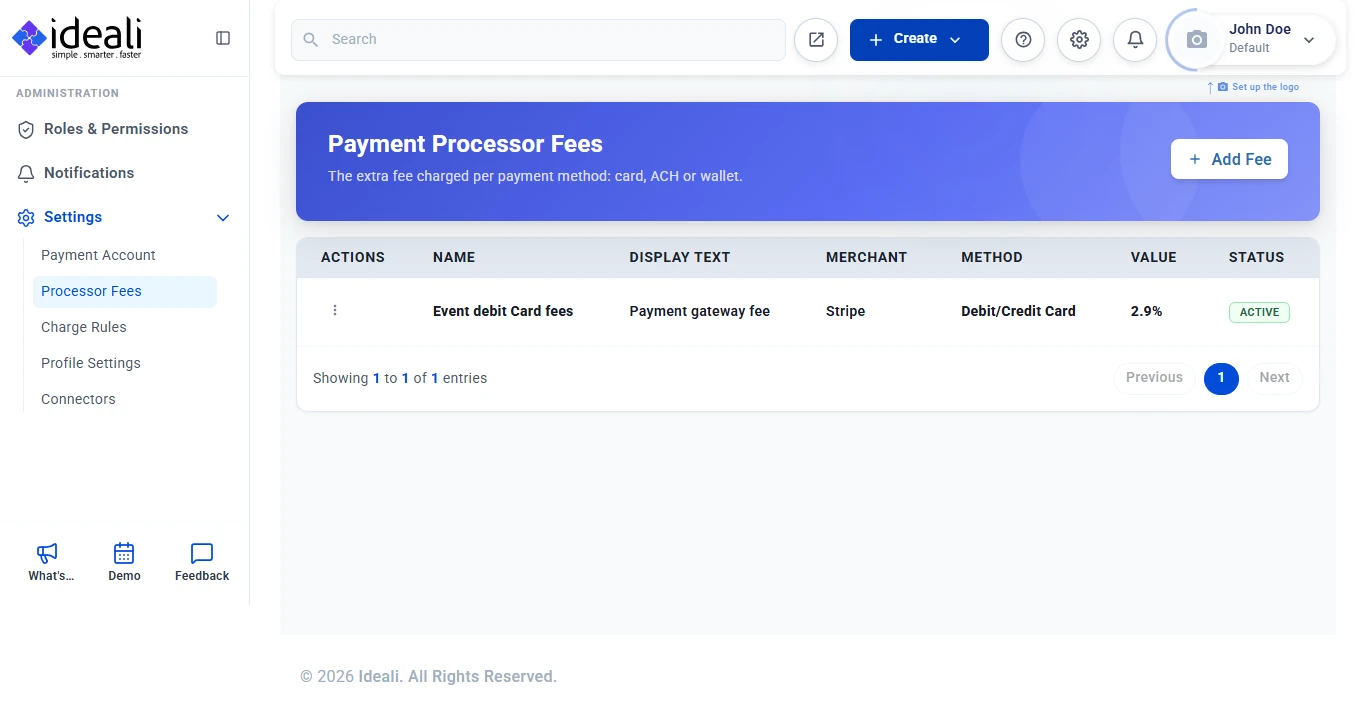
Each row in the table shows one fee:
- Actions — The three dot menu with the options available for that fee.
- Name — An internal name for the fee, for example “Event debit card fees.”
- Display Text — The label buyers see at checkout, for example “Payment gateway fee.”
- Merchant — The payment processor the fee applies to, such as Stripe.
- Method — The payment method the fee applies to, such as Debit/Credit Card.
- Value — The fee amount, for example 2.9%.
- Status — Whether the fee is Active and being applied.
Adding a Fee
- Click + Add Fee in the top right of the page.
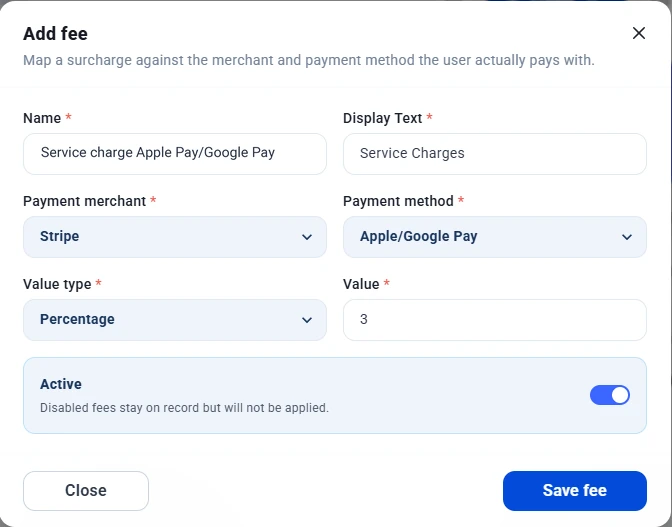
- Fill in the fee details. Fields marked with a red asterisk (*) are required.
- Name — An internal name to identify the fee.
- Display Text — The label buyers see at checkout, for example “Service Charges.”
- Payment merchant — The payment processor, such as Stripe.
- Payment method — The method this fee applies to, such as Debit/Credit Card or Apple/Google Pay.
- Value type — Choose a percentage of the order or a fixed amount.
- Value — The fee amount, for example 3 for 3%.
- Active — Turn on to apply the fee. Turn it off to stop applying it without deleting it. Disabled fees stay on record.
- Click Save fee.
Add one fee for each payment method you want to charge for. A payment method with no active fee has no surcharge.
Applying Fees to an Event
Fees are passed to buyers event by event. On the Advanced Settings step of the event wizard, turn on Pass the processing fee to the buyer.
- On — The active fee for the buyer’s payment method is added to their total at checkout, under your display text.
- Off — No fee is added, and you absorb the payment processing cost.
Because fees differ by payment method, the total a buyer pays may change depending on how they choose to pay.
Managing Fees
Click the three dot menu in the Actions column next to any fee to manage it. To pause a fee without losing its settings, edit it and turn off Active.
Tip: Processor fees cover payment processing costs. For other buyer-facing charges, such as sales tax, use Charge rules on the Advanced Settings step of the event wizard.