

Getting Started with the Auction Module
Learn what the Auction module does, how auctions, items and bids fit together, and how to publish your first auction
Learn what the Auction module does, how auctions, items and bids fit together, and how to publish your first auction.
The Auction module lets you run online silent auctions for your organization. You list items, share one link, and supporters place bids from their phone or computer. Bidders save a card when they bid, and nobody is charged until the auction closes. When it does, Ideali charges each winning bidder automatically and sends them a confirmation email.
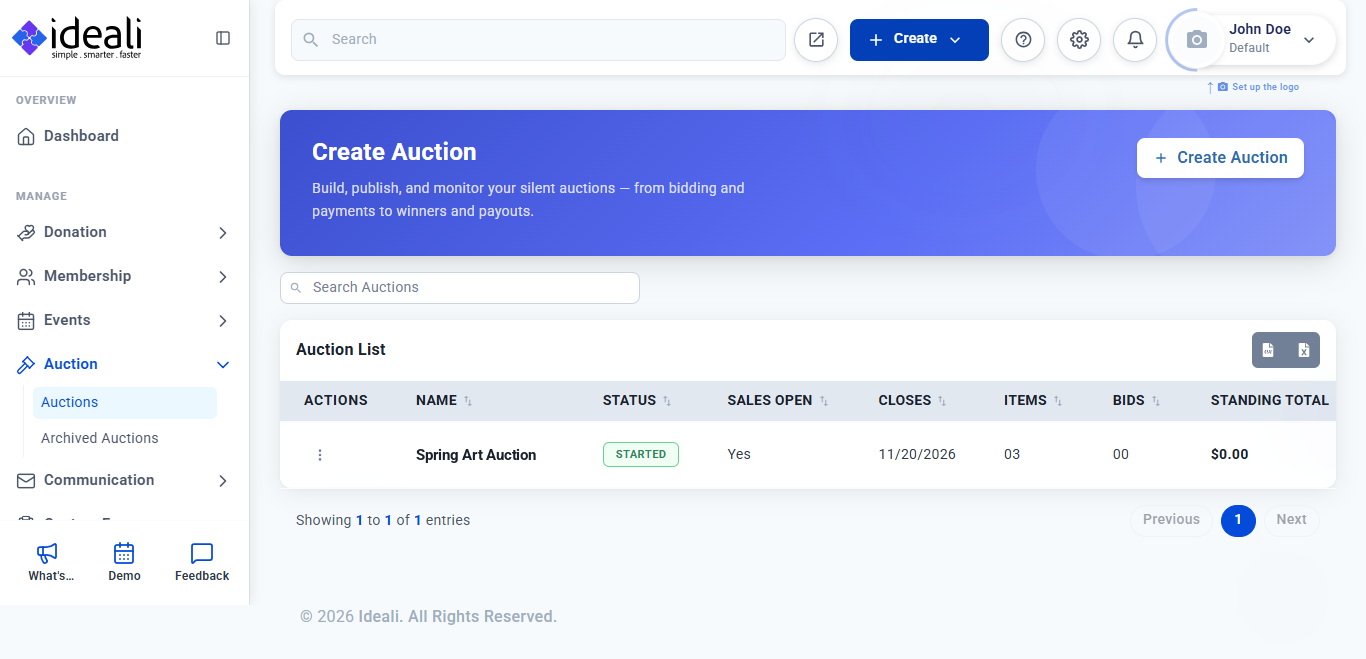
To access Auctions, go to Auction in the left sidebar, then click Auctions.
What you can do with Auctions
- Guided auction wizard — Build your auction step by step, with a live mobile and desktop preview. You can save and finish later.
- Auction items — Add the items people will bid on, each with a starting price, photos and an optional fair market value.
- Bid increments — Set a minimum amount each new bid must rise by, for the whole auction or for a single item.
- Optional tips — Let bidders add a tip for your organization when they save their card.
- Pickup or shipping — Choose how winners receive their items: pickup with your instructions, or shipping for a flat fee.
- Winner emails — Write your own email for winning bidders, personalized with their name, items and total.
- Bid notifications — Get an email whenever a new bid is placed.
- Live monitoring — Track bids, the standing total and payments for every item on one screen.
- Bidder management — See every registered bidder, their bid history, fulfillment choice and tip.
- Easy sharing — Share your auction link by email, Facebook or Messenger, or print a QR code.
Before you start
Make sure you have the following ready:
- A connected payment account — Winning bids are charged to the Stripe account you choose, so connect it first. Learn how to set up your payment account.
- Your auction details — An auction name, a closing date and time, a short description and a banner image.
- Your item list — The items you will auction, with a title, description, starting price and photos for each.
- Your fulfillment plan — Whether winners will pick up their items or have them shipped, and your pickup instructions or flat shipping fee.
Create your first auction
Going live takes four steps. Each one is covered in detail in Creating an Auction with the Auction Wizard.
Step 1: Create your auction
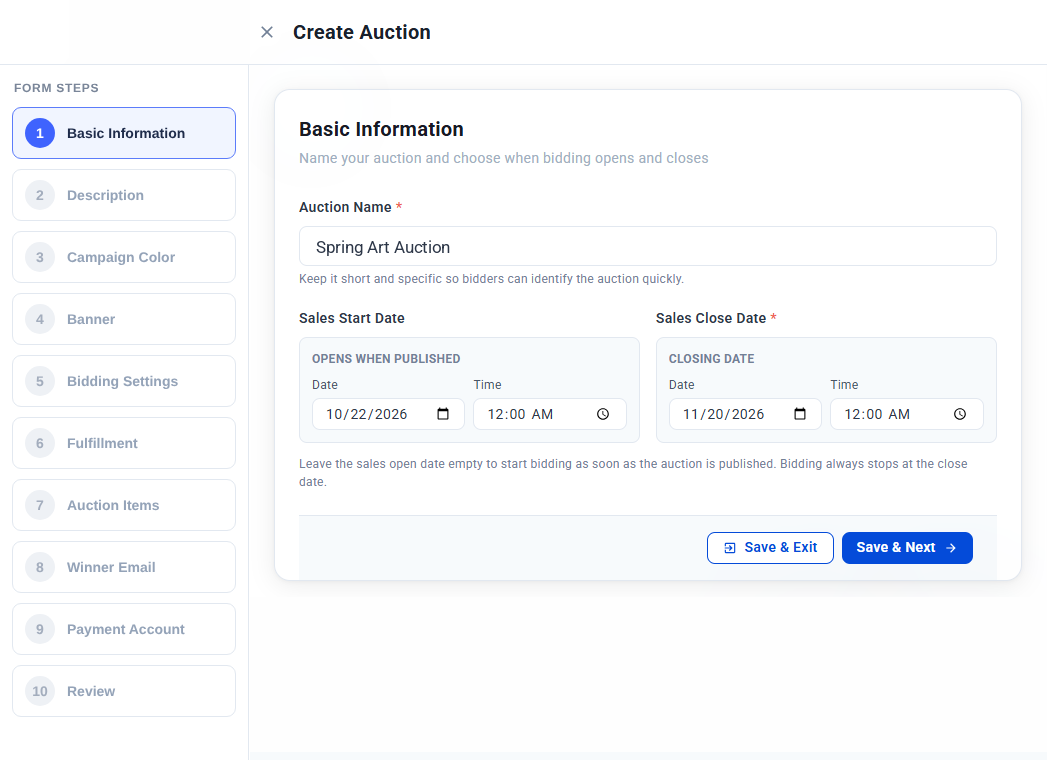
Go to Auction > Auctions and click Create Auction. The wizard walks you through each step, starting with the auction name and the dates bidding opens and closes. Then add a description, a campaign color and a banner. A live preview shows how your auction page will look on mobile and desktop.
Step 2: Set bidding and fulfillment
Set the default minimum bid increment and choose whether bidders can add a tip. Then choose how winners receive their items: pickup or shipping.
Step 3: Add your items
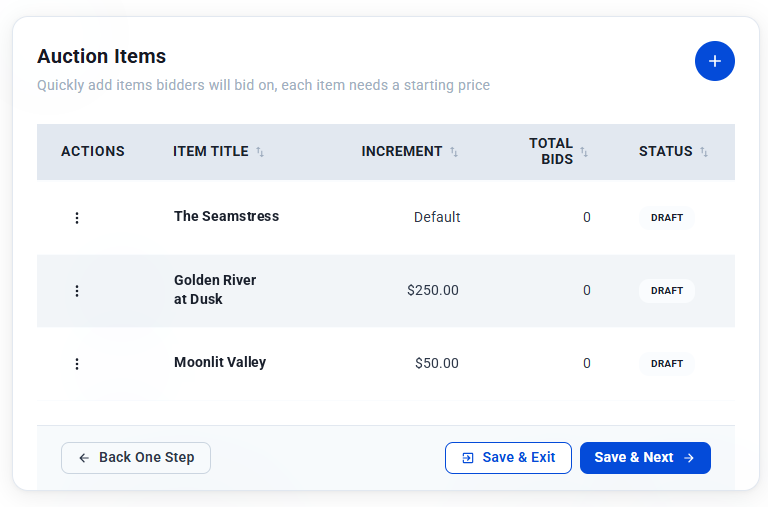
Add each item bidders will bid on. Every item needs a title and a starting price. You can also add a description, photos, a fair market value and its own bid increment.
Step 4: Publish and share
Write your winner email, choose the payment account, and check everything on the Review & Confirm screen. Click Publish Auction, then share your auction link so supporters can start bidding.
How bidding works for your supporters
Bidders open your auction link, pick an item and enter a bid of at least the next minimum amount. On their first bid, they enter their contact details and save a card. They are not charged at this point. See the full bidder experience.
When the auction closes, the highest bidder on each item wins. Ideali charges the winner’s saved card, including any shipping fee and tip, and emails them a payment confirmation and receipt.
Track your auction
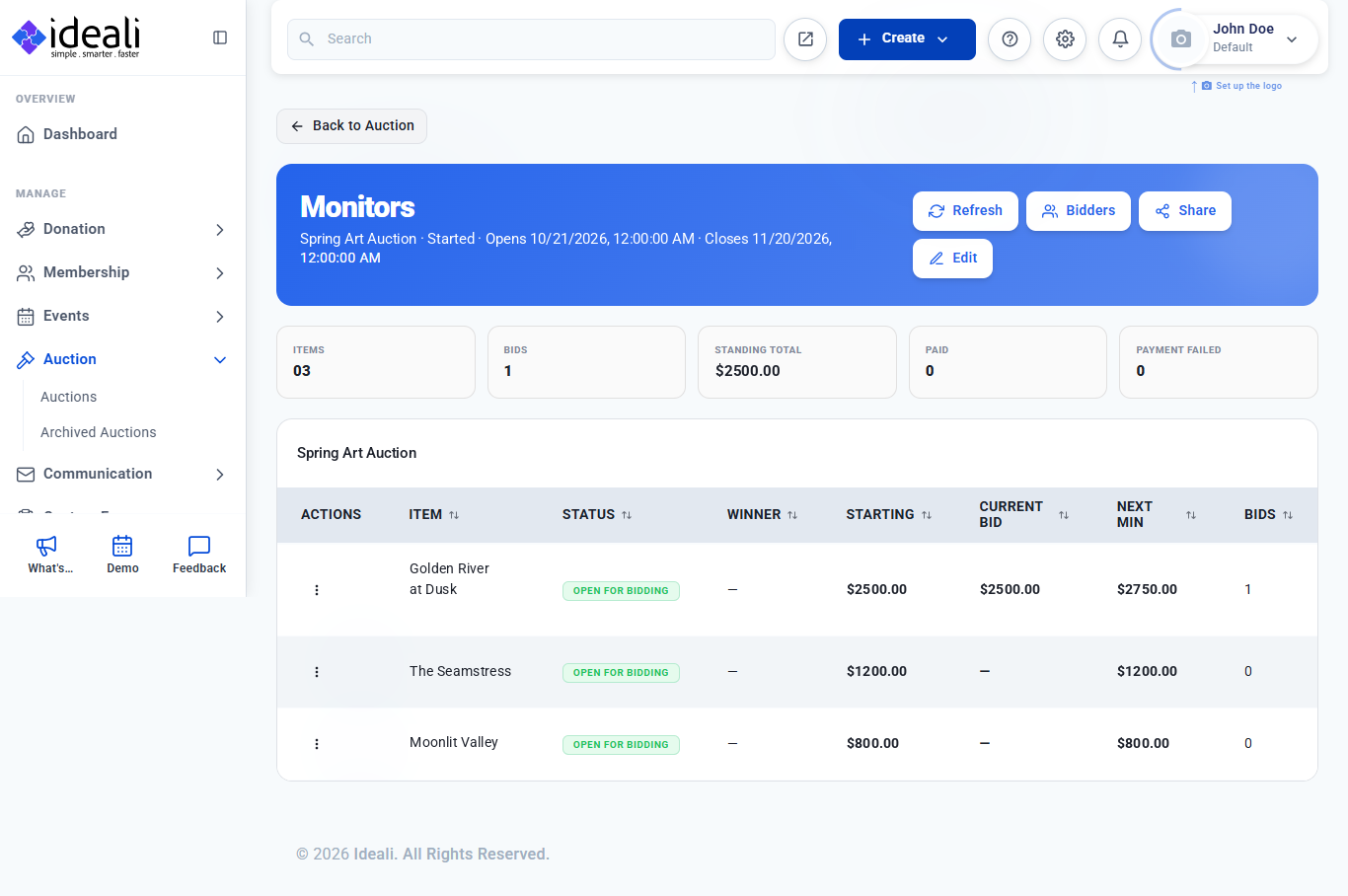
Once your auction is live, open it from the Auction List and choose Monitor. You can see the total bids, the standing total, and the current bid and next minimum for every item. Learn more about monitoring your auction.
Key terms
- Auction — The whole campaign, for example your Spring Art Auction, with its own dates, settings and link.
- Item — Something bidders bid on inside an auction, such as a painting, a print or a sculpture.
- Starting price — The lowest amount the first bid on an item can be.
- Minimum bid increment — How much each new bid must beat the current bid by. The auction has a default, and any item can have its own.
- Next minimum — The lowest bid currently accepted on an item: the current bid plus its increment.
- Standing total — The total of all current highest bids across your auction.
- Fair market value — An optional estimate of what an item is worth, for your records and your bidders.
- Fulfillment — How winners receive their items: pickup or shipping.
Good to know
- Pricing — Like Donations and Memberships, Auctions is free to use, with no platform fee. You only pay the standard payment processing fee on each winning payment.
- No upfront charges — Bidders are only charged if they win, after the auction closes.
- Opening date is optional — Leave the sales start date empty and bidding opens as soon as you publish. Bidding always stops at the close date.
- Cancelling — If you cancel an auction, all bidding stops and no bidder is charged.
Next steps
Once you’re comfortable with the basics, these articles go deeper:
Creating an Auction with the Auction Wizard
Walk through all ten steps of the auction wizard, from [...]
Walk through all ten steps of the auction wizard, from naming your auction to publishing it.
The auction wizard guides you through setting up your auction one step at a time. This article covers every step, from the basic information and your items to the winner email, payment account and publishing.
Start the wizard
- Go to Auction > Auctions in the left sidebar.
- Click Create Auction.
The wizard opens with its steps listed under Form Steps on the left. Completed steps are marked with a green tick. A live preview on the right shows your auction page as you build it. Use the Mobile and Desktop buttons to switch the preview, the moon icon to see it in dark mode, and Hide Preview to close it.
At the bottom of each step:
- Save & Next saves the step and moves on.
- Save & Exit saves your progress so you can finish later.
- Back One Step returns to the previous step.
- Skip appears on optional steps and moves on without changes.
Step 1: Basic Information
Name your auction and choose when bidding opens and closes.
- Enter the Auction Name. Keep it short and specific so bidders can identify the auction quickly.
- Under Sales Start Date, choose the date and time bidding opens. Leave it empty to open bidding as soon as you publish.
- Under Sales Close Date, choose the date and time bidding closes. This is required.
- Click Save & Next.
Note: Bidding always stops at the close date, so double-check the date and time before you publish.
Step 2: Description
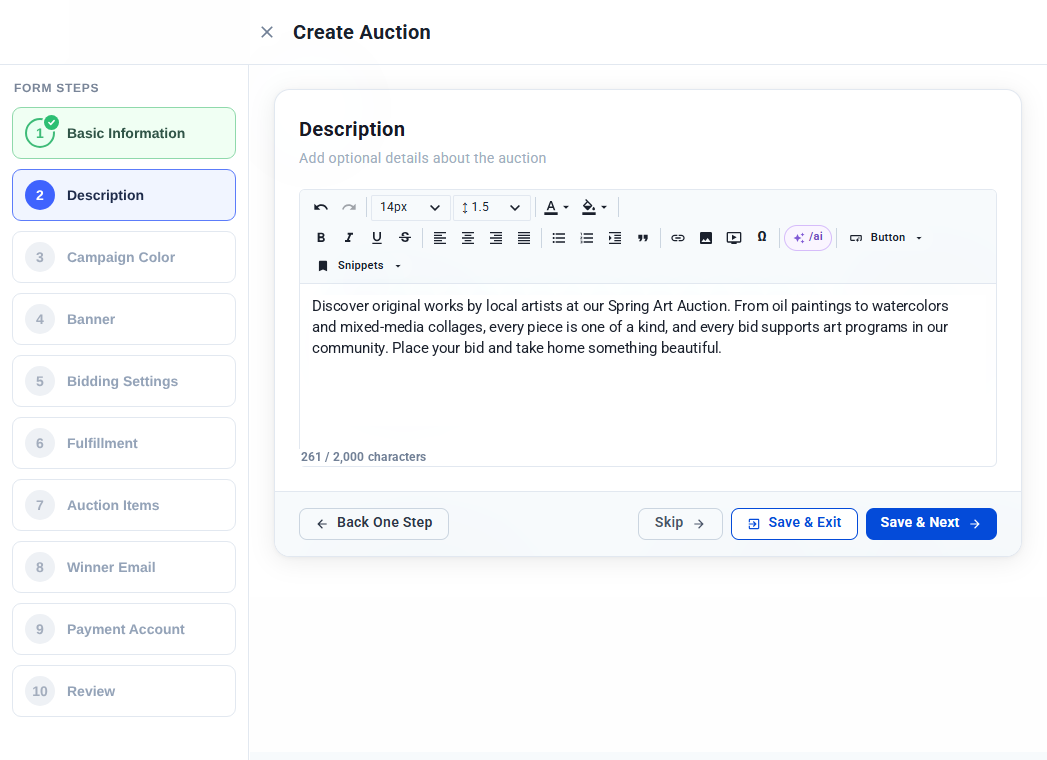
Add optional details about the auction, such as what it supports and what bidders can expect. The description appears under About this auction on your auction page.
- Use the toolbar to format text and add links, images, videos and buttons.
- Click /ai to draft or improve the text with AI.
- Use Snippets to insert text you’ve saved before.
- The description can be up to 2,000 characters.
Step 3: Campaign Color
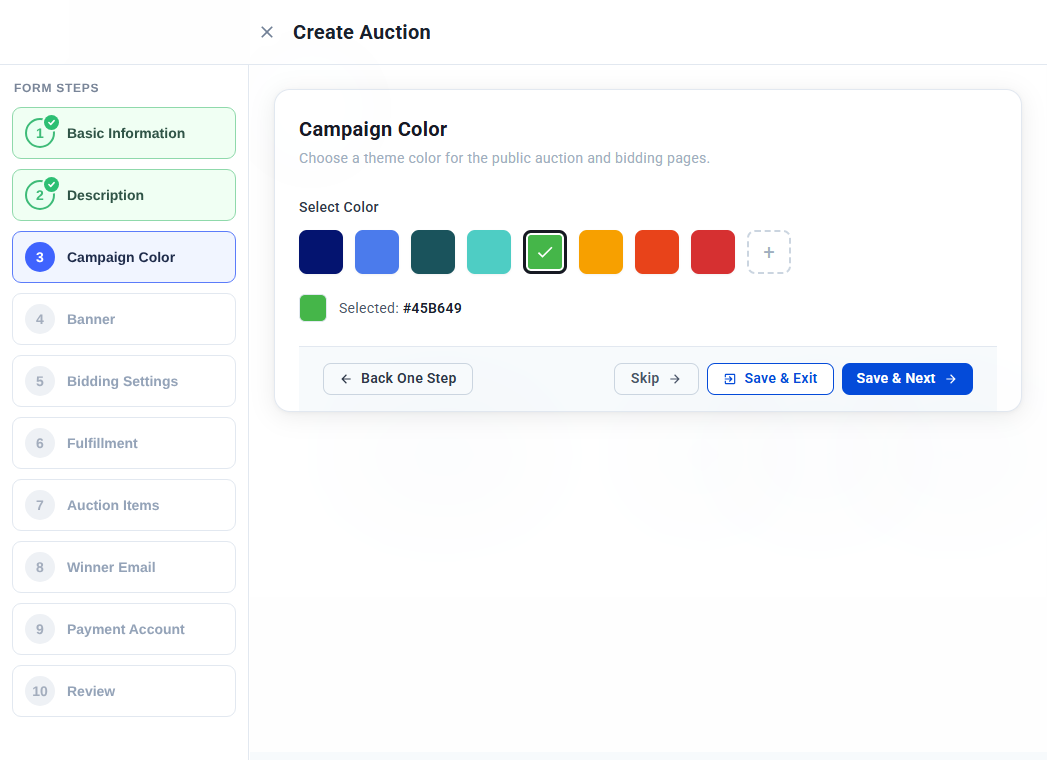
Choose a theme color for your public auction and bidding pages. Click one of the preset colors, or click + to choose your own. The selected color’s code is shown below the swatches, and the preview updates straight away.
Step 4: Banner
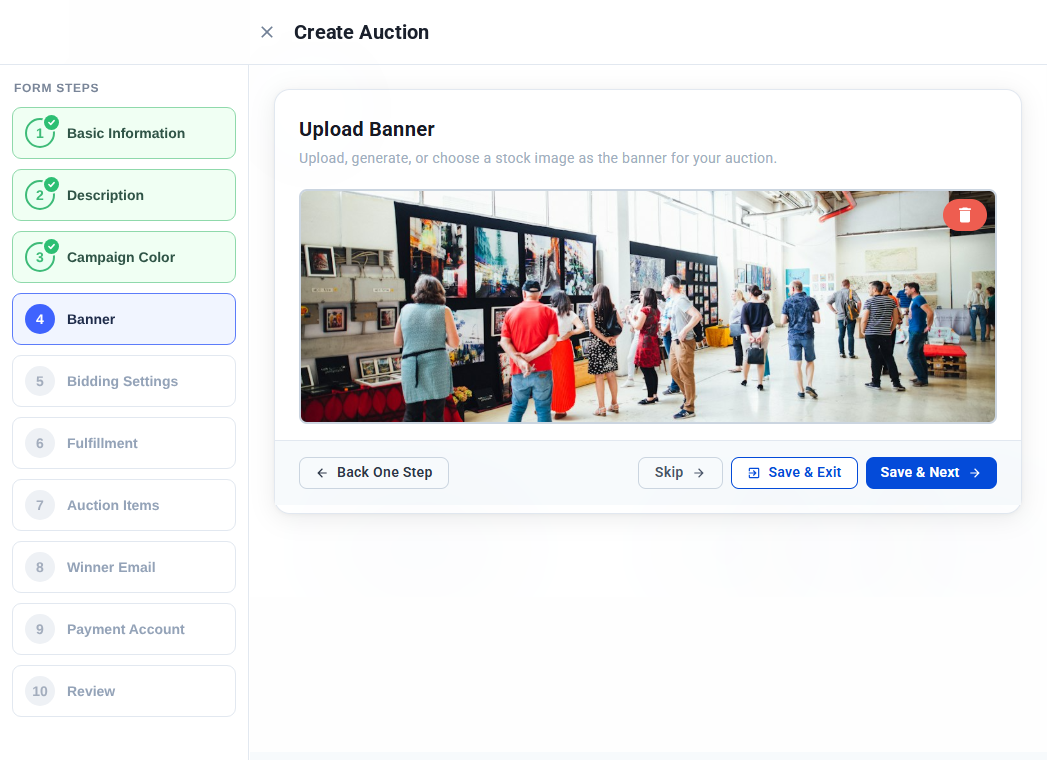
Add a banner image to the top of your auction page. You can upload your own image, generate one with AI, or choose a stock image. To replace the banner, click the delete icon on the image and add a new one.
Step 5: Bidding Settings
Control how much bids must rise by and whether bidders can add a tip.
- Enter the Default Minimum Bid Increment. This is how much each new bid must beat the current bid by. It must be at least $0.01.
- Turn on Allow bidders to add a tip if you want bidders to be able to add an optional tip for your organization when they save their card.
- Click Save & Next.
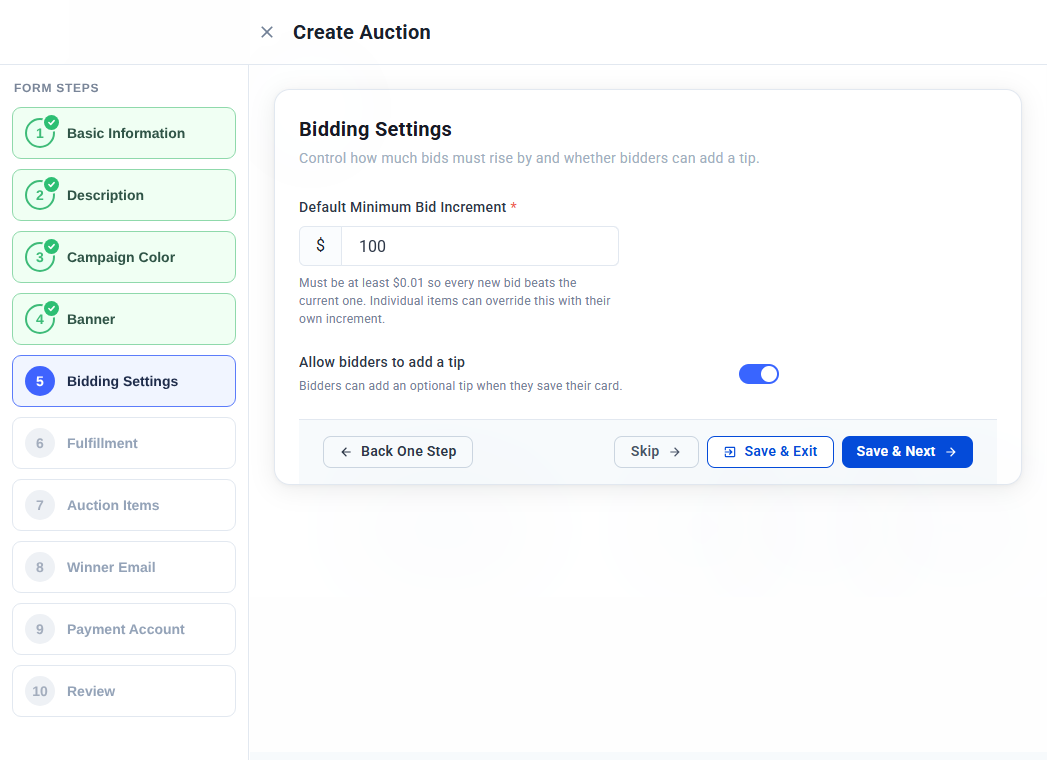
Tip: The default increment applies to every item. You can give any item its own increment when you add it.
Step 6: Fulfillment
Choose how winners receive their items after the auction closes. Turn on one option:
- Allow pickup — Winners collect their items in person. Add Pickup Instructions, such as your address, opening hours and a contact number.
- Allow shipping — Winners give a shipping address and pay a flat fee. Enter the Flat Shipping Amount. It is added to the winner’s total.
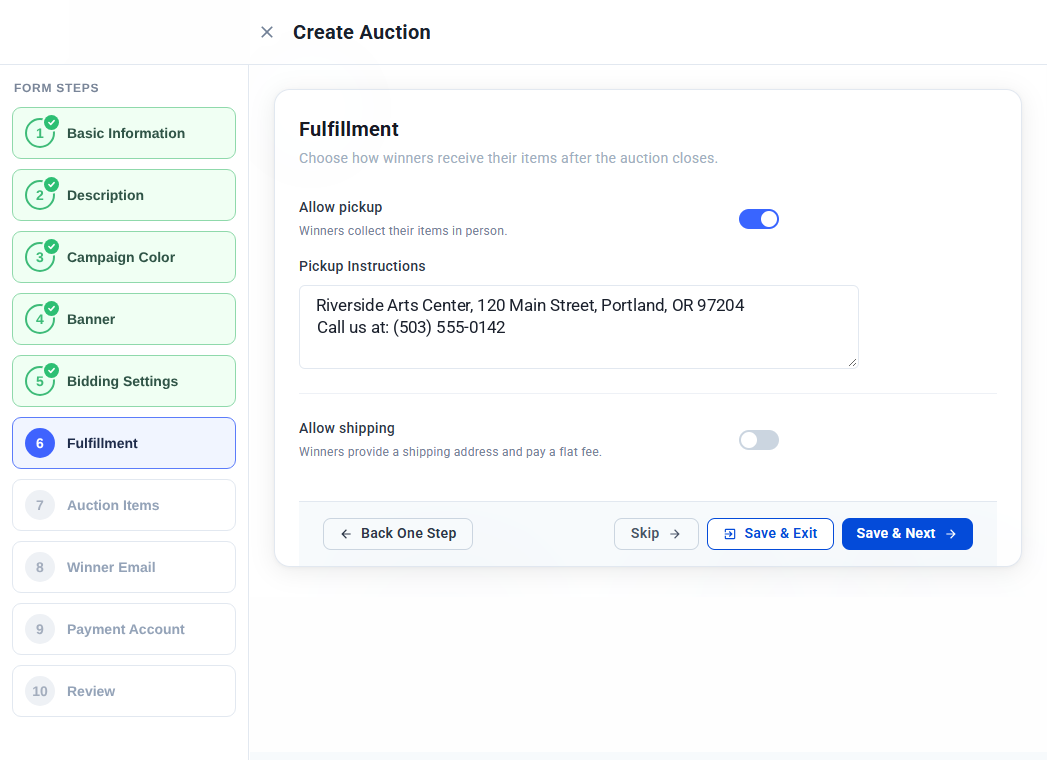
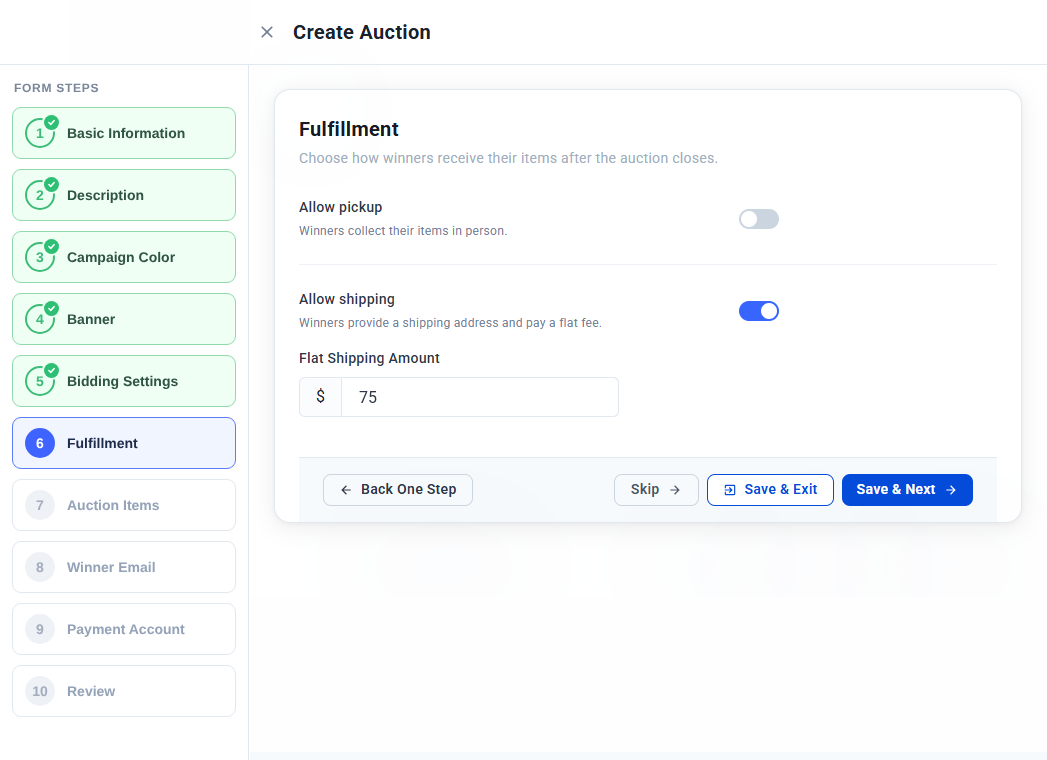
Click Save & Next.
Step 7: Auction Items
Add the items bidders will bid on. Every item needs a title and a starting price.
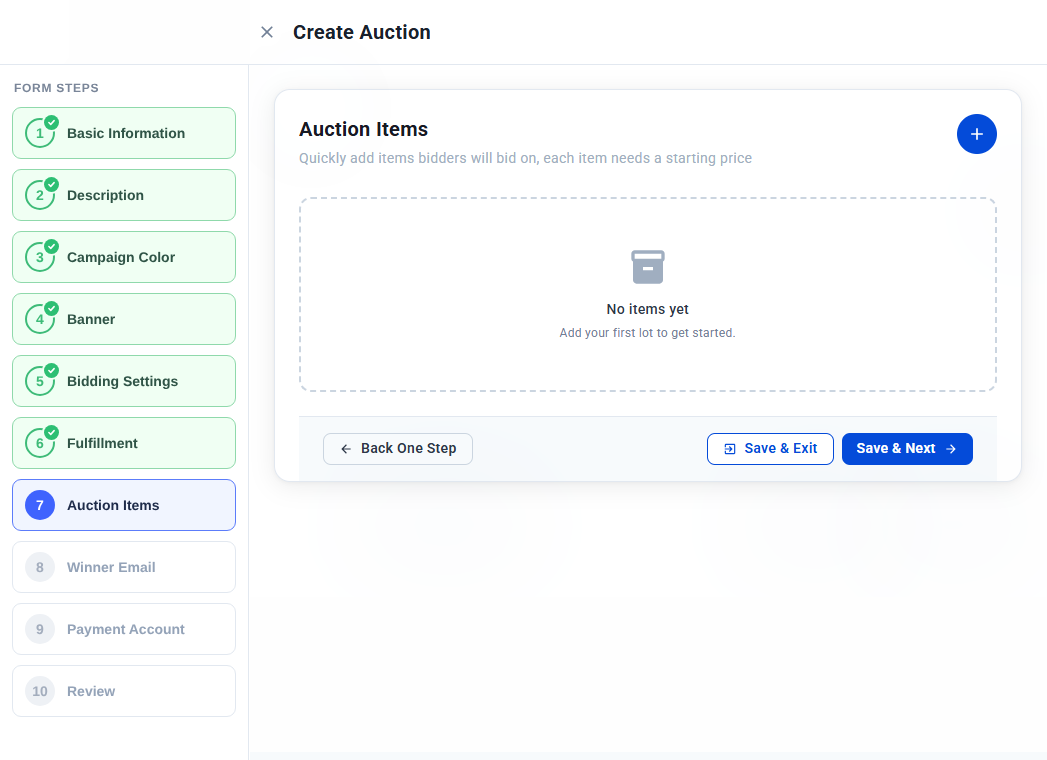
- Click the + button at the top right.
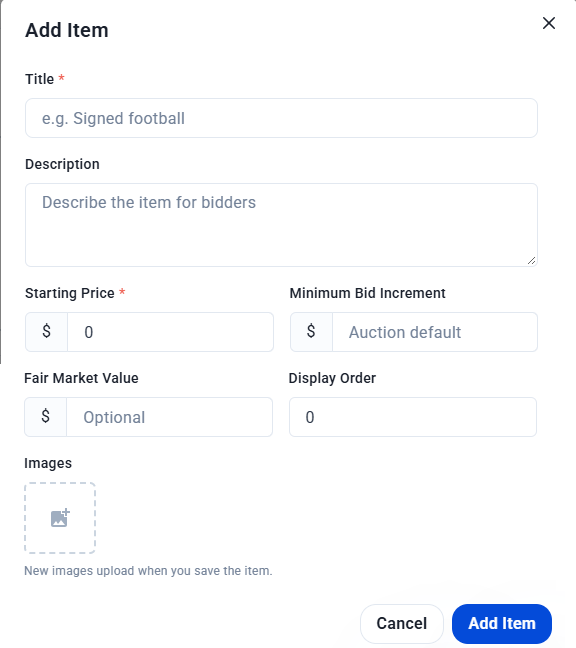
- In the Add Item window, fill in the item details:
- Title (required) — The item’s name, for example “Golden River at Dusk”.
- Description — Details that help bidders decide.
- Starting Price (required) — The lowest amount the first bid can be.
- Minimum Bid Increment — Leave empty to use the auction default, or enter a different increment for this item.
- Fair Market Value — Optional. An estimate of what the item is worth.
- Display Order — Controls the order items appear in on your auction page.
- Images — Add photos of the item. New images upload when you save the item.
- Click Add Item.
- Repeat for each item, then click Save & Next.
Your items appear in a list showing each item’s increment, total bids and status. Items show as Draft until the auction is published. Use the ⋮ menu next to an item to manage it.
Step 8: Winner Email
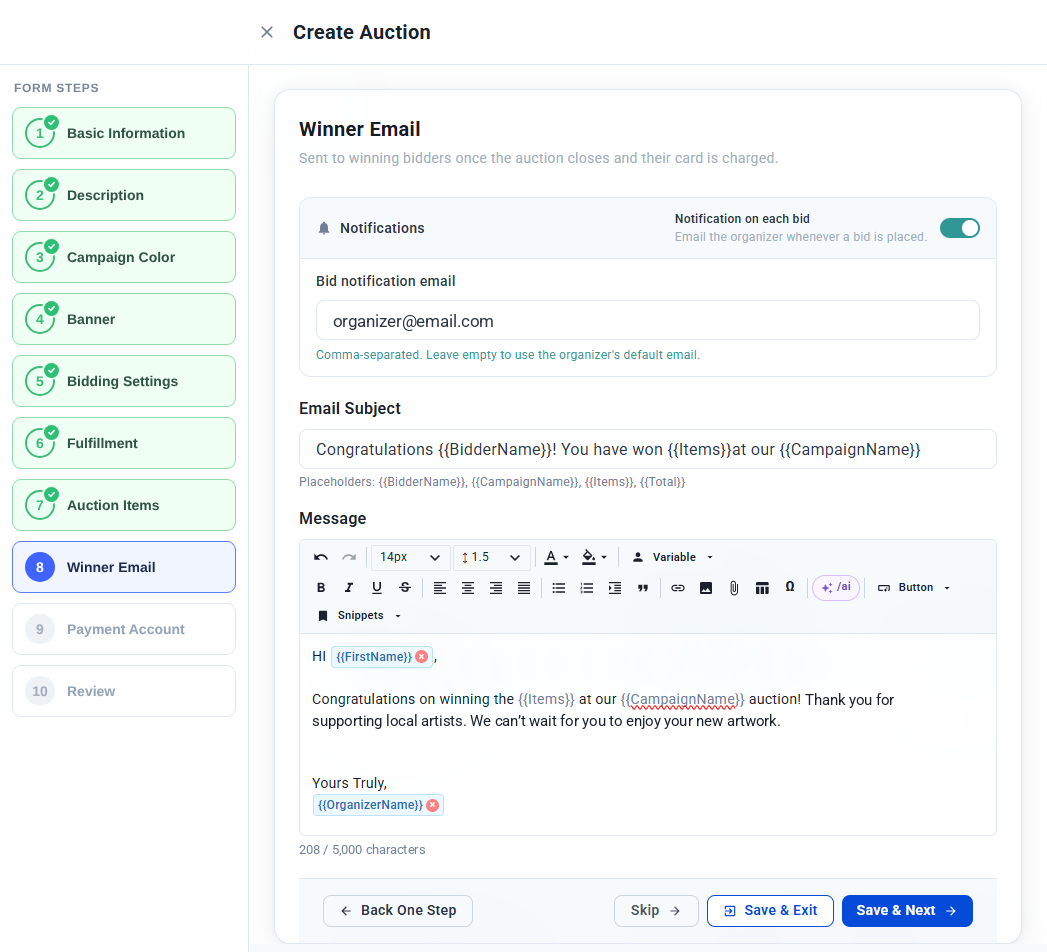
Write the email sent to winning bidders once the auction closes and their card is charged. You can also choose to be notified about new bids.
- Turn on Notification on each bid to get an email whenever a bid is placed.
- Under Bid notification email, enter the addresses that should receive these emails, separated by commas. Leave it empty to use the organizer’s default email.
- Enter the Email Subject. You can use these placeholders: {{BidderName}}, {{CampaignName}}, {{Items}} and {{Total}}.
- Write the Message. Use the Variable menu to insert details such as the bidder’s first name or your organization’s name, and /ai to help write it. The message can be up to 5,000 characters.
- Click Save & Next.
Step 9: Payment Account
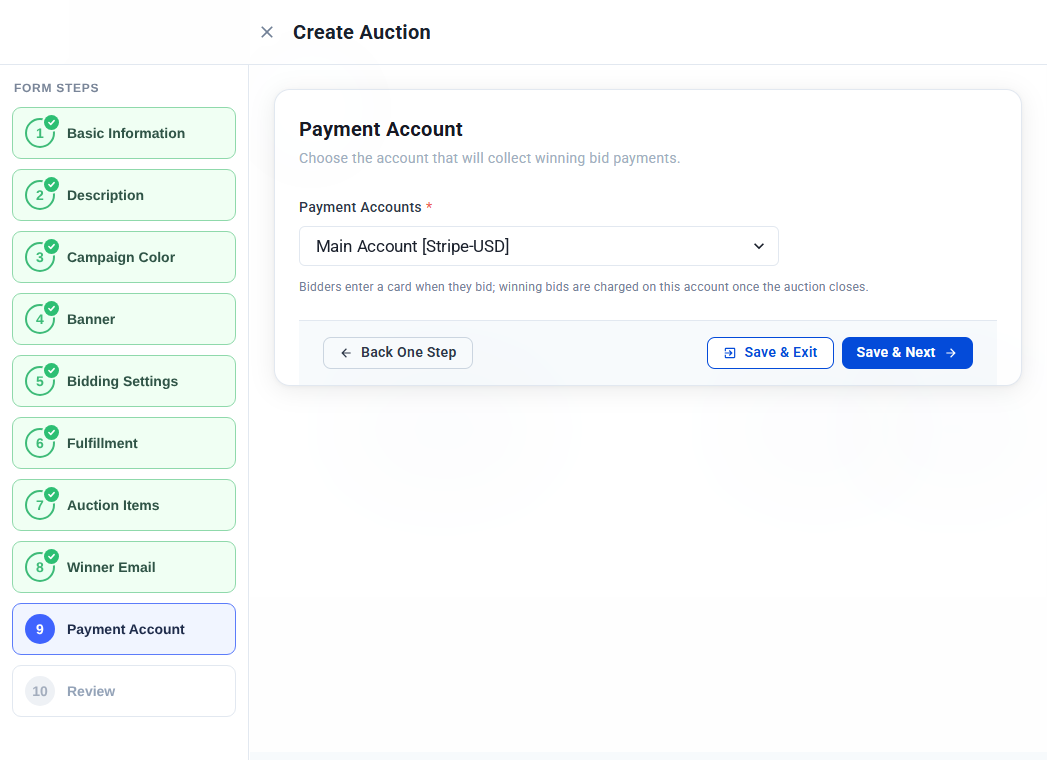
Choose the account that will collect winning bid payments. Bidders enter a card when they bid, and winning bids are charged to this account once the auction closes.
- Select an account from the Payment Accounts list. This is required.
- Click Save & Next.
Note: Don’t see your account? Learn how to set up your payment account.
Step 10: Review
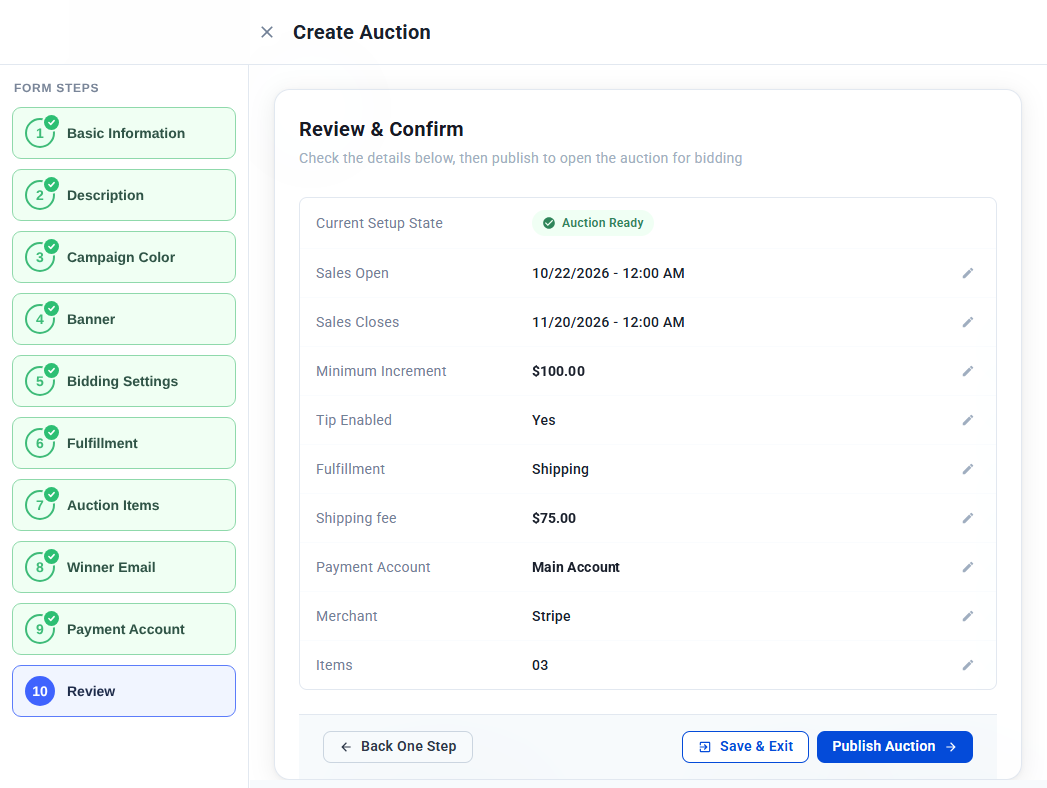
Check your auction before it goes live. The Review & Confirm screen shows your sales dates, minimum increment, tip setting, fulfillment, shipping fee, payment account and number of items. When everything is set, the setup state shows Auction Ready.
- Check each setting. To change one, click the pencil icon next to it.
- Click Publish Auction.
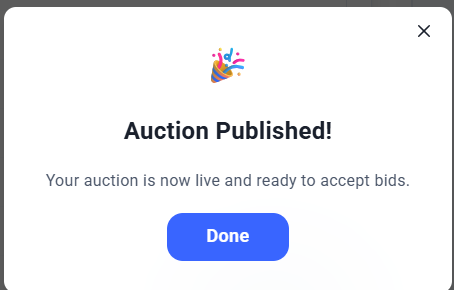
A confirmation message tells you your auction is live and ready to accept bids. Click Done. Your auction now appears in the Auction List with the status Started. Next, share your auction so supporters can start bidding.
Good to know
- Finish later — Click Save & Exit at any step to save your progress.
- Required steps — Basic Information, Auction Items and Payment Account can’t be skipped. The other steps can.
- Connect Stripe first — You’ll need a connected payment account for step 9. Learn how to set up your payment account.
Next steps
Monitoring and Sharing Your Auction
Track bids on every item as they come in, see the bids on a single item, and share your auction link, QR code or an item’s bidding link.
Track bids on every item as they come in, see the bids on a single item, and share your auction link, QR code or an item’s bidding link.
Once your auction is published, the Monitor page shows how it’s doing at a glance. From there, or from the Auction List, you can share your auction so supporters can start bidding.
Open the Monitor page
- Go to Auction > Auctions in the left sidebar.
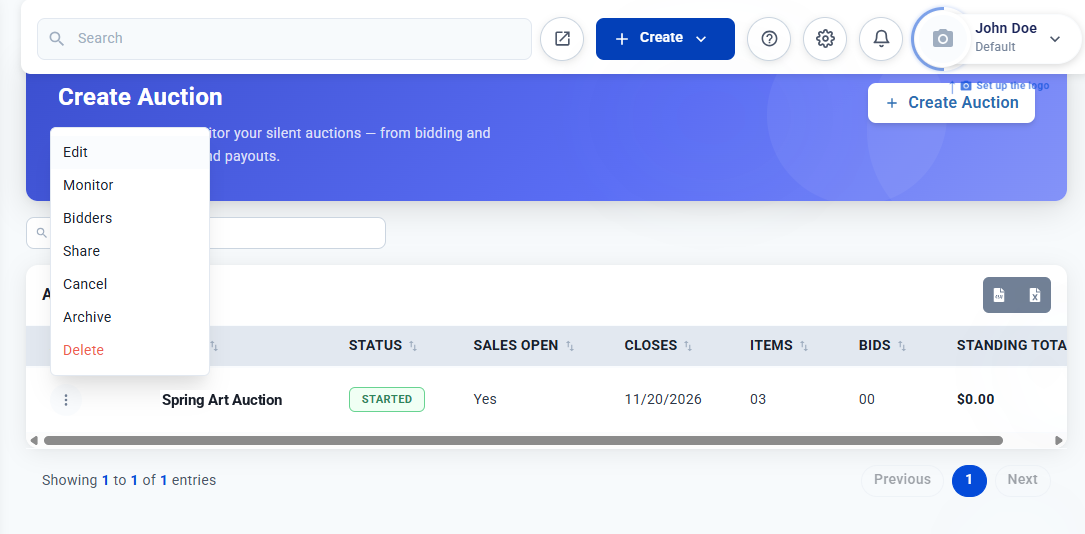
- Click the ⋮ menu next to your auction.
- Click Monitor.
What the Monitor page shows
The top of the page shows your auction’s name, status, and opening and closing dates. Below it, five summary boxes show:
- Items — How many items are in the auction.
- Bids — The total number of bids placed.
- Standing Total — The total of the current highest bids across all items.
- Paid — How many winning payments have been collected.
- Payment Failed — How many winning payments couldn’t be charged.
The table lists every item with:
- Status — For example, Open for Bidding while the auction is running.
- Winner — The winning bidder, once there is one.
- Starting — The item’s starting price.
- Current Bid — The highest bid so far.
- Next Min — The lowest amount the next bid can be.
- Bids — How many bids the item has received.
Click Refresh to load the latest bids. The buttons at the top also take you to Bidders, Share and Edit.
View the bids on an item
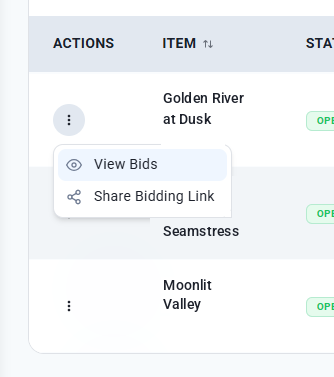
- On the Monitor page, click the ⋮ menu next to the item.
- Click View Bids.
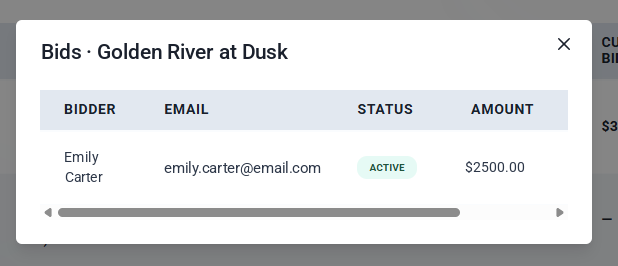
A window lists every bid on the item, with the bidder’s name, email, bid status and amount.
Share your auction
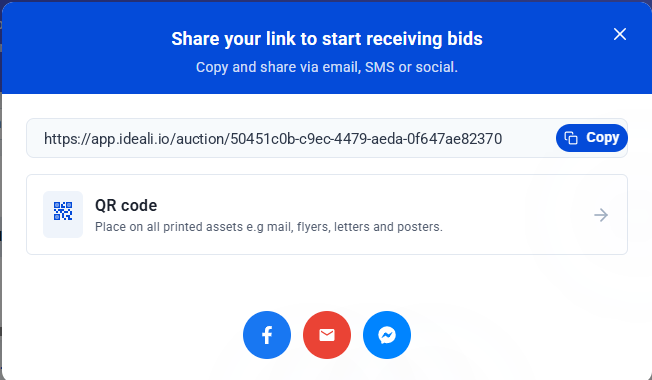
Click Share on the Monitor page, or choose Share from the auction’s ⋮ menu on the Auction List. From the share window you can:
- Copy your link — Click Copy and paste the link into emails, text messages, social posts or your website.
- Get a QR code — Click QR code to get a code for flyers, posters, letters and other printed materials.
- Share directly — Click the Facebook, email or Messenger button.
Share a single item
To promote one item, such as your star lot, share its bidding link. Bidders who open it go straight to that item. See what bidders see.
- On the Monitor page, click the ⋮ menu next to the item.
- Click Share Bidding Link.
Good to know
- Auction List at a glance — The Auction List also shows each auction’s status, closing date, items, bids and standing total, so you can check several auctions without opening each one.
- Export — Use the export buttons on the Auction List to download your auctions as a file.
- No charges until close — The standing total is the sum of current highest bids. Bidders are only charged when the auction closes.
Next steps
Managing Bidders
See everyone who has registered to bid on your auction, and open any bidder to check their fulfillment choice, tip, shipping address and bid history.
See everyone who has registered to bid on your auction, and open any bidder to check their fulfillment choice, tip, shipping address and bid history.
A bidder is registered the first time they place a bid. They enter their contact details, choose how they’ll receive their item and save a card. The Bidders page lists everyone who has registered for an auction. See how bidding works for your supporters.
Open the Bidders page
You can open it in two ways:
- Go to Auction > Auctions, click the ⋮ menu next to your auction and click Bidders.
- On the auction’s Monitor page, click Bidders.
The bidder list
The top of the page shows the auction’s name and how many bidders have registered. The list shows each bidder’s:
- Bidder — Their name and bidder ID, for example BID-1001.
- Email — The email address they registered with.
- Status — For example, Registered.
- Bids — How many bids they’ve placed in this auction.
- Registered — The date they registered.
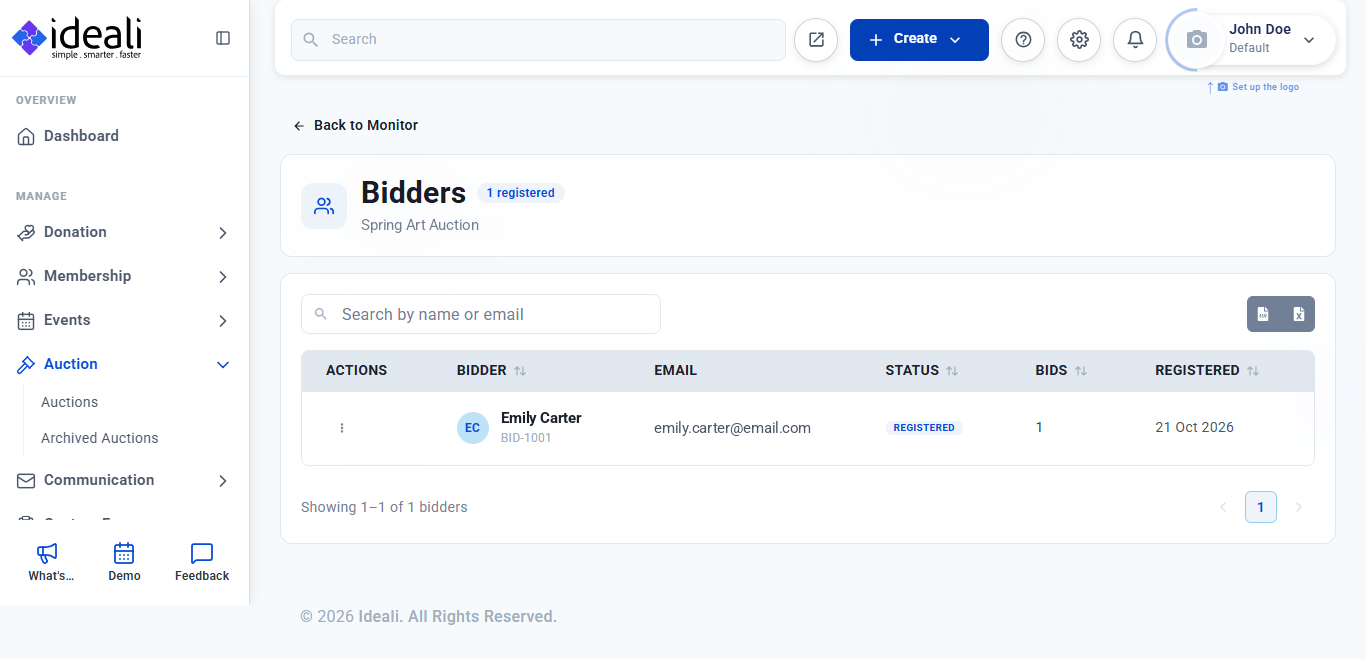
To find a bidder, type their name or email in the search box. Use the export buttons at the top right to download your bidder list.
View a bidder’s details
- On the Bidders page, click the ⋮ menu next to the bidder.
- Open their details.
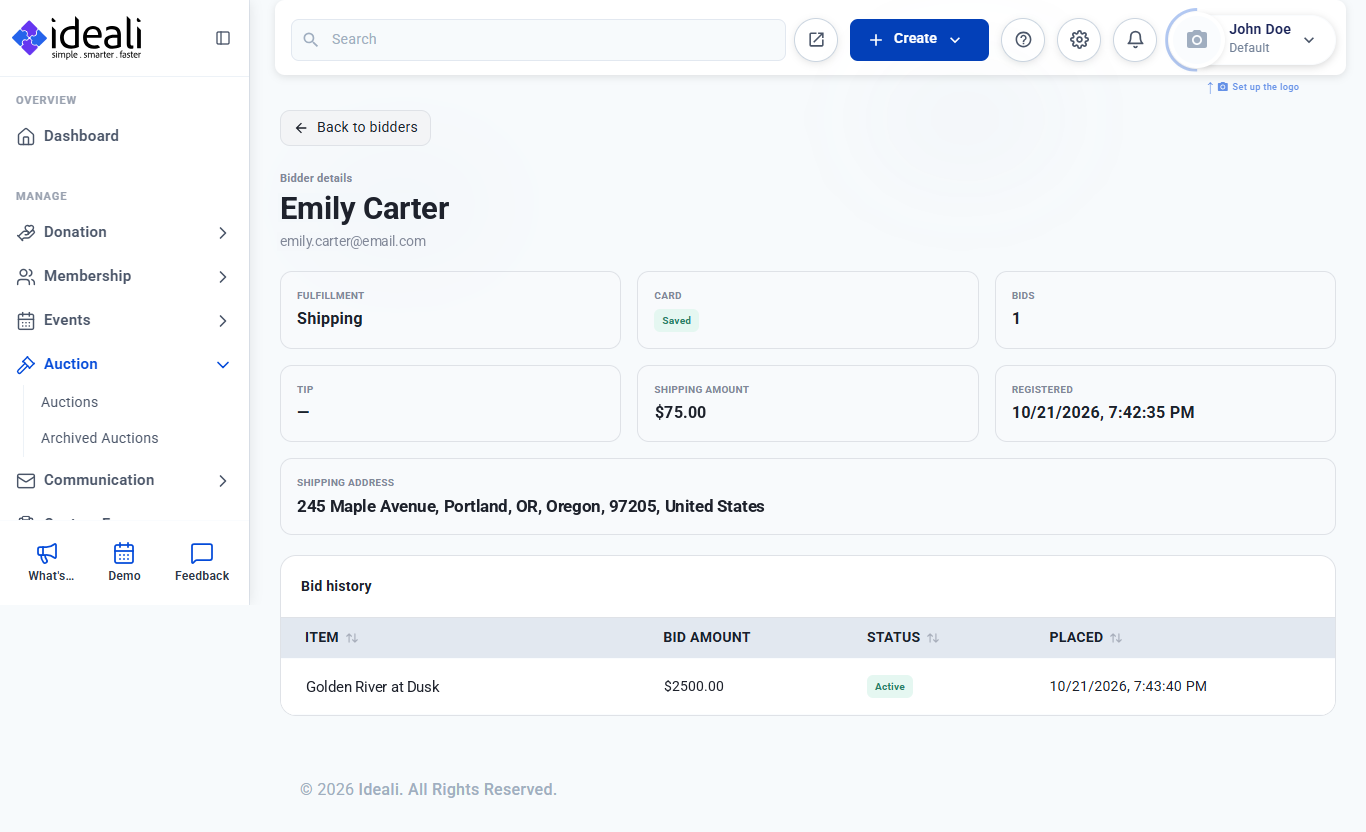
The bidder details page shows:
- Fulfillment — Whether they chose pickup or shipping.
- Card — Whether their card is saved, ready to be charged if they win.
- Bids — How many bids they’ve placed.
- Tip — The tip they added, if any.
- Shipping Amount — The flat shipping fee, if they chose shipping.
- Registered — The date and time they registered.
- Shipping Address — Where to send their item, if they chose shipping.
Bid history
The Bid history table at the bottom lists every bid the bidder has placed, with the item, bid amount, status (for example, Active) and the date and time it was placed.
Click Back to bidders to return to the list, or Back to Monitor from the Bidders page.
Good to know
- Card details are secure — Cards are saved through Stripe. Ideali doesn’t store card numbers, so you’ll only see whether a card is saved.
- Use bidder details after the auction — The fulfillment choice, shipping address and contact details help you get items to your winners.
Next steps
Editing, Cancelling, Archiving and Deleting an Auction
Change an auction’s settings, stop bidding early, move finished auctions out of your list, or remove an auction for good.
Change an auction’s settings, stop bidding early, move finished auctions out of your list, or remove an auction for good.
You manage each auction from its ⋮ menu on the Auction List. Go to Auction > Auctions in the left sidebar and click the ⋮ menu next to the auction.
The menu has these options:
- Edit — Change the auction’s settings and items.
- Monitor — Track bids and payments. Learn about the Monitor page.
- Bidders — See everyone registered to bid. Learn about managing bidders.
- Share — Get your auction link, QR code and social sharing buttons. Learn about sharing.
- Cancel — Stop all bidding without charging anyone.
- Archive — Move the auction out of your active list.
- Delete — Remove the auction.
Edit an auction
- Click the ⋮ menu next to the auction and click Edit. You can also click Edit on the auction’s Monitor page.
- The auction wizard opens with your saved settings. Go to the step you want to change.
- Make your changes and click Save & Next or Save & Exit.
Use Edit to finish an auction you saved with Save & Exit before publishing, or to update an auction’s details.
Tip: If bidding has started, think carefully before changing the close date, bid increments or fulfillment. Bidders may already have placed bids based on your original settings.
Cancel an auction
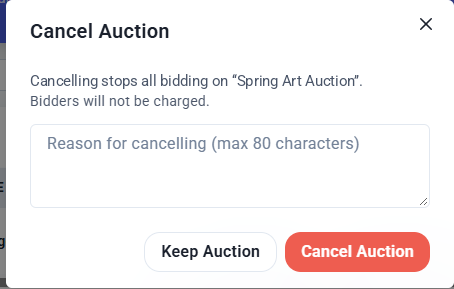
Cancelling stops all bidding on the auction straight away. No bidder is charged.
- Click the ⋮ menu next to the auction and click Cancel.
- Enter a reason for cancelling, up to 80 characters.
- Click Cancel Auction. To go back without cancelling, click Keep Auction.
The auction’s status changes to Cancelled.
Archive an auction
Archiving moves an auction out of your active Auction List, so the list only shows the auctions you’re working on. Use it for auctions that have finished or been cancelled.
- Click the ⋮ menu next to the auction.
- Click Archive.
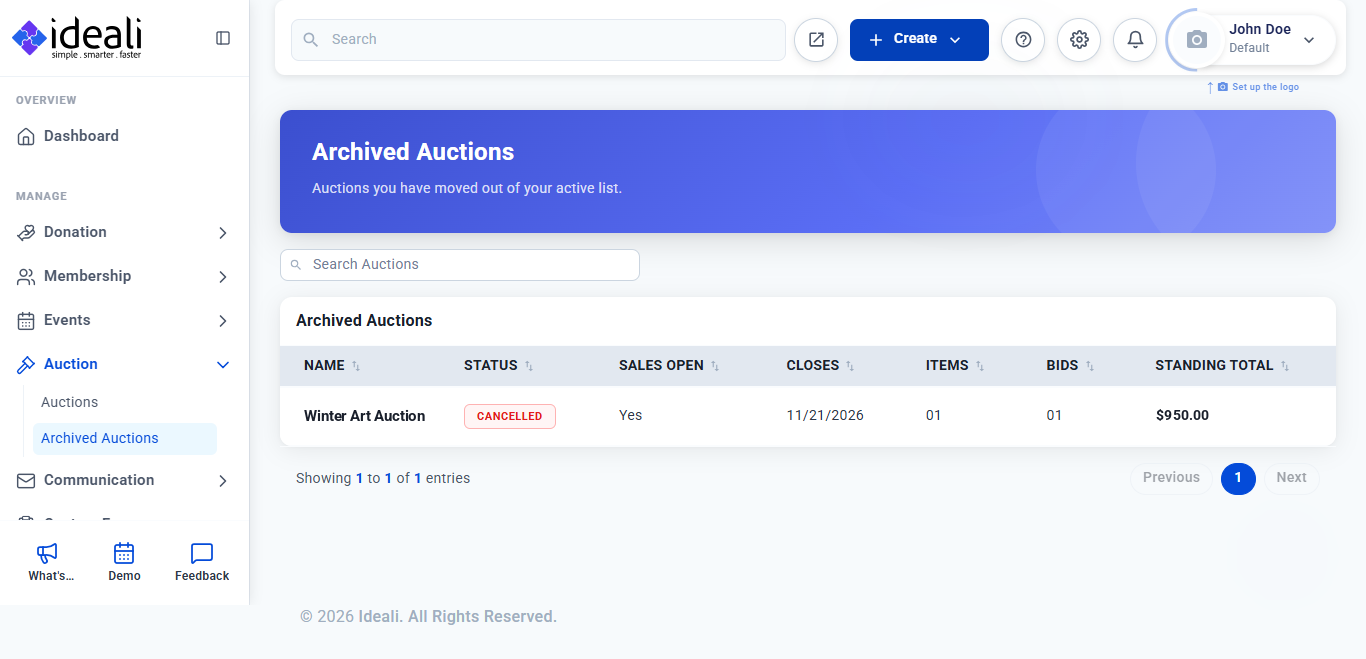
To see your archived auctions, go to Auction > Archived Auctions in the left sidebar. The list shows each auction’s status, sales dates, items, bids and standing total, and you can search it by name.
Delete an auction
- Click the ⋮ menu next to the auction.
- Click Delete and confirm.
Note: Deleting removes the auction and can’t be undone. If you want to keep the auction’s details for your records, archive it instead.
Cancel, archive or delete?
- Cancel — The auction is live but shouldn’t go ahead. Bidding stops and nobody is charged.
- Archive — The auction is over and you want it out of your active list, but kept for your records.
- Delete — You want the auction gone for good, for example a test or a duplicate.
Next steps
How Bidding Works for Supporters
See your auction through your bidders’ eyes, from opening your link to placing a bid, and what happens when the auction closes.
See your auction through your bidders’ eyes, from opening your link to placing a bid, and what happens when the auction closes.
Knowing what your supporters see helps you answer their questions and promote your auction with confidence. Bidding takes five short steps, and bidders aren’t charged anything until the auction closes, and only if they win.
Step 1: Description
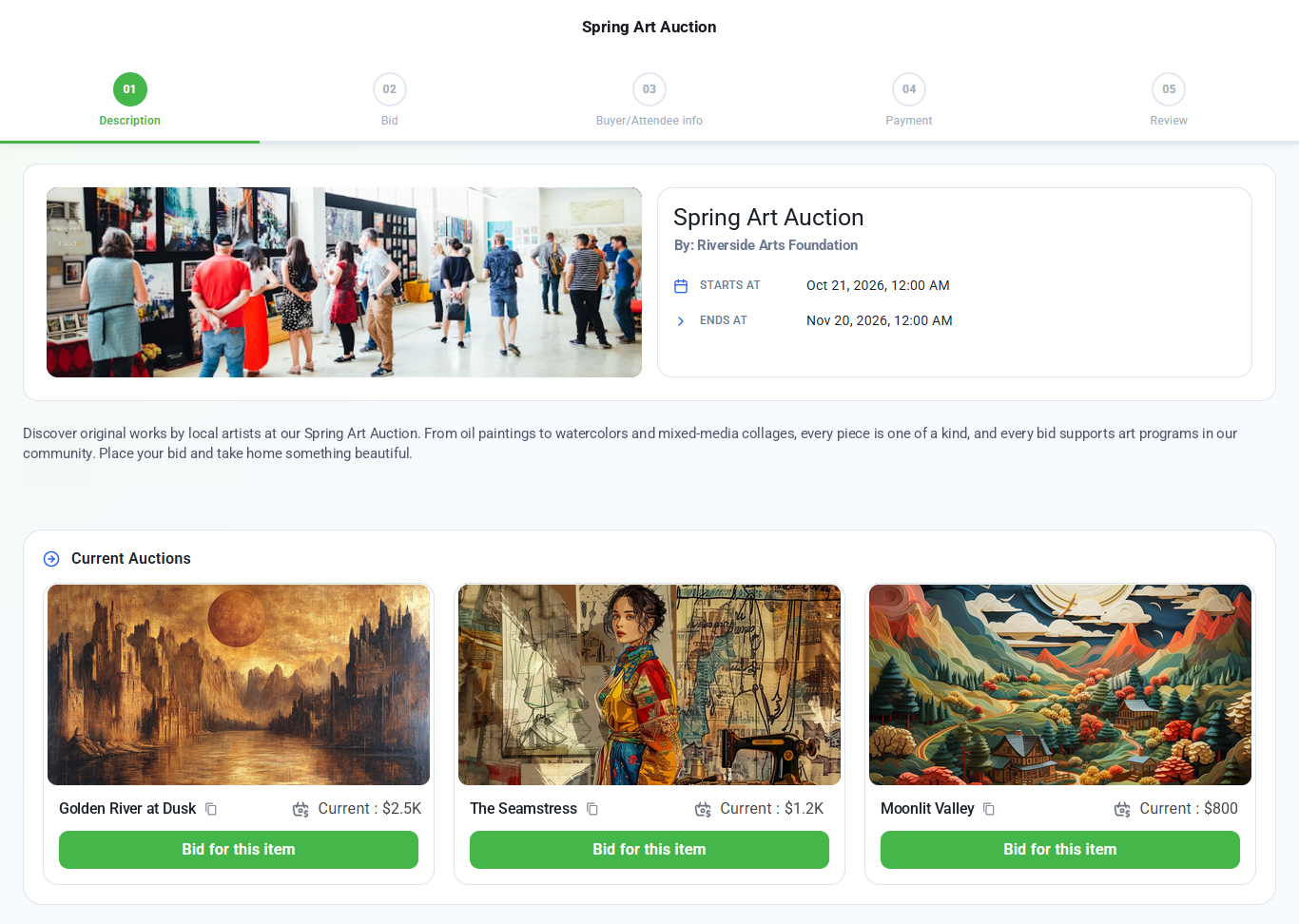
When a bidder opens your auction link, they see your banner, auction name and organization, and when bidding starts and ends. Below your description, Current Auctions shows every item with its photo and current bid.
The bidder clicks Bid for this item on the item they want.
Step 2: Bid
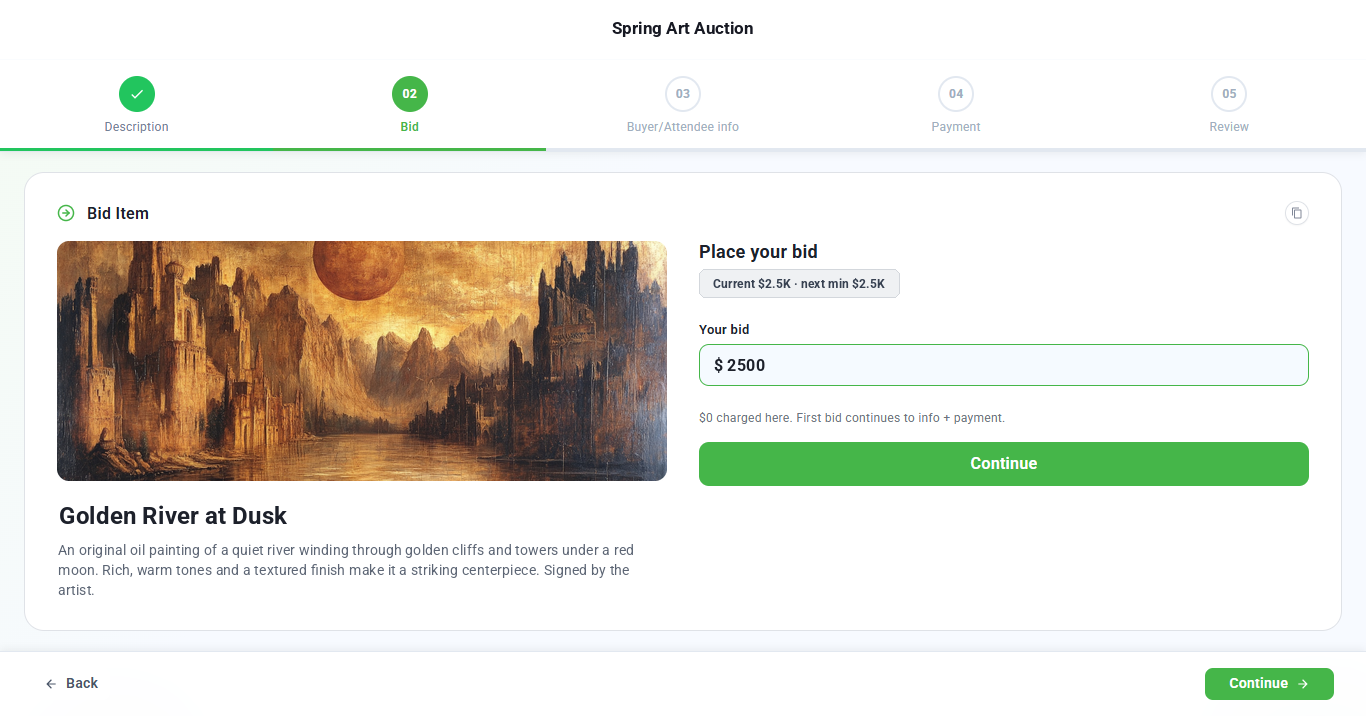
The bidder sees the item’s photo and description, the current bid and the next minimum bid. They enter an amount of at least the next minimum and click Continue. Nothing is charged at this step.
Step 3: Buyer Information
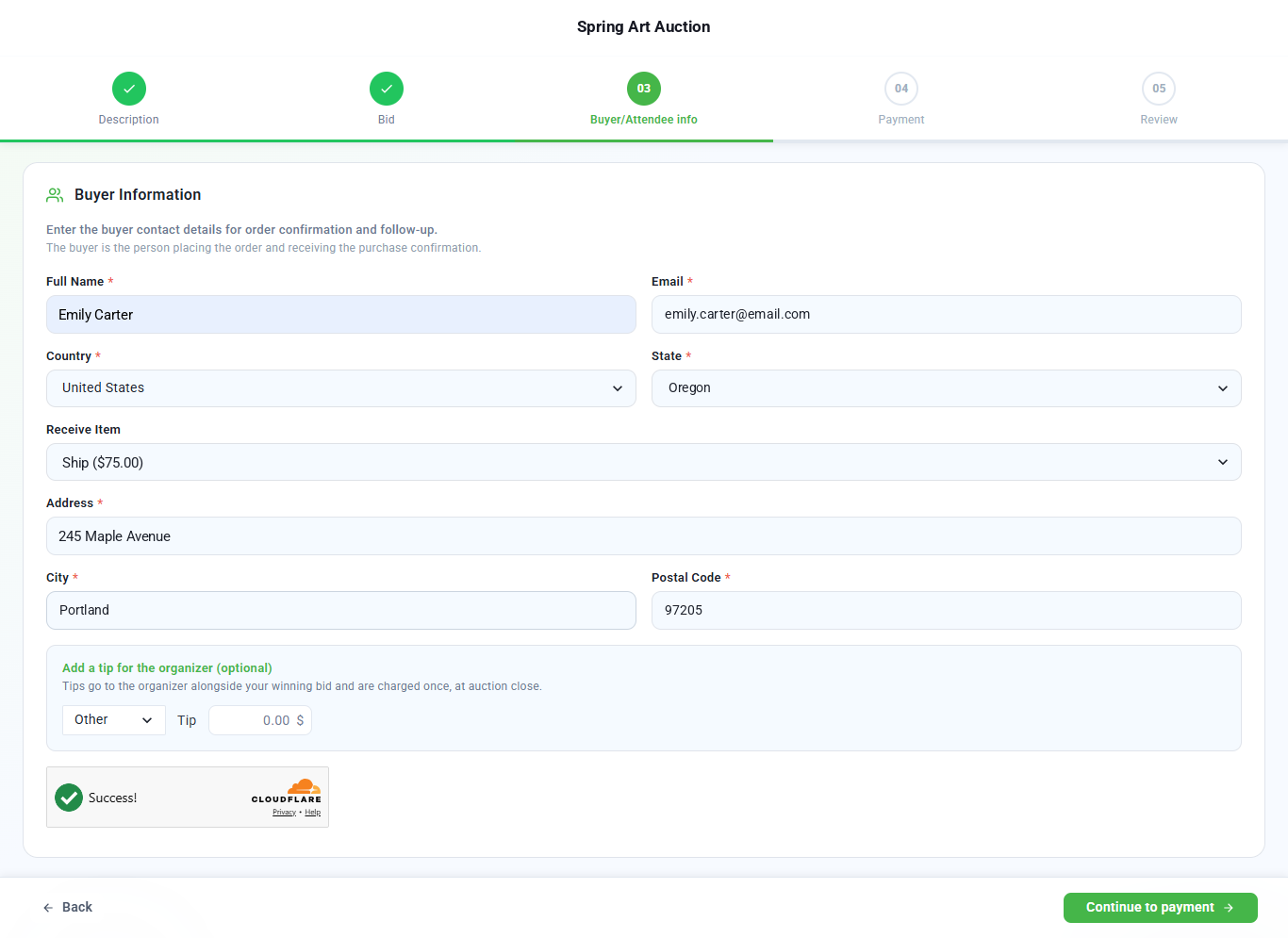
The bidder enters their contact details:
- Full name and email.
- Country and state.
- Receive Item — How they’ll get the item. This shows the fulfillment option you set up, such as shipping with its fee.
- Address, city and postal code.
If you’ve allowed tips, they can also add an optional tip for your organization. The tip is charged together with their winning bid when the auction closes.
A quick security check runs at the bottom of the form. The bidder then clicks Continue to payment.
Step 4: Payment
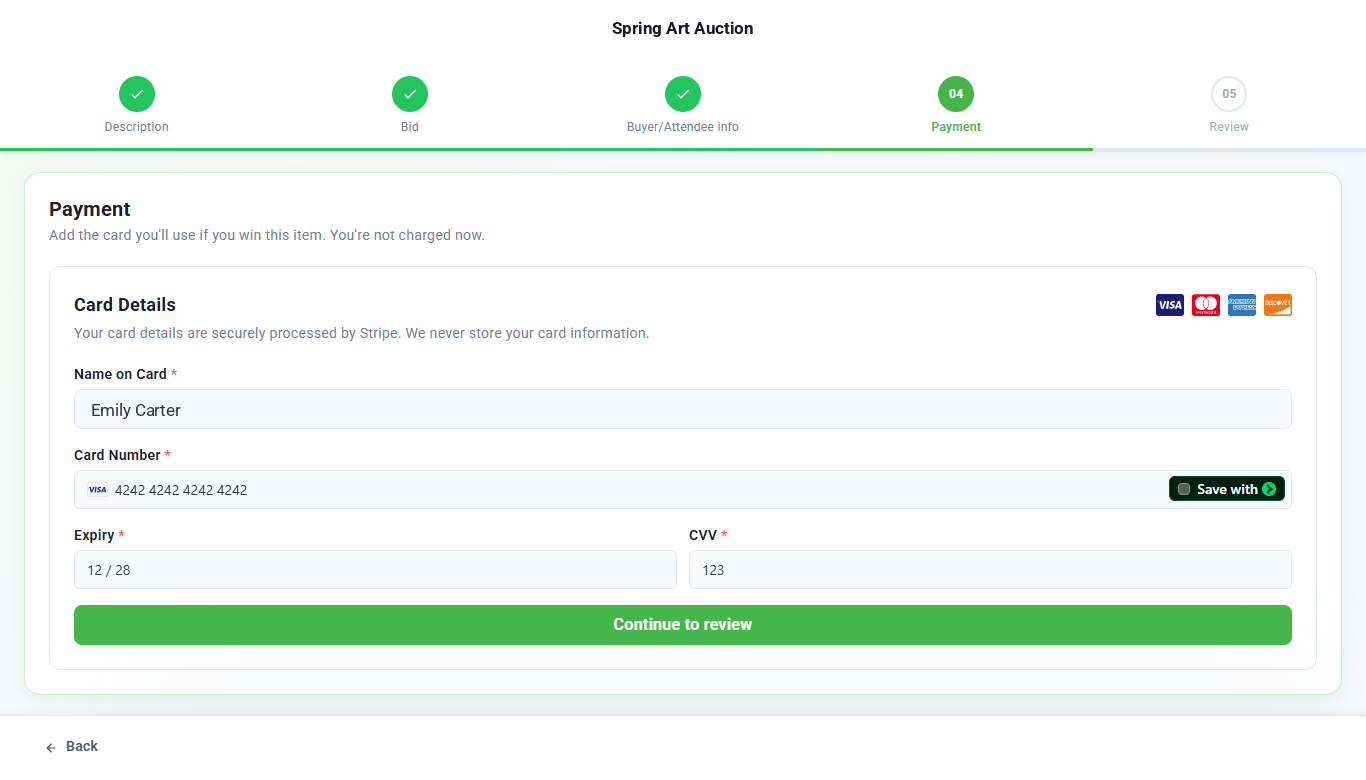
The bidder adds the card they’ll pay with if they win. Card details are processed securely by Stripe and aren’t stored by Ideali. They’re not charged at this point. They click Continue to review.
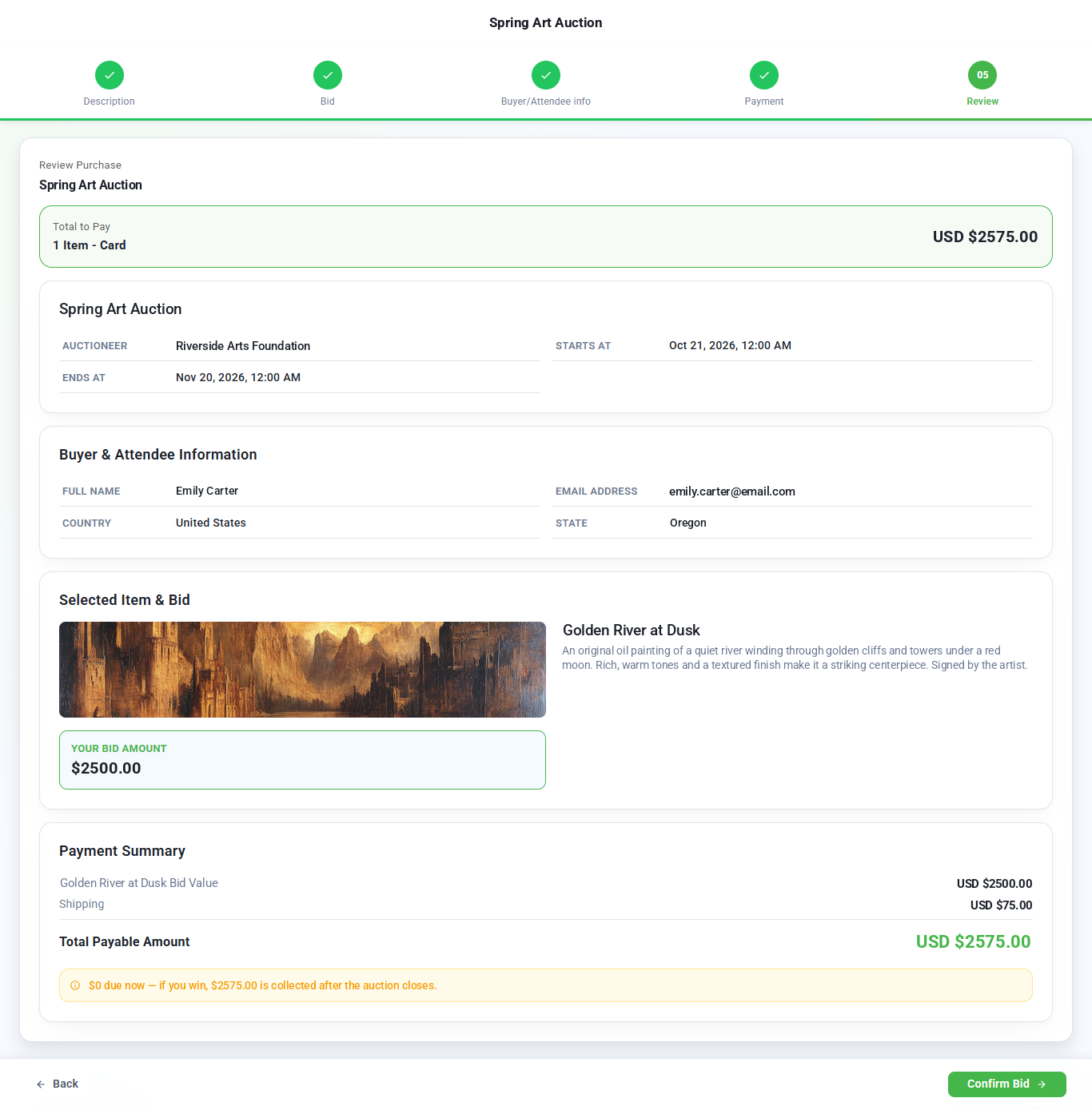
Step 5: Review
The review screen shows the auction details, the bidder’s information, the item and their bid amount. The Payment Summary shows the bid, any shipping fee and the total they’ll pay if they win, with a clear note that nothing is due now.
The bidder clicks Confirm Bid.
Bid confirmed
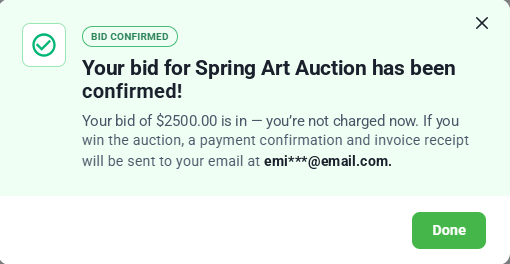
A confirmation message shows that the bid is in and that the bidder isn’t charged now. If they win, they’ll receive a payment confirmation and receipt by email.
The new bid shows on your Monitor page, and the bidder appears on your Bidders page.
When the auction closes
- The highest bid on each item wins.
- Ideali charges each winner’s saved card for their winning bid, plus any shipping fee and tip.
- Winners receive your winner email and a payment receipt.
- Bidders who didn’t win aren’t charged.
Good to know
- Share the right link — Share your auction link so bidders can browse every item, or an item’s bidding link to send them straight to one item. Learn how to share.
- Your colors and banner — Bidders see the campaign color and banner you chose in the auction wizard.
- Questions about charges — Remind bidders that saving a card doesn’t charge it. They only pay if they win.