

Using the AI description and banner generator
Learn how to use Ideali's built in AI tools to generate a compelling campaign description and a custom banner image directly inside the campaign builder.
Ideali includes built in AI tools that help you create polished pages for your donation campaigns, memberships and events, even if you are starting from scratch. You can use AI to write your text and to generate a custom banner image, saving you time while producing professional results.
Where You Can Use AI
The AI tools are available inside each builder, at the steps where you write text or add a banner:
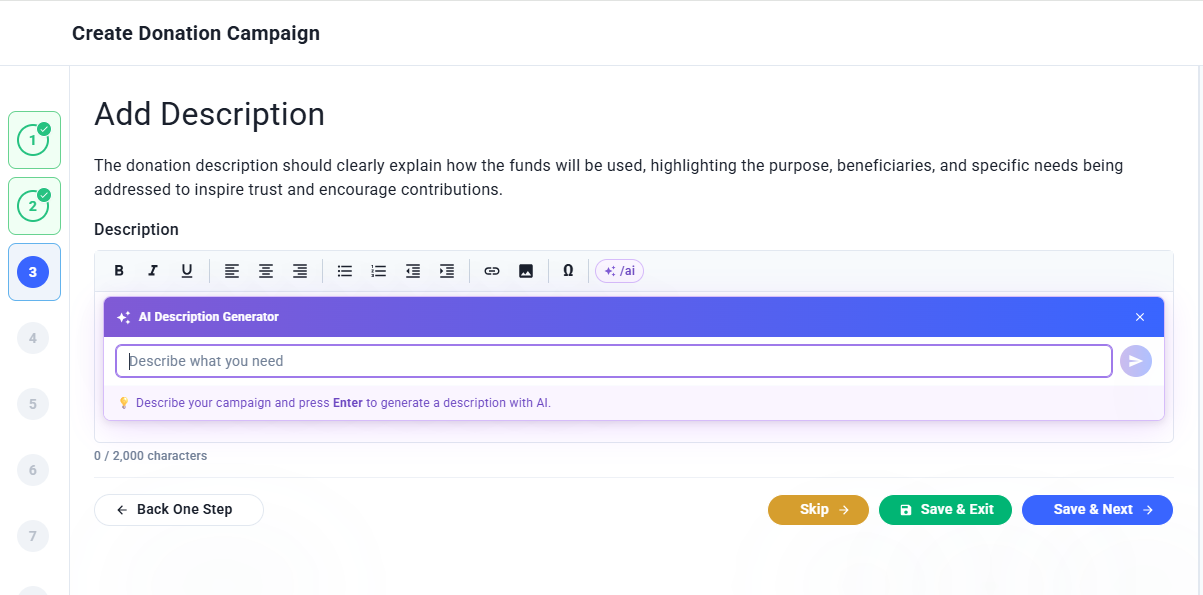
- Donation campaigns — The Add Description and Upload Banner steps of the campaign builder.
- Memberships — The Description and Upload Banner steps when creating a membership type.
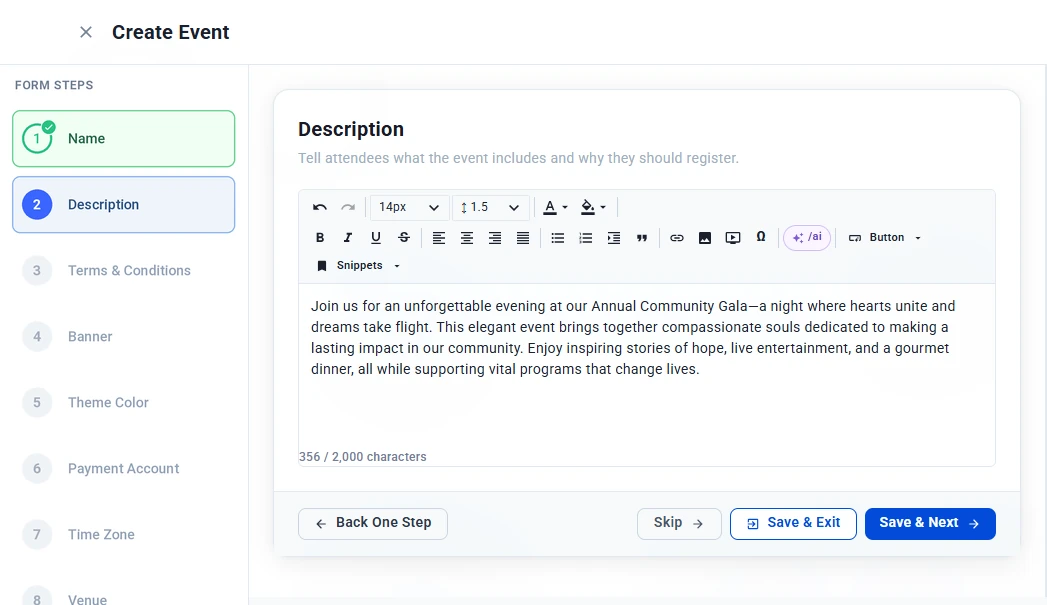
- Events — The Description, Terms & Conditions, Banner and Thank You Email steps of the event wizard.
AI Writing Assistant
Instead of writing from scratch, let AI create a first draft for you:
- Open the text editor on any of the steps listed above.
- Start the AI assistant:
- In the campaign builder, use the AI prompt option in the description editor.
- In the membership and event builders, type /ai in the editor or click the /ai button in the toolbar.
- Type a brief summary of what you want and press Enter.
- Review the generated text, then edit, refine or rewrite any part of it before saving.
This is especially useful if you are unsure how to present your cause in writing, or want a strong starting point quickly.
📹 Watch: Use AI in description ⏱ 1m 35s
💡 Best Practices for AI Generated Text
- Be specific about your cause and who it helps.
- Include key details such as the goal amount, membership benefits, or the event date and venue.
- Include the tone you want such as urgent, hopeful, welcoming, or formal.
- Review and personalize the generated text before saving, especially terms and conditions.
Donation campaign prompt: “We are raising funds to provide school supplies and meals for 200 underprivileged children in rural communities. The goal is $4,000 and every donation makes a direct impact.”
Membership prompt: “Annual supporter membership for our community food bank. Members receive a quarterly newsletter, priority volunteer sign-up, and an invitation to our yearly appreciation dinner.”
Event prompt: “Annual Community Gala on November 22 in the Main Ballroom. An evening of dinner, live music, and stories from the families we support. All proceeds fund our youth programs.”
Choosing a Banner
The banner step gives you three ways to add a banner image:
- Drag & Drop — Upload your own image. Supported formats are JPG, PNG, and GIF, up to 5MB.
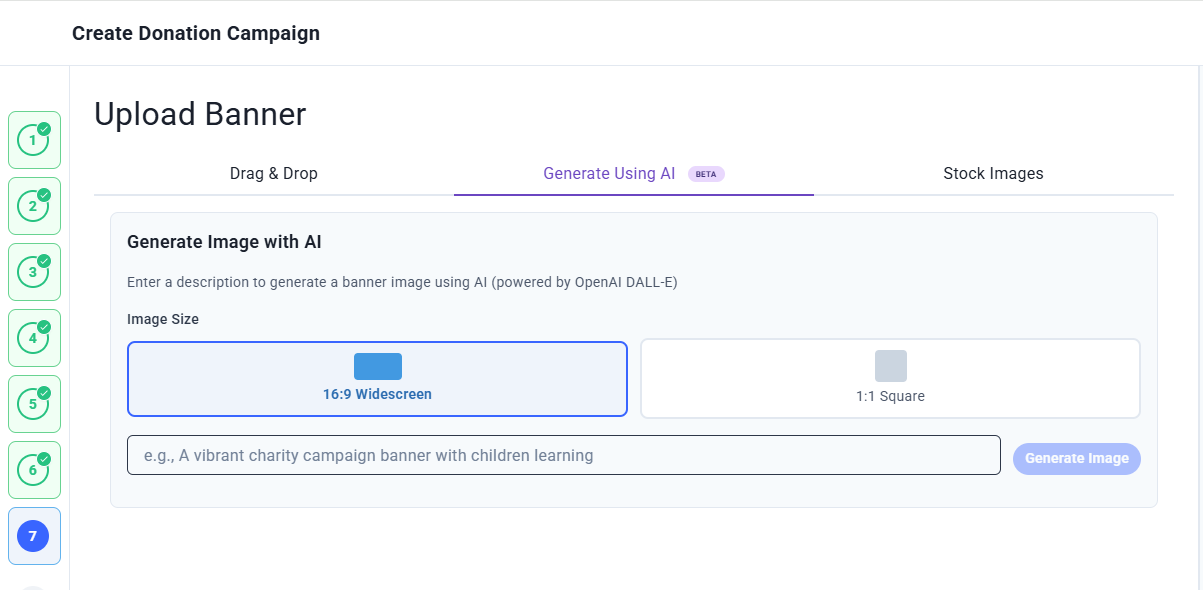
- Generate Using AI — Create a custom banner by describing the image you want.
- Stock Images — Choose from a library of high quality images, organized by category such as Community, Education, Healthcare, Environment, and Food Relief.
Whichever option you choose, the live preview on the right updates instantly so you can see how your banner looks on both mobile and desktop.
AI Banner Image Generator
- On the banner step, select Generate Using AI.
- Describe the image you want. The AI creates a custom banner based on your description.
- Accept the image, or try a different prompt until you get a result you are happy with.
This is a great option if you do not have a professional photo available and want something visually relevant to your cause.
For events, once your banner is added you can drag it to reposition it and use the slider to zoom. The banner is cropped to a 3:1 ratio. Click Crop & Apply to save it.
💡 Best Practices for AI Generated Banners
- Use clear and specific prompts.
- Mention the cause or occasion, such as education, healthcare, a membership program, or a gala.
- Include the mood or style you want such as hopeful, professional, warm, or elegant.
- Use descriptive keywords to guide the visual output.
Donation campaign prompt: “Professional charity banner for an education support campaign with a hopeful atmosphere featuring children in a classroom setting”
Membership prompt: “Warm, welcoming banner for a community membership program showing volunteers working together at a food bank”
Event prompt: “Elegant banner for an evening charity gala in a ballroom with soft lighting, round dinner tables, and a small stage”
Building custom forms
Create reusable form templates with a drag-and-drop builder, configure field validation and requirements, preview your forms, and attach them to any membership type.
Custom Forms let you build reusable form templates that you can attach to your membership types and events. Instead of recreating the same questions each time, you build a form once and reuse it wherever you need to collect extra information from members or attendees.
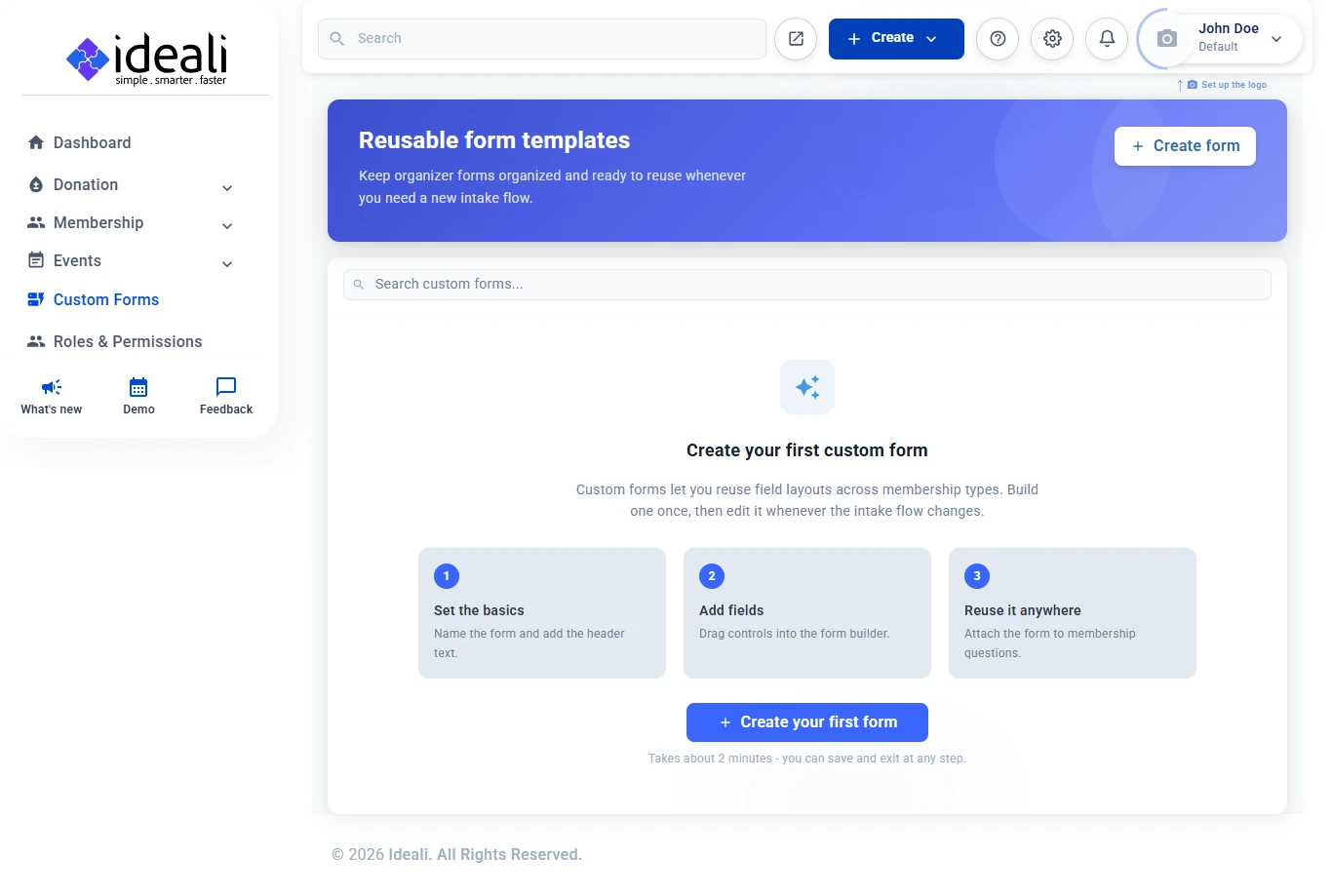
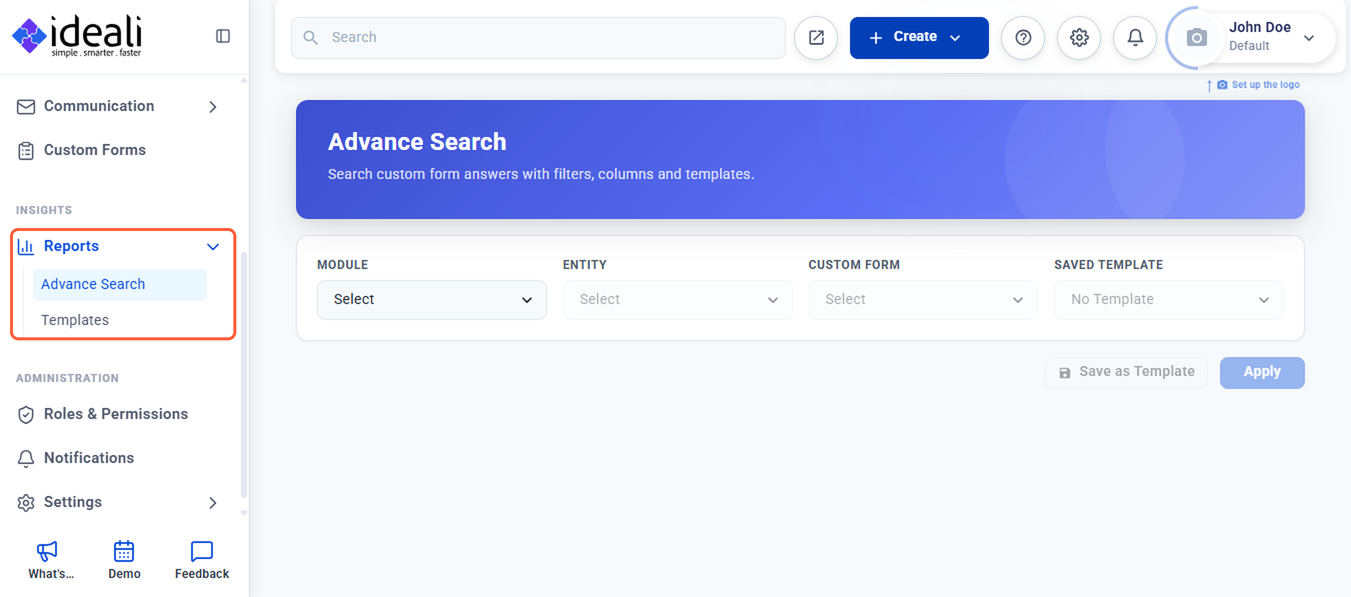
To access it, click Custom Forms in the left sidebar. The page lists all your saved form templates.
Creating a Custom Form
Click + Create form in the top right corner to open the form builder. If you haven’t created any forms yet, you can also click Create your first form in the middle of the page.
The builder has three parts: the Field palette on the left, the Form canvas in the center, and the Field inspector on the right.
Start by filling in the basics at the top. Fields marked with a red asterisk (*) are required.
- Name — An internal name for the form, for example “Volunteer Intake.” You use it to find the form when attaching it to a membership type or event.
- Header Text — The heading shown above the form.
- Description — Optional context shown with the form.
- Layout Columns — How many columns the fields are arranged in, for example 2 columns.
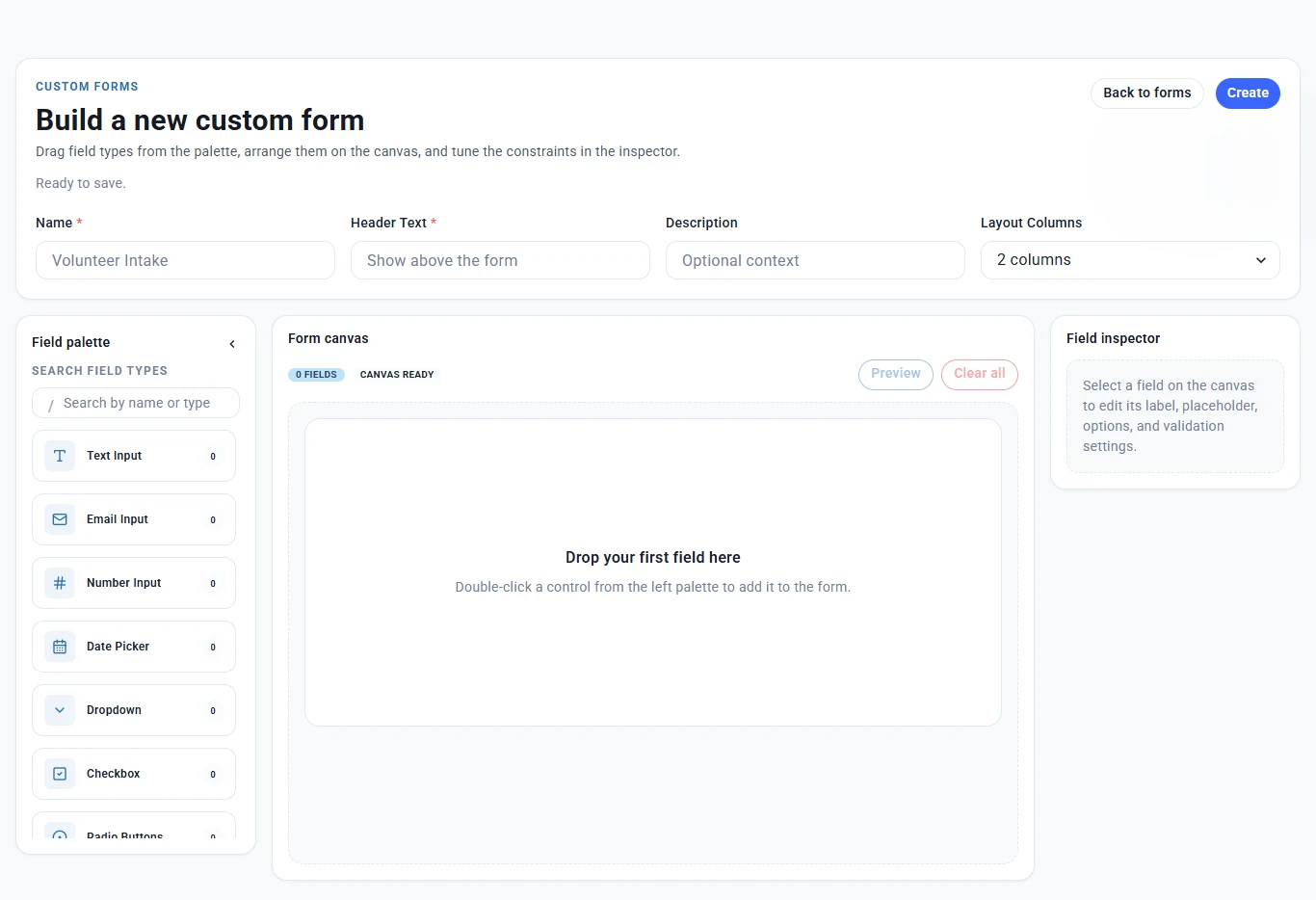
Field Palette
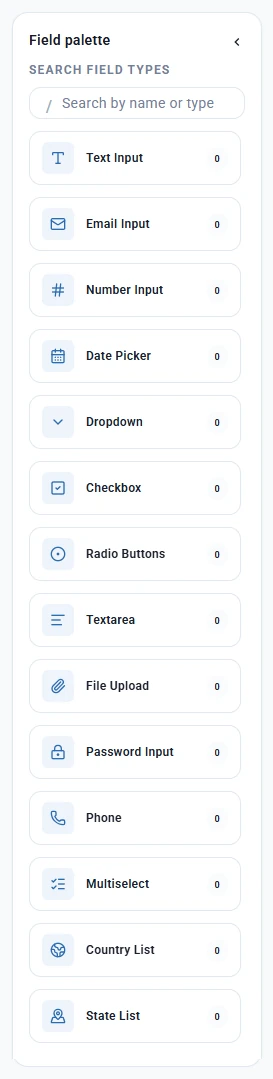
The Field palette on the left lists every field type you can add to your form:
- Text Input
- Email Input
- Number Input
- Date Picker
- Dropdown
- Checkbox
- Radio Buttons
- Textarea
- File Upload
- Password Input
- Phone
- Multiselect
- Country List
- State List
To add a field, double-click it in the palette or drag it onto the canvas. Use the Search by name or type box to find a field quickly. The number next to each field type shows how many of that field are on your form. Click the arrow at the top of the palette to collapse it and give the canvas more room.
Form Canvas
The Form canvas in the center shows the fields on your form. The badge at the top shows how many fields you have added. From here you can:
- Click a field to select it and edit its settings in the Field inspector.
- Drag fields to reorder them.
- Remove a field you no longer need.
- Click Preview to see how the form will look.
- Click Clear all to remove every field from the canvas.
Field Inspector
Select a field on the canvas and the Field inspector on the right shows its settings, including:
- Label — The name displayed for the field.
- Placeholder — Text shown inside the field before a value is entered.
- Options — The choices for Dropdown, Radio Buttons, Checkbox and Multiselect fields.
- Tooltip — Optional helper text for the field.
- Default Value — A pre-filled value for the field.
- Required — Whether the field must be filled in.
- Required Message — The message shown if a required field is left empty.
- Min Length / Max Length — Character limits for text-based fields.
Previewing and Saving a Form
Click Preview at any point to see exactly how the form will appear, including all fields, labels and layout.
Once you have added at least one field and filled in the required basics, click Create in the top right corner to save the form. Click Back to forms to return to the list without saving.
Using Your Form
Once saved, your form is ready to attach:
- Memberships — Select it in the Questions step when creating a membership type.
- Events — Select it in the Questions step of the event wizard.
Managing Custom Forms
The Custom Forms page lists all your saved form templates. Use the Search custom forms box to find a form by name.
Click the three dot menu under Actions next to any form to access the following options:
- Edit — Return to the form builder to update fields or settings.
- View — Preview the form.
- Duplicate — Create a copy of the form to use as a starting point for a new one.
- Delete — Permanently remove the form.
When editing a form, click Save Changes to apply your updates, or Back to forms to return to the list without saving.
Tip: Give each form a clear name, such as “Volunteer Intake” or “Gala Dietary Needs,” so it is easy to pick the right one when attaching it to a membership type or event.
Search custom form answers with Advance Search
Search the answers people submitted on your custom forms. Choose which answers show as columns, filter by any field, and export the results to Excel, CSV or JSON.
Find the answers people submitted on your custom forms, choose which answers show as columns, filter the results and export them.
Advance Search sits under Insights → Reports → Advance Search. Pick a form, tick the questions you want to see, add filters if you need them, and you’ll have a report in a few clicks. The numbers in each screenshot match the numbers in the text.
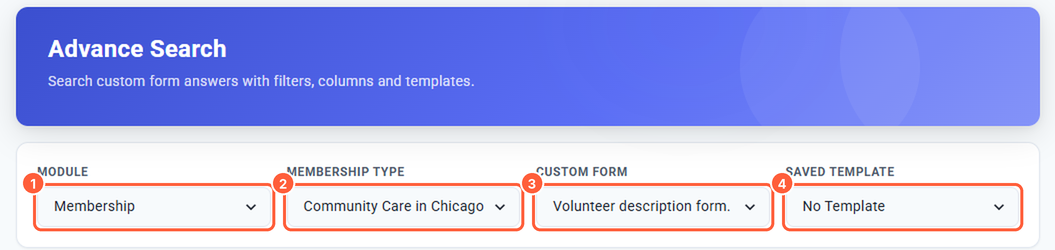
Step 1: Choose the form to search
- Select a Module (1).
- Select the item from the second dropdown (2). Its label changes to match the module. For Membership, it’s Membership Type, such as Community Care in Chicago.
- Select the Custom Form (3), such as Volunteer description form.
- Leave Saved Template (4) as No Template to start a new search.
The second dropdown and Custom Form stay greyed out until you pick a Module.
Step 2: Choose your report columns
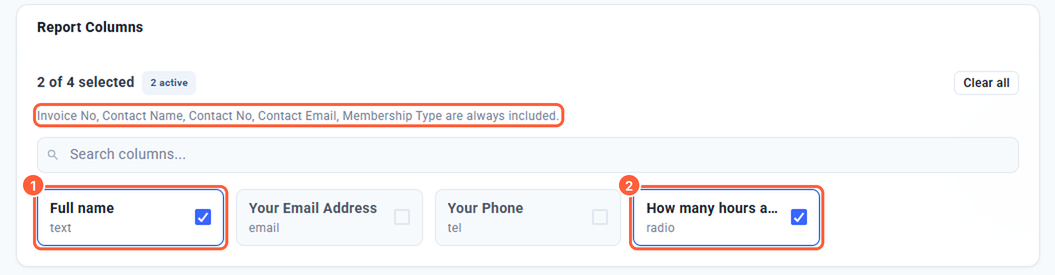
Each question on the form appears as a card showing its label and answer type, such as text, email, tel or radio.
- Tick the fields you want as columns, such as Full name (1) and How many hours are you willing to work in a week? (2).
- Use Search columns… to find a field on longer forms.
- Click Clear all to untick everything.
Invoice No, Contact Name, Contact No, Contact Email and the module’s type column (such as Membership Type) are always included.
Step 3: Filter your results (optional)
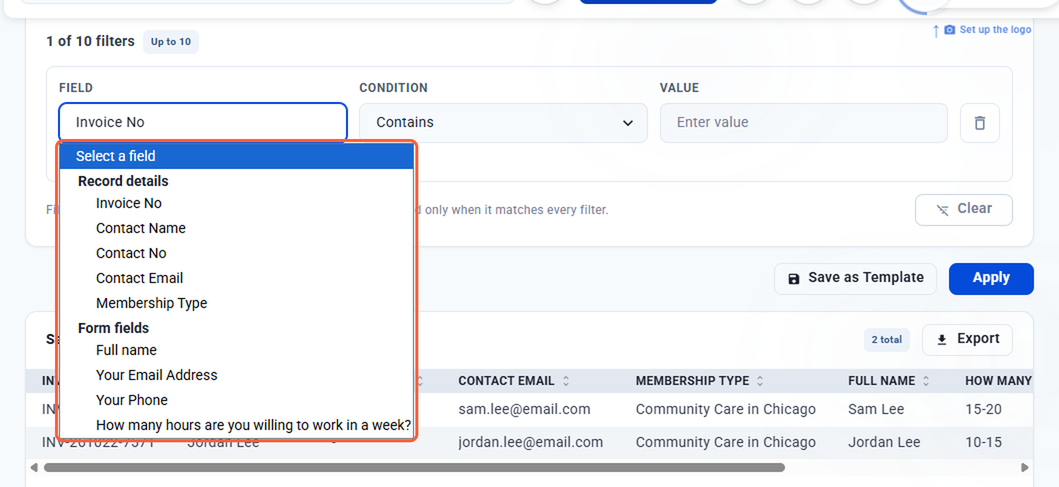
Click + Add filter, then choose a Field:
- Record details — Details of the record, such as Invoice No or Contact Email.
- Form fields — The questions on your form.
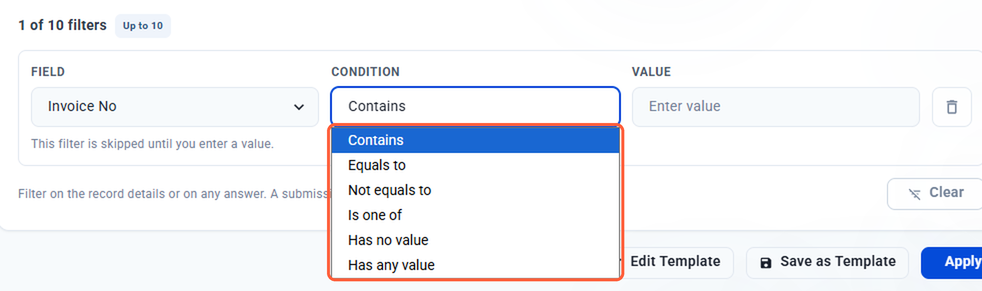
Next, choose a Condition:
- Contains — The answer includes your text.
- Equals to — The answer matches your text exactly.
- Not equals to — The answer doesn’t match your text.
- Is one of — The answer matches any of your values. Separate values with commas, such as 10-15, 15-20.
- Has no value — The field was left blank.
- Has any value — The field was answered.
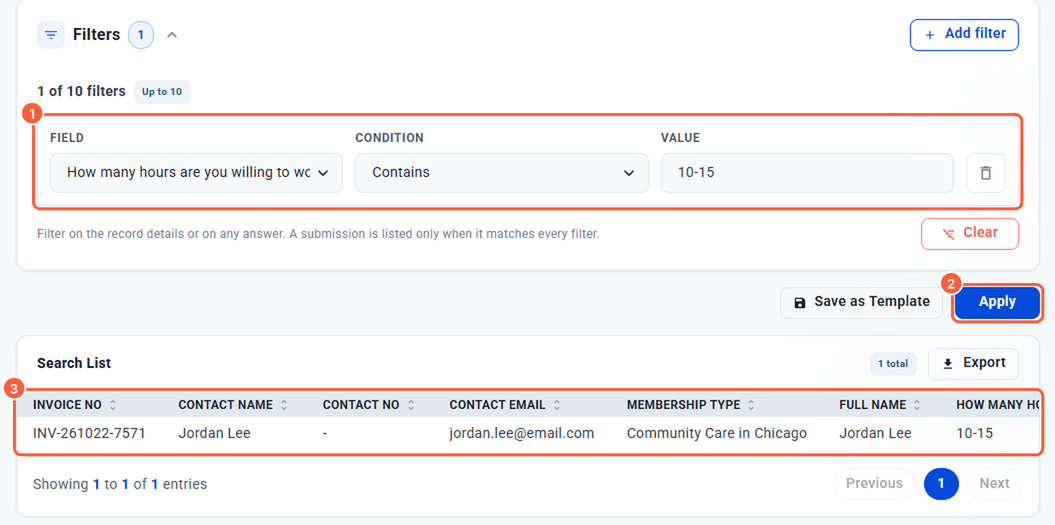
Then enter a Value, such as 10-15. You can add up to 10 filters.
- A submission is listed only when it matches every filter.
- A filter is skipped until you enter a value.
- Click the bin icon to remove one filter, or Clear to remove them all.
Step 4: View your results
Check your filter (1) and click Apply (2). Matching submissions show in the Search List (3), with:
- A total count of matching submissions.
- Sortable columns. Click a column heading to sort.
- Page controls for long lists.
Scroll sideways to see all columns. With no filters, every submission of the form is listed.
Step 5: Export your results
Click Export (1) above the Search List and choose a format (2): Excel, CSV or JSON.

Good to know
- No results? — Check the spelling of your filter value, or try Contains instead of Equals to.
- Apply is greyed out? — Select a Custom Form first.
- Running the same search often? — Save it as a template so you can run it again in one click. Learn how to use templates.
Related articles
Save and reuse searches with Templates
Save your Advance Search columns and filters as a template so you can run the same report again in one click. You can also edit, rename or delete your saved templates.
Save your search setup as a template so you can run the same report again in one click.
A template saves your chosen columns and filters. Your saved templates are listed under Insights → Reports → Templates, where you can edit or delete them. The numbers in each screenshot match the numbers in the text.
Save a template
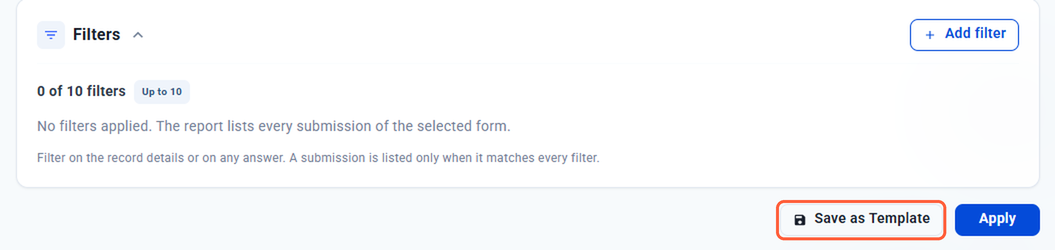
- Set up your search in Advance Search: module, form, columns and filters. Learn how to run a search.
- Click Save as Template.
- Enter a Template Name, such as Name and No. of hours volunteering.
- Save.
Run a saved template
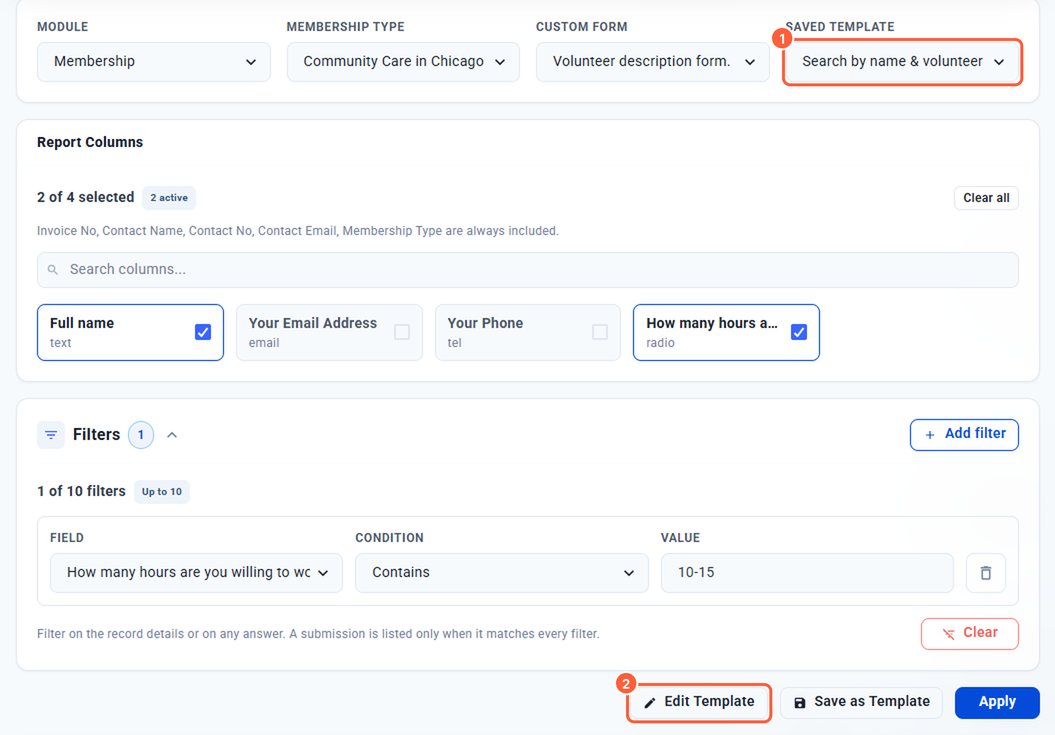
- Go to Reports → Advance Search.
- Select your module, item and custom form.
- Choose your template from Saved Template (1). Its columns and filters load automatically.
- Click Apply.
Once a template is loaded, an Edit Template button (2) appears next to Save as Template.
Edit a template
You can open a template for editing in two ways:
- From Advance Search — Load the template, then click Edit Template.
- From Templates — Click ⋮ next to the template, then Edit.
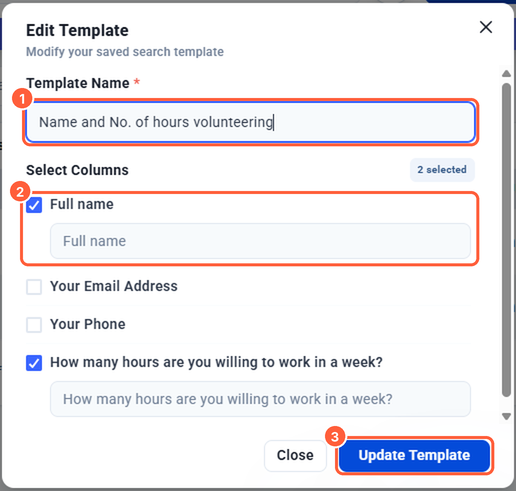
In the Edit Template window:
- Change the Template Name (1) if needed.
- Under Select Columns (2), tick or untick fields. To rename a column, type a new heading in the box below a ticked field, such as Weekly hours for How many hours are you willing to work in a week?
- Click Update Template (3).
To change a template’s filters, load it in Advance Search, update the filters, then click Edit Template and Update Template.
Manage your templates
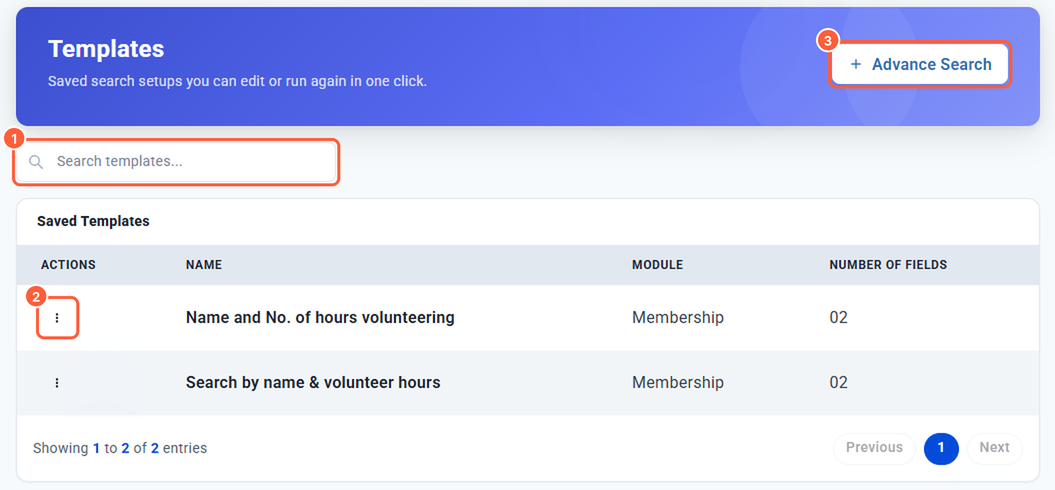
Go to Reports → Templates to see every saved template with its Name, Module and Number of fields.
- Search templates… (1) — Find a template by name.
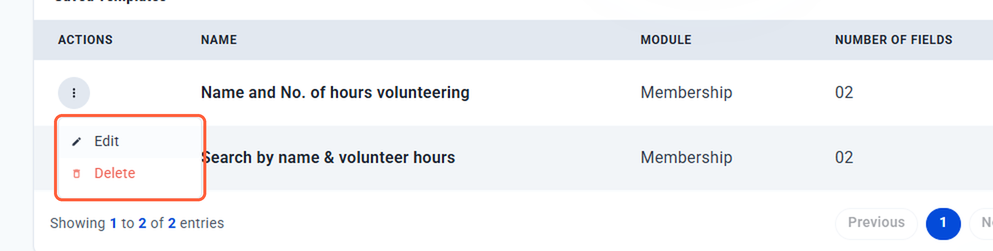
- ⋮ (2) — Edit or delete a template.
- + Advance Search (3) — Start a new search.
Delete a template
- Go to Reports → Templates.
- Click ⋮ next to the template, then Delete.
- Click Delete to confirm.
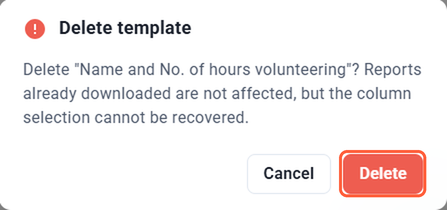
Reports you’ve already downloaded aren’t affected, but a deleted template can’t be recovered.
Good to know
- Number of fields — Counts the form fields you ticked as columns. The always-included columns aren’t counted.
- Clear names help — Name templates after what they show, such as Volunteers by weekly hours, so your team can find them quickly.